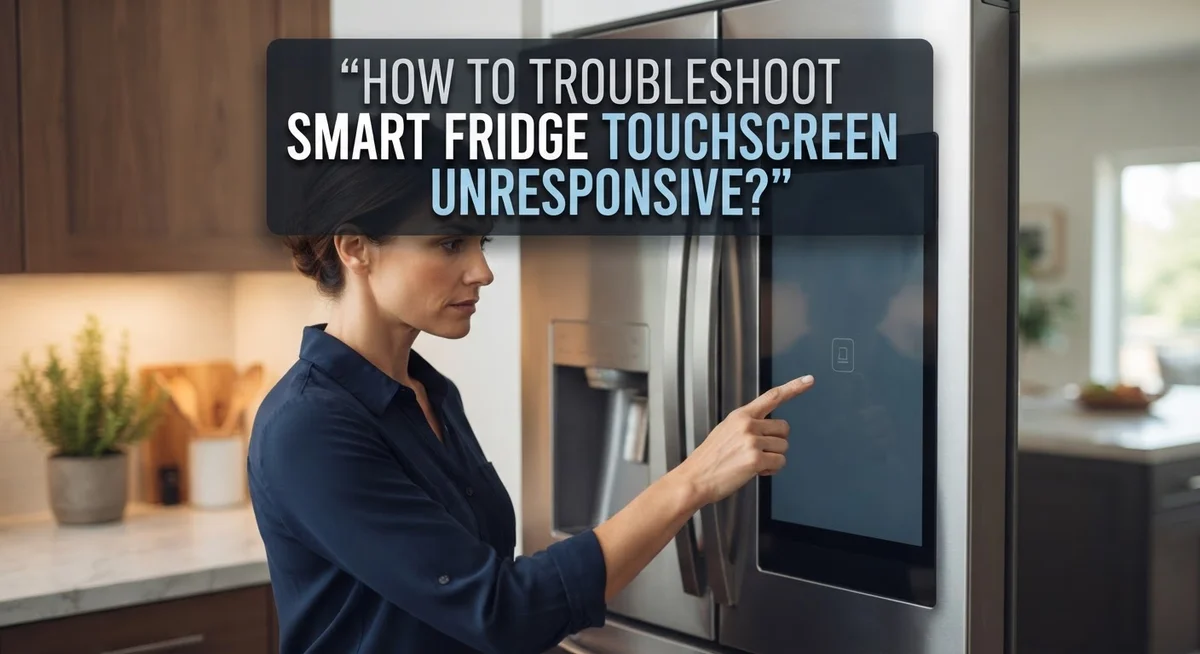
How To Troubleshoot Smart Fridge Touchscreen Unresponsive?
A smart fridge touchscreen that stops responding is genuinely frustrating, especially when you rely on it daily for family schedules, recipes, and grocery lists.
The good news? Most unresponsive touchscreen issues are caused by simple software glitches, not hardware failures. That means you can often fix the problem yourself in just a few minutes.
This guide walks you through every step of the troubleshooting process. You will learn how to power cycle your fridge correctly, use the hardware reset switch, and even control your screen using a USB mouse as a temporary workaround.
Knowing the right steps in the right order makes a big difference. Many people give up too early or skip a step that would have solved the issue completely.
By the end, you will have a clear action plan to get your smart fridge touchscreen working again quickly and confidently.
In a Nutshell
An unresponsive smart fridge touchscreen is usually caused by a software glitch, not a broken screen. A simple reset often fixes the problem fast.
Power cycling is the first step. Unplug the fridge, wait a full 5 minutes, then plug it back in. Cutting the wait short makes this step less effective.
A hard reset using the red toggle switch inside the right fridge door compartment is one of the most reliable fixes. Toggle it off for 10 seconds, then turn it back on.
Some models have a button beneath the touchscreen that can trigger a reset when held down for a few seconds.
If the screen still will not respond to touch, you can connect a USB mouse to the switch compartment port to control the screen temporarily.
A completely black screen does not always mean total failure. Check for display issues before assuming the hardware is damaged.
Why Does a Smart Fridge Touchscreen Become Unresponsive?
Your smart fridge touchscreen becomes unresponsive for several key reasons. Understanding what causes the problem helps you fix it faster.
Software glitches are the most common culprit. Like any computer or tablet, your fridge’s screen runs software that occasionally freezes or crashes. When this happens, the touchscreen stops responding to your fingers even though the fridge itself works fine. A simple restart usually solves this issue.
Temporary system errors also trigger unresponsiveness. Your fridge’s operating system may encounter a glitch during normal use. The screen locks up because the software needs to reset and reload. This is why power cycling works so well for most people.
Connection problems between the touchscreen and the main control board can cause issues. If the internal connection loosens or experiences a temporary fault, the screen stops communicating with the fridge’s brain. A hard reset often restores this connection.
Dust and debris sometimes interfere with touchscreen sensors. Particles accumulating around the screen edges can block touch signals from registering properly. Cleaning the screen gently may help, though this is less common than software issues.
Temperature fluctuations inside the fridge compartment rarely affect the display, but extreme cold or heat near the screen area can cause temporary unresponsiveness. The electronics need time to stabilize.
Firmware bugs occasionally cause display freezes on specific models. Manufacturers sometimes release updates that accidentally create problems. A reset typically bypasses these bugs temporarily.
The good news? Most of these causes are fixable without professional help. You don’t need to replace your screen or call a technician right away. Start with basic troubleshooting steps, and you’ll likely restore full touchscreen functionality within minutes.
Before You Begin: Safety Checks and What to Look For
Before you start troubleshooting, take a few minutes to check your safety and gather information about what’s happening. This prevents wasted time and keeps you safe.
First, check the power supply. Make sure the refrigerator is plugged in securely. Look at the outlet to confirm it has power. If you have other appliances plugged into the same outlet, test whether they work. A tripped circuit breaker or faulty outlet causes many touchscreen problems that aren’t actually touchscreen problems.
Next, inspect the screen itself. Look for visible damage, cracks, or water droplets on the display. Check if the screen is completely black or if you see any faint images or lights. A black screen behaves differently than a frozen screen, so note what you observe. Take a moment to see if any buttons light up or if you hear any sounds when you press the screen.
Look for obvious obstructions. Examine the touchscreen area for dust, condensation, or food residue. Wipe the screen gently with a dry, soft cloth. Sometimes dirt interferes with touch sensors without causing visible damage.
Check the fridge’s environment. Note the room temperature and humidity levels. Extreme conditions rarely cause problems, but very cold kitchens or humid basements can affect electronics.
Gather model information. Find your refrigerator’s model number. This helps you identify which reset buttons or ports your specific model has. You’ll usually find this on a sticker inside the fridge or on the back.
Document what you see. Write down exactly what the screen does or doesn’t do. This information helps you follow the right troubleshooting steps next.
How To Power Cycle Your Smart Fridge to Fix the Touchscreen
A power cycle is your first line of defense when the touchscreen stops responding. This simple process forces your smart fridge to restart completely, which clears temporary software glitches that freeze the display.
Start by unplugging the refrigerator from the wall outlet. This cuts all power to the unit. Wait a full 5 minutes before reconnecting. Many people make the mistake of waiting only 30 seconds or a minute. The longer wait time allows the fridge’s internal systems to fully discharge and reset properly.
After 5 minutes have passed, plug the refrigerator back into the outlet. The fridge will power on and go through its startup sequence. You should hear it humming and see lights turning on inside. Give it another 2 to 3 minutes to fully boot up before testing the touchscreen.
Test the touchscreen by tapping different areas of the display. Try pressing menu buttons or the home icon to see if it responds. If the screen lights up but still won’t respond to touch, you may need to try the hard reset method instead.
The power cycle works because it clears the fridge’s temporary memory and resets all active processes. Think of it like restarting a frozen computer. Most software glitches disappear after this process completes.
If power cycling doesn’t work, the red toggle switch method or button reset may be your next step. However, always start with the power cycle first. It takes minimal effort and solves the problem in many cases without requiring you to locate specific hardware buttons inside your fridge.
How To Perform a Hard Reset Using the Red Toggle Switch
A hard reset using the red toggle switch is one of the most effective ways to restore your smart fridge’s touchscreen. This method works because it forces the control board to restart completely, clearing any stuck processes or errors that prevent the screen from responding.
Start by locating the red toggle switch. You’ll find it inside the right door compartment of your fridge, usually near the water dispenser or ice maker area. Look carefully at the compartment’s interior wall. The switch is small but clearly marked in red, making it easy to spot once you know where to search.
Turn the switch to the off position. Push or flip the toggle downward, depending on your model’s design. Hold it in the off position for at least 10 seconds. This duration is important because it gives the system enough time to completely power down and clear its memory.
Wait for the full 10 seconds to pass. Don’t rush this step. Counting slowly or using a timer helps ensure you wait long enough. A shorter duration might not fully reset the system.
Toggle the switch back to the on position. Flip or push the switch upward to restart the fridge’s control systems. You’ll likely hear the compressor kick back on, which confirms power has returned to the unit.
Test the touchscreen immediately. Tap the display to see if it responds to your touch. Try opening the menu or pressing the home button. The screen should react within a few seconds.
If the touchscreen remains unresponsive after this hard reset, your issue may require additional troubleshooting steps or professional service.
How To Use the Button Reset Beneath the Touchscreen
The button reset beneath your touchscreen offers a quick fix when other methods haven’t worked. This button sits directly under the display panel and controls specific functions on your smart fridge.
Start by locating the button. Look directly underneath your touchscreen display. On most models, you’ll find a small button labeled as the ice crusher or cuber crush button. It may be recessed slightly into the panel, so you might need to feel around gently to find it.
Prepare to perform the reset. Make sure your fridge is powered on and the touchscreen is visible. You don’t need to unplug the unit for this method. Have your finger ready to press and hold the button firmly.
Hold the button down. Press and keep holding the button beneath the touchscreen for a few seconds. Count to approximately five or six seconds while maintaining steady pressure. You should feel the button click under your finger.
Release and observe. Let go of the button and watch the screen carefully. The display may flicker, go black briefly, or show a loading screen. This is normal behavior during the reset process.
Wait for the system to restart. Give your fridge about 30 seconds to complete the reset cycle. The touchscreen should return to its home screen or main menu display.
Test the responsiveness. Tap different areas of the screen to confirm it’s working again. Try opening the menu or pressing various buttons to ensure full functionality has returned.
If the button reset doesn’t restore your touchscreen, consider trying the USB mouse workaround or contacting support for additional assistance.
How To Control Your Smart Fridge Screen Using a USB Mouse
If your smart fridge touchscreen won’t respond, you can still control it using a USB mouse. This workaround lets you navigate the screen and access functions without relying on touch input.
First, locate the USB port on your refrigerator. Most smart fridges have a USB port inside the switch compartment or near the control panel. Check your fridge’s manual to find the exact location if you’re unsure where it is.
Next, gather a standard USB mouse. Any basic computer mouse will work for this purpose. You don’t need anything fancy or expensive. A wired mouse is often easier to use than a wireless one in this situation.
Connect the mouse to the USB port. Insert the USB connector firmly into the port until it clicks into place. The fridge’s system should recognize the mouse automatically within a few seconds.
Test the mouse functionality. Move the mouse around to see if a cursor appears on the touchscreen. Click the left button to select items and navigate menus. Right click if you need to access additional options or go back to previous screens.
Use the mouse to access settings and features. You can scroll through menus, select apps, and adjust refrigerator settings just as you would with a touchscreen. The mouse gives you full control over the display.
This method works even when the touchscreen is completely unresponsive. It’s a practical solution while you troubleshoot the underlying touch sensitivity issue. Keep the mouse connected until your touchscreen starts working again. This ensures you maintain access to all smart fridge functions and controls.
Common Mistakes to Avoid When Troubleshooting the Touchscreen
Many people make mistakes when troubleshooting their smart fridge touchscreen. These errors can waste your time and even damage your appliance. Understanding what to avoid helps you fix the problem faster.
The biggest mistake is rushing the power cycle. You must unplug your fridge for the full 5 minutes. Some people only wait 1 or 2 minutes, then plug it back in. This doesn’t give the system enough time to completely shut down and reset. The capacitors inside need those full 5 minutes to drain completely.
Another common error is not finding the correct reset button or switch. Your fridge has specific hardware controls in particular locations. Many users search the wrong areas of their refrigerator. They waste time looking on the front or back when the reset switch sits inside the right door compartment. Take time to locate the exact button or switch before you start.
Don’t assume your touchscreen is permanently broken. A black screen often means a software glitch, not hardware failure. People frequently panic and think they need expensive repairs. In reality, a simple reset usually solves the problem.
Avoid using excessive force on the touchscreen itself. Pressing hard or tapping repeatedly can cause real damage. Be gentle when testing if the screen responds after a reset.
Never skip the waiting periods between steps. Whether you’re waiting 5 minutes during a power cycle or 10 seconds during a toggle switch reset, these timeframes matter. Your fridge’s system needs this time to process changes properly.
Finally, don’t ignore the USB mouse option. If your touchscreen stays unresponsive after resets, a USB mouse gives you another way to control your fridge without buying replacement parts.
When Basic Resets Do Not Work: Next Steps to Consider
When your smart fridge touchscreen stays unresponsive after basic resets, you need to explore deeper solutions. The issue might stem from a software problem that requires more targeted approaches.
Start by checking your fridge’s power supply. Ensure the refrigerator has stable electricity flowing to it. Look at the outlet where your fridge plugs in. Try plugging a different appliance into that same outlet to confirm the outlet works properly. If the outlet is faulty, have an electrician inspect it.
Next, examine the touchscreen itself for physical damage. Look closely at the display surface for cracks, water damage, or debris. Gently wipe the screen with a soft, dry cloth. Sometimes dust or moisture prevents the screen from responding to touch.
Check if your fridge’s software needs updating. Many smart fridges have built in software that controls the touchscreen. Visit the settings menu using your USB mouse if needed. Look for any available system updates and install them if found.
Consider the possibility that your fridge’s control board needs professional attention. The board controls all touchscreen functions. If it fails, the screen won’t respond no matter what you try. This requires professional repair.
Test your fridge’s internet connection too. Some smart fridges rely on WiFi to function properly. A weak or disconnected network can cause the touchscreen to freeze or become unresponsive. Restart your WiFi router and reconnect your fridge.
If none of these steps work, contact a certified technician. They have diagnostic tools to identify internal hardware failures. They can also perform factory resets that go beyond what you can do at home. Don’t attempt to disassemble your fridge yourself, as this can cause safety hazards and void your warranty.
Final Thoughts
A smart fridge touchscreen that stops responding can feel frustrating, but most issues are fixable without calling a technician right away.
Start with the simplest solutions first. A basic power cycle fixes more problems than people expect. Unplugging your fridge for a full 5 minutes clears temporary software glitches effectively.
If the power cycle doesn’t work, move to the red toggle switch reset inside the right fridge door compartment. This hardware-level reset is often the most effective step for stubborn touchscreen issues.
Don’t overlook the button beneath the touchscreen either. Holding it down for a few seconds can trigger a quick system restart without any extra tools.
The USB mouse workaround is a smart backup option. Even when your touchscreen is completely unresponsive, connecting a standard USB mouse lets you keep using your fridge’s features while you troubleshoot.
Always give each reset method enough time to work. Rushing between steps is one of the most common reasons troubleshooting fails.
If basic resets don’t resolve the issue, check your power supply, look for physical screen damage, and verify your software is up to date. These deeper checks often reveal the real cause of ongoing touchscreen problems.
When everything else fails, a certified technician can assess your fridge’s control board properly. Attempting to repair internal hardware yourself can void your warranty.
The key takeaway is patience and a step-by-step approach. Most smart fridge touchscreen problems come from software glitches, not permanent hardware failure.
Work through each fix methodically, and you’ll likely restore your touchscreen without needing expensive repairs.
Frequently Asked Questions
Why did my smart fridge touchscreen suddenly stop responding?
A software glitch is the most common cause. Your fridge’s system may freeze temporarily due to minor bugs or memory issues. Power cycling usually fixes this problem quickly. Sometimes a black screen appears, which looks like a complete failure but isn’t permanent damage.
How long should I wait during a power cycle?
You must unplug your fridge for the full 5 minutes. This gives the system enough time to completely shut down and reset. Shorter durations won’t work effectively. After 5 minutes, plug it back in and wait for the screen to turn on.
What if the power cycle doesn’t work?
Try the hard reset using the red toggle switch. This switch is located inside the right fridge door compartment. Turn it off for 10 seconds, then turn it back on. This method resets the hardware directly and is very effective.
Can I use my fridge if the touchscreen won’t respond?
Yes. You can connect a USB mouse to the port in your switch compartment. This lets you control the screen without using the touchscreen itself. Your fridge continues working normally for cooling and food storage.
When should I call a professional technician?
Contact a certified technician if the touchscreen stays unresponsive after trying power cycles and hard resets. Also call if you see physical damage to the screen or if your fridge isn’t cooling properly. A professional can check your control board and determine if hardware replacement is needed.

Hi, I’m Yuri — I’m a tech enthusiast who loves breaking down complex gadgets, software, and tools into simple, honest reviews and guides. My goal? To help you spend less time researching and more time enjoying the right tech.