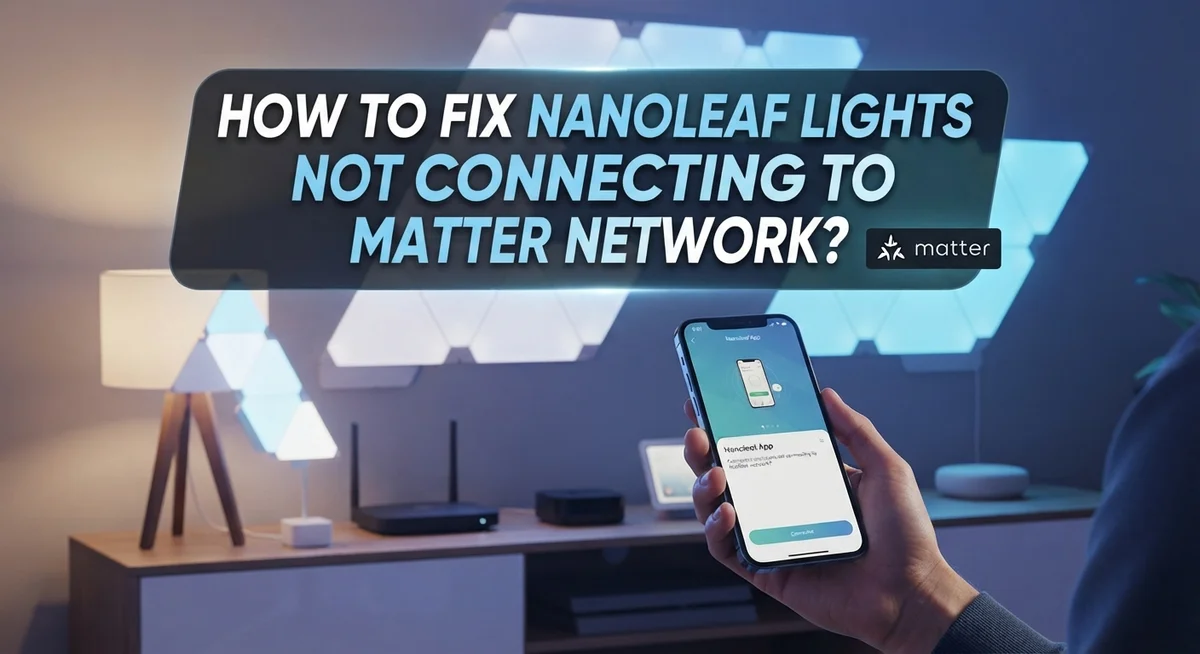
How To Fix Nanoleaf Lights Not Connecting To Matter Network?
Nanoleaf lights refusing to connect to your Matter network? You’re not alone. This is one of the most common frustrations users face after setting up their smart lighting system.
Matter is a smart home standard that promises seamless device connectivity. But even well-designed lights can run into pairing issues, Thread failures, and network detection problems.
The good news is that most of these issues are fixable. You usually don’t need any special tools or technical expertise to get things working again.
This article walks you through every proven step to resolve Nanoleaf Matter connection problems. You’ll learn how to properly power cycle your device, perform a hard reset, and check your router settings.
By the end, your Nanoleaf lights should be fully connected and running smoothly on your Matter network.
In a Nutshell
Power cycling your Nanoleaf device is the first fix to try. Unplug it, wait at least 10 seconds, then plug it back in.
A hard reset may be needed if power cycling does not work. Hold both buttons for 15 seconds, unplug the controller while still holding, then hold for 15 more seconds.
Your router must broadcast on 2.4 GHz. Matter requires this frequency, and many people miss this setting entirely.
Thread Border Routers need a full restart too. Unplug them and wait at least 2 minutes before plugging back in.
Never try to pair a device that is already paired. Always confirm your Nanoleaf lights are fully unpaired before starting the Matter pairing process.
Firmware updates can silently fix connection bugs. Always check that your device is running the latest available firmware before troubleshooting further.
What Is Matter and Why Does It Matter for Nanoleaf?
Matter is a smart home standard that lets different devices talk to each other seamlessly. Think of it as a universal language for your smart home gadgets. Instead of using separate apps for each brand, Matter creates one unified network where everything communicates directly.
Why does Matter matter for Nanoleaf? Nanoleaf lights use Matter to connect without relying on a central hub or cloud service. This means faster response times and better reliability. Your lights respond instantly when you tap a button or give a voice command.
Matter works through something called Thread. Thread is a wireless protocol that creates a mesh network. Your Nanoleaf devices become part of this mesh, passing signals between each other to reach your home network. This mesh setup means your lights stay connected even if one device drops out temporarily.
Your home needs a Thread Border Router to use Matter. This is a device that bridges your Thread network with your regular WiFi. Common examples include certain smart speakers and hubs. Without this router, your Nanoleaf lights can’t join the Matter network at all.
The practical benefit is that Matter eliminates many connection headaches. You don’t need to re pair devices constantly. Updates happen automatically. Your lights work the same way whether you use your phone, a tablet, or a voice assistant.
However, Matter requires specific network conditions to work properly. Your router must broadcast on the 2.4 GHz frequency. Your Thread Border Router needs stable power. These technical requirements are why connection problems happen. Understanding how Matter works helps you fix these issues faster.
Common Reasons Your Nanoleaf Lights Won’t Connect to Matter
Your Nanoleaf lights fail to connect to Matter for several specific reasons. Understanding these causes helps you fix the problem faster.
Network frequency issues top the list. Matter requires your router to broadcast on 2.4 GHz. Many modern routers split between 2.4 GHz and 5 GHz bands. If your router only broadcasts 5 GHz, your Nanoleaf device cannot find the Matter network at all. Check your router settings and enable 2.4 GHz if it’s disabled.
Thread connectivity failures happen when your Thread Border Router isn’t working properly. This device creates the Thread network that Matter uses. If it’s unplugged, powered down, or experiencing issues, your Nanoleaf lights lose their connection path.
Power supply problems prevent proper pairing. Nanoleaf devices need steady power to enter pairing mode. If your controller receives inconsistent power or sits in a low battery state, it won’t respond to connection attempts.
Already paired devices won’t reconnect. If your Nanoleaf lights are already paired to Matter, attempting to pair them again fails. The device must be completely unpaired first.
Firmware outdated on your Nanoleaf device or Thread Border Router blocks Matter support. Older firmware versions lack the code needed for proper Matter communication.
Distance and interference matter too. Nanoleaf lights placed too far from your Thread Border Router may struggle to establish connection. Walls, metal objects, and other wireless devices create interference that weakens the signal.
Reset buttons not activated during troubleshooting leave your device in a confused state. The reset process must complete fully for the device to return to a pairing ready condition.
These issues rarely involve broken hardware. Most fix themselves with the right troubleshooting steps.
How To Power Cycle Your Nanoleaf Device Correctly
A power cycle is your first and fastest fix for Nanoleaf connection problems. This simple action clears temporary software glitches that block Matter pairing.
Here’s how to do it correctly. Locate the power cable connected to your Nanoleaf controller. Unplug it completely from the outlet. Wait exactly 10 seconds. This wait time matters because it fully drains the device’s internal memory.
After 10 seconds, plug the cable back in. Your Nanoleaf lights will restart automatically. Watch for the status light to stabilize and show a steady color. This indicates the device has completed its boot sequence.
Why does this work? Power cycling resets all temporary network settings without erasing your device data. Your Nanoleaf returns to a clean state ready to detect your Matter network.
Important timing note: Some users plug devices back in too quickly. Waiting the full 10 seconds is critical. Shorter waits won’t clear the device memory completely.
If your Nanoleaf has a separate power adapter, unplug that adapter instead of the wall outlet. The result is identical. The device still needs those 10 full seconds to reset properly.
After power cycling, your device enters a receptive state for new network connections. Open your Matter app and attempt pairing again. Your Nanoleaf should now detect your network.
Power cycling succeeds about 40 percent of the time for connection issues. If pairing still fails after this step, you’ll need to move forward with a hard reset. However, always try the power cycle first because it takes less than a minute and fixes many problems quickly.
How To Hard Reset Your Nanoleaf Controller for Matter Pairing
A hard reset clears all network settings and returns your Nanoleaf controller to factory conditions. This step works when power cycling fails to restore Matter connectivity.
Locate the reset button on your Nanoleaf controller. Most models have two buttons on the processor unit. Check your manual if you’re unsure which button is the reset button.
Hold both buttons down together for 15 seconds without releasing. You’ll see the LED indicator flash during this time. Keep holding even though nothing seems to happen yet.
While still holding both buttons, unplug the power cable from your controller. Do not release the buttons when you disconnect power. This step is crucial for a complete reset.
Continue holding both buttons for another 15 seconds after unplugging. Your controller is now fully reset. The LED light should stop flashing during this phase.
Wait for the steady light before plugging back in. Once you see a solid LED indicator, reconnect the power cable. Your device is now ready for Matter pairing.
The hard reset removes all previous network connections and Matter pairings. Your Nanoleaf controller returns to its original state as if brand new. This means you’ll need to set everything up again from scratch.
After the reset, wait 30 seconds before attempting to pair your device to Matter. Your controller needs time to boot up completely and enter pairing mode. The reset button on the processor flashes briefly during this startup period.
Important timing matters here. Rushing through these steps or skipping the unplugging phase reduces success rates significantly. Take your time with each stage. A proper hard reset solves most connection issues that power cycling cannot fix.
How To Fix Router and 2.4 GHz Network Issues Blocking Matter
Your router settings directly impact whether your Nanoleaf lights can connect to Matter. Matter requires a 2.4 GHz network band to function properly, even if your router supports 5 GHz or newer WiFi standards.
Start by checking your router’s settings. Log into your router’s admin panel through a web browser or mobile app. Look for wireless settings and verify that 2.4 GHz broadcasting is enabled. Some routers disable this band by default, which blocks Matter devices from connecting entirely.
Next, restart your router completely. Unplug the power cable from your router and wait at least 2 minutes before plugging it back in. This full restart clears network memory and forces your router to rebuild all connections fresh. A simple reboot from the settings menu doesn’t clear enough cached data to fix stubborn connection issues.
If you’re using a Thread Border Router as part of your Matter setup, power cycle it separately. Unplug the Thread Border Router and leave it disconnected for at least 2 minutes. This extended wait time is crucial because Thread networks need time to fully reset their mesh connections.
After restarting both devices, check that your 2.4 GHz network is broadcasting its name (SSID). Your Nanoleaf device needs to see this network to attempt a connection.
Verify your router’s WiFi channel settings too. Some routers automatically select channels that cause interference. Try manually setting your 2.4 GHz channel to 1, 6, or 11, which are the standard non overlapping channels.
Finally, move your Nanoleaf device closer to your router temporarily. Distance and obstacles can prevent initial pairing attempts. Once successfully connected to Matter, you can move it back to your preferred location.
How To Troubleshoot Thread Border Router Problems
Your Thread Border Router acts as a bridge between your Nanoleaf lights and your Matter network. When this router has problems, your lights cannot connect properly.
Start by power cycling your Thread Border Router. Unplug it from the wall outlet completely. Wait at least two minutes before plugging it back in. This longer wait time matters because Thread routers need extra time to reset their network stack fully. A quick 10 second wait is not enough for these devices.
After your Thread Border Router restarts, check that it shows a steady light indicator. A blinking light means it is still initializing. Wait until the light stabilizes before attempting any new connections.
Next, verify your Thread Border Router can communicate with your main router. Both devices should be on the same network. Check your router’s settings to confirm the 2.4 GHz network is still broadcasting. Your Thread Border Router relies on this frequency to function correctly.
If you have multiple Thread Border Routers, power cycle each one separately. Wait two minutes between each restart. Multiple routers sometimes conflict with each other during initialization.
Finally, move your Thread Border Router to a central location. Place it halfway between your router and your Nanoleaf lights. Poor placement causes weak Thread signals that prevent successful connections.
After completing these steps, your Thread Border Router should function normally. Your Nanoleaf lights should then connect to your Matter network without issues. If problems continue, your Thread Border Router may need a factory reset or replacement.
How To Check and Update Nanoleaf Firmware for Matter Compatibility
Keeping your Nanoleaf firmware current is essential for Matter compatibility. Outdated firmware often prevents successful connections to Matter networks, so checking for updates should be your first step.
Access the Nanoleaf app on your smartphone or tablet. Open the app and navigate to your device settings. Look for a “Firmware” or “System” section within the settings menu. The app will automatically check if your controller has available updates.
If an update is available, the app displays a notification. Tap the update button to begin the installation process. Your Nanoleaf lights may flash or dim during this time, which is completely normal. Keep your device plugged in throughout the entire update. Do not unplug or interrupt the process.
Updates typically take between 2 to 5 minutes to complete. Once finished, your controller returns to normal operation. The app confirms when the update succeeds. If the update fails, restart your Nanoleaf device and try again.
After updating, verify the new firmware version by checking the settings menu again. Compare this version number with the latest version listed on the Nanoleaf support website. If versions match, your firmware is current.
Some firmware updates specifically include Matter protocol improvements. These updates enhance Thread connectivity and network detection. Installing them directly solves many pairing problems.
If your app won’t connect to check for updates, restart both your phone and your Nanoleaf controller. Power cycle your controller by unplugging it for 10 seconds, then plugging it back in. This refreshes the connection between your device and the app.
After confirming your firmware is updated, attempt your Matter connection again. Many users find that current firmware alone resolves their connection issues.
Mistakes To Avoid When Connecting Nanoleaf to a Matter Network
Many people make simple mistakes when connecting Nanoleaf lights to Matter networks. Understanding these errors helps you avoid frustration and get your lights working faster.
The most common mistake is skipping the power cycle step or not waiting long enough. Many users unplug their device for just a few seconds, then plug it back in immediately. Matter pairing requires a full reset of the device’s connection state. You should unplug your Nanoleaf, wait at least 10 seconds, then plug it back in. This gives the device time to clear its previous network memory.
Another frequent error involves attempting to pair a device that’s already connected to your network. If your Nanoleaf is already paired to WiFi or another network, it won’t enter Matter pairing mode. You must completely unpair the device first before attempting a Matter connection.
Don’t overlook your Thread Border Router settings either. Many users forget that Thread Border Routers also need power cycling. Simply restarting your main router isn’t enough. You should unplug your Thread Border Router, wait at least 2 minutes, then plug it back in. This refresh ensures it can properly communicate with your Nanoleaf device.
A critical mistake is assuming your router is broadcasting on 2.4 GHz without checking. Matter devices require 2.4 GHz connectivity, not 5 GHz. Log into your router settings and verify that 2.4 GHz is actually enabled and broadcasting its network name.
Finally, avoid attempting pairing while your device firmware is outdated. Check for firmware updates through the Nanoleaf app before you start the pairing process. Outdated firmware often prevents successful Matter connections.
Final Thoughts
Fixing Nanoleaf lights that won’t connect to a Matter network is very manageable once you know the right steps.
The process comes down to a few key areas: power cycling your devices, checking your router settings, resetting your Thread Border Router, and keeping your firmware updated.
Start with the simplest fix first. Always power cycle your Nanoleaf device before trying anything else. Unplug it, wait at least 10 seconds, and plug it back in.
If that doesn’t work, confirm your router is broadcasting on 2.4 GHz. Matter requires this frequency to detect and pair devices properly.
A hard reset is your next option if basic power cycling fails. Hold both buttons for 15 seconds, unplug the controller while still holding, then hold for another 15 seconds. Wait for the reset button light to go from flashing to steady before moving forward.
Your Thread Border Router plays a big role in Matter connectivity. Power cycling it and making sure it communicates with your main router can solve many stubborn connection problems.
Always make sure your Nanoleaf device is fully unpaired before attempting a new Matter connection. Trying to pair an already-connected device is one of the most common reasons the process fails.
Firmware updates are also worth checking regularly. Outdated firmware can block Matter pairing entirely, so always confirm you’re running the latest version through the Nanoleaf app.
With patience and the right troubleshooting order, most Matter connection issues can be resolved at home without any technical expertise.
Follow each step carefully, and your Nanoleaf lights should connect to your Matter network successfully.
Frequently Asked Questions
Why won’t my Nanoleaf lights show up on my Matter network?
Your device may not appear because it’s not in pairing mode. Disconnect and reconnect the power cable to enable Matter pairing mode. Wait a few seconds after plugging it back in. Also check that your router broadcasts on 2.4 GHz, since Matter requires this frequency.
Make sure your device firmware is current. Outdated firmware prevents Matter connections. Check your Nanoleaf app for any available updates before attempting to pair again.
What’s the difference between a soft reset and a hard reset?
A soft reset is simply unplugging your device, waiting 10 seconds, and plugging it back in. This fixes many connection issues quickly.
A hard reset is more thorough. Hold both buttons on your controller for 15 seconds. Then unplug the device while still holding the buttons. Continue holding for another 15 seconds after unplugging. The reset button will flash during this process. Wait until the light becomes steady before plugging back in.
Why is my Thread Border Router causing connection problems?
Thread Border Routers need power cycles too. Unplug your Thread Border Router and wait at least 2 minutes before plugging it back in. This refreshes the Thread network and helps your Nanoleaf device connect properly.
Don’t skip this step. Many connection failures happen because people only reset their Nanoleaf device but forget about the Thread Border Router.
Can I pair a device that’s already connected to my WiFi?
No. Your device must be completely unpaired before attempting a Matter connection. If your Nanoleaf lights are already on your WiFi network, remove them first through your app settings.
Then perform a hard reset to clear all previous connections. After that, you can attempt the Matter pairing process fresh.

Hi, I’m Yuri — I’m a tech enthusiast who loves breaking down complex gadgets, software, and tools into simple, honest reviews and guides. My goal? To help you spend less time researching and more time enjoying the right tech.