How to Resolve Thread Network Connectivity Dropouts?
If your smart home devices keep going offline, responding slowly, or vanishing from your app without warning, your Thread network might be the source of the problem. Thread is a powerful mesh radio protocol built for smart homes, but it comes with its own set of challenges that can leave even experienced users scratching their heads.
The frustrating part is that Thread dropouts don’t always have one obvious cause. Sometimes it’s a signal gap between rooms. Other times it’s a Wi-Fi channel bleeding into your Thread frequency. And occasionally it’s something as simple as a border router that needs a restart.
You’ll learn how the Thread mesh works, what breaks it, and exactly how to fix it step by step. By the end of this post, your smart home will run the way it was always meant to, reliably and without interruption.
Key Takeaways
- Thread is a self-healing mesh network, but it needs properly placed, always-powered devices to maintain strong paths between nodes. Battery-powered end devices cannot relay signals, so your mains-powered devices do the heavy lifting as routers.
- Your Thread Border Router is the most critical component in the entire setup. A weak, wirelessly connected, or outdated Border Router is the single most common cause of frequent dropouts and device unreachability.
- Wi-Fi and Thread share the 2.4 GHz radio band, which creates direct interference. Thread channel 25 (used by many Apple Border Routers) overlaps significantly with Wi-Fi channel 11, and fixing this overlap alone can dramatically improve stability.
- Running multiple ecosystems like Apple Home, Google Home, and Amazon Alexa at the same time often creates separate, competing Thread networks. Each Border Router can spin up its own mesh with different credentials, splitting your devices across parallel networks that can’t always communicate with each other.
- Keeping all device firmware updated is non-negotiable. Thread and Matter specifications have gone through major revisions since version 1.0, and older firmware is directly responsible for sluggish responses, dropped connections, and devices that randomly go unreachable.
- Your home IP network configuration matters more than you think. VLANs, guest networks, firewall ACLs, and mDNS blocking can all silently prevent Thread devices from being discovered or controlled, even when the Thread mesh itself looks healthy.
Understanding How the Thread Mesh Network Works
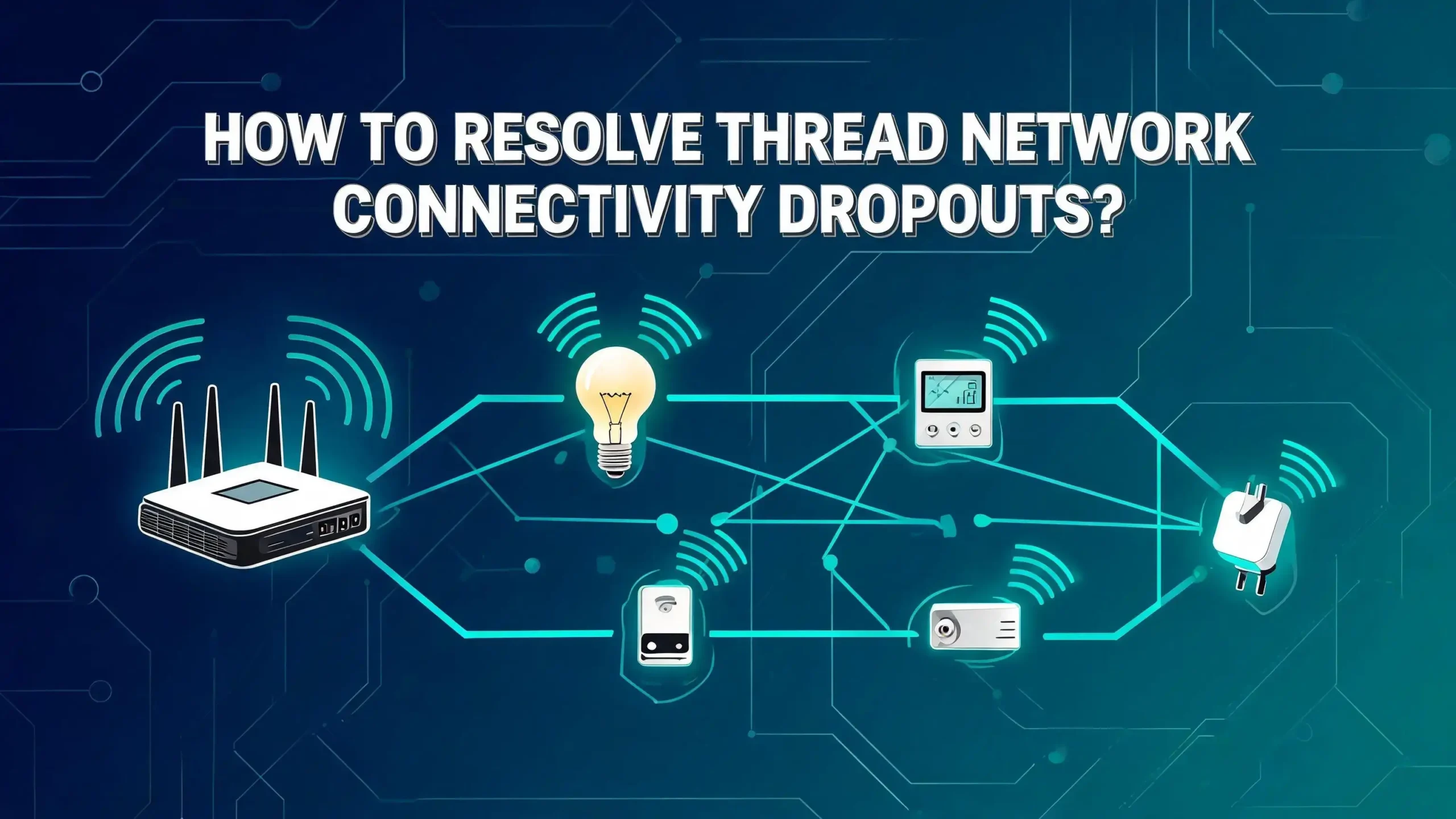
Before you start fixing things, it helps to understand exactly what you’re working with. Thread is not a hub-and-spoke network like Wi-Fi where everything connects back to one central router. It is a mesh network, which means devices talk to each other and relay signals from one node to the next until the command reaches its destination.
There are three distinct roles a device can play in a Thread network. Border Routers sit at the edge of the mesh and connect your Thread network to your home’s Wi-Fi or Ethernet network, giving Thread devices a path to the internet and to your smart home controller.
Routers are devices inside the mesh that can both send and receive commands AND forward them to other devices. These are typically mains-powered devices like smart plugs, wall switches, and always-on smart bulbs. End Devices are battery-powered sensors, buttons, and locks that can only talk to a nearby router parent. They cannot relay signals to anyone else.
The self-healing capability of Thread is one of its biggest strengths. When a device goes offline or a path weakens, the network automatically recalculates routes. However, this process can take up to 60 minutes and requires enough nodes in the mesh to form alternative paths. If there are gaps between routers, the self-healing process fails, and you get dropouts. Understanding this architecture tells you a great deal about why most connectivity problems happen and what the right fix actually looks like.
A Thread network can theoretically support up to 32 routers and 511 end devices per router. In practice, performance depends heavily on how those devices are distributed across your home and how many competing radio signals exist in the same frequency range.
Step One: Reboot Your Thread Border Router the Right Way
The most straightforward fix for Thread connectivity dropouts is also the most overlooked one. Rebooting your Thread Border Router forces the entire mesh network to rebuild itself, and in doing so, it finds the best available paths to every device all over again.
But there is a correct way to do this. First, power down all of your Border Routers completely. Do not just restart them through an app. Pull the physical power or unplug them from the wall. If you have multiple Border Routers from different ecosystems, power all of them down at the same time.
Wait at least one full minute before plugging anything back in. Then bring your Border Routers back online one at a time, not all at once. After each device powers up, give it time to reconnect before touching the next one. Allow 30 to 60 minutes for the full network to stabilize before deciding whether the fix worked. Rebuilding a Thread mesh takes time as each device refreshes its internal routing cache.
If you are using Home Assistant as part of your setup, reboot the physical machine that runs it, not just the Home Assistant software. Then give your network another 30 to 60 minutes to settle, especially if you have more than 25 Thread devices. Rebooting in the wrong order, or too quickly, can interrupt the mesh rebuild process and leave devices in a worse state than before you started.
Step Two: Add More Mains-Powered Devices to Fill Signal Gaps
One of the leading causes of Thread dropouts is simply not having enough router nodes in the mesh. If your powered devices are too far apart, there are dead zones in your Thread network that battery-powered sensors and locks cannot bridge on their own.
Every mains-powered Thread device acts as a signal relay. Smart plugs, always-on bulbs, hardwired light switches, and similar devices all become automatic routers within the Thread mesh, extending the signal range. If you have a device that keeps dropping off the network or showing as unreachable, there is a good chance there is a coverage gap between it and the nearest router node.
The solution is to place an additional mains-powered Thread device somewhere between the dropping device and the nearest reliable router. Even a single smart plug positioned in a hallway, a laundry room, or near a stairwell can make a dramatic difference. For large homes or homes with thick concrete or brick walls, you may need several devices to create a continuous chain of signal from the Border Router outward.
Think of it like stepping stones across a stream. Each mains-powered device is one stone. If the stones are too far apart, you can’t make the crossing. Add more stones at reasonable intervals and the path becomes solid. A good rule of thumb is to keep Thread routers no more than 30 to 40 feet apart, though this varies depending on wall materials and physical obstructions.
Step Three: Resolve Wi-Fi and Thread Channel Interference
Thread operates in the 2.4 GHz radio band, the same frequency range used by 2.4 GHz Wi-Fi networks and Zigbee. This creates a real and measurable interference problem that causes signal degradation, packet loss, and dropout events. This is one of the most common and most fixable causes of Thread connectivity problems.
Wi-Fi uses wide channels of 20 to 40 MHz in the 2.4 GHz band. The three standard non-overlapping Wi-Fi channels in this band are Channel 1 at 2.412 GHz, Channel 6 at 2.437 GHz, and Channel 11 at 2.462 GHz. Thread Channel 25, which is the default channel for most Apple Thread Border Routers, overlaps directly with Wi-Fi Channel 11. If your Wi-Fi router is broadcasting on Channel 11, it is actively interfering with your Thread mesh.
The fix is to change your Wi-Fi router’s 2.4 GHz channel. Log into your Wi-Fi router’s admin interface and set the 2.4 GHz channel to Channel 1. This creates the maximum possible spectral separation between your Wi-Fi and your Thread network. Disable automatic channel selection so your router does not drift back to a higher channel later.
If you also run a Zigbee network using something like Philips Hue, consider setting Zigbee to Channel 20. This places a frequency buffer between Thread, Zigbee, and Wi-Fi. Thread Border Routers from Google, Amazon, and Hubitat may use different Thread channels than Apple’s default of 25, so check your specific Border Router documentation and choose Wi-Fi channels that do not overlap with whichever Thread channel your router uses.
Step Four: Connect Your Border Router via Ethernet Instead of Wi-Fi
Your Thread Border Router’s job is to bridge the Thread mesh with your home IP network. The quality of that bridge directly determines the stability of your entire Thread setup. A Border Router connected via an unstable or weak Wi-Fi signal will produce unstable Thread performance every single time.
Ethernet, a wired LAN connection, provides a 100 percent reliable, interference-free connection with consistent bandwidth and latency. This makes it the ideal connection type for any Thread Border Router. Devices like Apple TV 4K (second and third generation with 128 GB), Google TV Streamer, Google WiFi Pro, and Home Assistant Yellow all support Ethernet connections and can serve as Thread Border Routers.
If you have multiple Border Routers, always prioritize the one with the Ethernet connection as the “active” or “primary” hub. In Apple Home, you can manually set this under Settings > Hubs and Bridges. Choose the wired Apple TV as the preferred hub and disable automatic hub selection. This ensures the most stable Border Router always leads the mesh.
If a wired connection is impossible because of your home layout or the lack of a Border Router with an Ethernet port, focus very carefully on the quality of the Wi-Fi connection your Border Router uses. Keep it physically close to a strong Wi-Fi access point, and ensure it receives a consistently strong signal at all times.
Step Five: Keep All Device Firmware Updated
Outdated firmware is a silent killer of Thread network stability. The Thread Group and the Connectivity Standards Alliance (CSA) continuously release updates to the Thread and Matter specifications, and those updates include bug fixes, performance improvements, and stability patches that directly reduce dropout events.
Matter 1.0, the first version of the standard, was notably prone to devices becoming unreachable or responding sluggishly to commands. Matter 1.1, released in spring 2023, fixed many of those issues. Devices that are still running Matter 1.0 firmware without updates are actively degrading your network’s stability, and some budget devices have never received a single update.
Check for firmware updates across all your Thread and Matter devices regularly. Depending on the manufacturer, updates might arrive through the brand’s native app, through Apple Home, or through Home Assistant. Apple Home and Home Assistant both support pushing firmware updates directly to Matter devices. Google and Amazon have varying update capabilities depending on the specific device.
If a device running old firmware cannot be updated because the manufacturer has stopped supporting it, the cleanest long-term solution is to replace it with a current model. To verify what firmware version a device’s latest release supports, check the CSA certification database at csa-iot.org. Be aware that CSA certification of a firmware version does not always mean the manufacturer has released it to the public yet.
Step Six: Never Interrupt Your Thread Mesh Unnecessarily
Thread’s self-healing mesh sounds impressive, and it genuinely is. But every time you force it to heal, you create temporary instability. Constant re-routing is one of the worst things you can do to a Thread network. Each rerouting event takes time, and during that time devices can appear unresponsive or go offline completely.
Avoid these common habits that silently damage Thread stability:
- Frequently unplugging smart plugs to move them around the home, which removes a router node from the mesh without warning
- Turning off smart bulbs using a physical wall switch, which kills the power to that Thread router node and forces the mesh to reroute
- Powering down your Border Router at night to save energy, which collapses the entire mesh and forces a full rebuild every morning
- Unplugging devices temporarily and expecting the network to recover instantly
The golden rule for Thread networks is simple: never touch a running system unless you need to. Mains-powered Thread devices work best when they stay powered all the time. If you must move a device or power it off temporarily, prepare for the mesh to spend up to an hour rebuilding the affected paths. Be patient and do not trigger more changes during that recovery period.
Step Seven: Avoid Running Multiple Parallel Thread Networks
This is one of the most damaging and least obvious problems in a modern smart home. When you use multiple smart home ecosystems at the same time, such as Apple Home alongside Amazon Alexa and Google Home, each one’s Border Router may create its own separate Thread network with its own unique credentials. The result is multiple competing meshes running in parallel in your home, splitting your devices across different networks.
When devices are spread across multiple Thread networks, they lose the ability to use each other as routing nodes. A device connected to Google’s Thread network cannot route signals through a device on Apple’s Thread network. This reduces the effective size and coverage of each individual mesh, which leads directly to more dropouts and unreachable devices.
The simplest fix is to commit to a single primary ecosystem for adding new Thread devices. All devices should be paired through one platform first. If you need cross-platform control, use Matter’s Multi-Admin feature afterward or use Home Assistant’s HomeKit Bridge feature to expose devices to Apple Home after pairing them directly to Home Assistant.
If you are an Apple user, your iCloud Keychain can help share Thread credentials with some compatible apps like Google Home or Aqara Home, potentially merging your meshes into one. Home Assistant offers a way to share Thread credentials across Border Routers from different ecosystems, which is a reliable path to a unified network. The general advice is to consolidate Border Routers to a single ecosystem wherever possible and add other platforms as secondary controllers rather than giving them Border Router authority.
Step Eight: Simplify Your Home IP Network Configuration
Thread relies on IPv6 for device addressing and Multicast DNS (mDNS) for device discovery. Both of these technologies require information to flow freely across your home network. Any network configuration that blocks or filters this traffic will cause Thread and Matter devices to behave erratically or disappear entirely.
The most common culprit is a segmented network setup using VLANs. Placing your Thread Border Router or smart home controller on a different VLAN from your devices can completely break mDNS discovery and IPv6 routing. Even if the devices appear to pair initially, they may drop off frequently or refuse to accept commands.
If you are using a prosumer networking setup from brands like Ubiquiti UniFi or TP-Link Omada, be aware that features like firewall ACLs, multicast filtering, IGMP snooping settings, and strict guest network isolation can all silently block the traffic that Thread devices depend on. Corporate-style network features and smart home mesh protocols do not mix well without careful manual configuration.
The safest approach is to keep all Thread Border Routers, Matter controllers, and Thread devices on the same flat local network without VLAN separation. If you need to maintain VLANs for security reasons, you must configure proper mDNS repeating or forwarding between VLANs, ensure IPv6 link-local routing is allowed, and verify that no firewall rules are blocking the relevant traffic. Thread is designed for simple plug-and-play home networks, and the more you add advanced networking features on top of it, the more careful you need to be.
Step Nine: Manage Multi-Admin Traffic on Large Networks
Matter’s Multi-Admin feature is genuinely useful. It allows a single Thread device to be controlled by multiple smart home platforms simultaneously. Apple Home and Home Assistant can both talk directly to the same device at the same time without any workarounds. Sounds great on paper, and for small networks it works fine.
The problem emerges at scale. Thread networks operate at very low power and very low bandwidth. Every additional platform you pair to a device multiplies the amount of network traffic that device generates. Pair a device to two controllers and you roughly double its traffic. Add a third and you triple it. On a network with 50 or more devices, this multiplication effect can saturate the Thread mesh and cause widespread timeouts, slow responses, and devices falling off entirely.
If you have a large Thread network and are experiencing stability issues, reduce the number of Multi-Admin pairings. Pair all devices to a single primary controller, and use bridging or translation layers to expose them to other platforms. For example, if you use Home Assistant as your main controller, you can enable the HomeKit Bridge integration to make all your devices visible and controllable in Apple Home without adding a direct Matter pairing from Apple.
This approach can cut your Thread network traffic significantly. Users who have switched from full Multi-Admin to a bridge-based approach report going from frequent dropouts and timeouts on networks of 50 plus devices to months of uninterrupted stability. The traffic reduction alone makes this one of the highest-impact changes you can make on a mature smart home setup.
Step Ten: Handle Sleepy End Devices Carefully
Battery-powered Thread devices are called sleepy end devices because they spend most of their time in a low-power sleep state to conserve battery. They wake up briefly to send or receive data, then go back to sleep. This design is what makes Thread sensors and locks so energy efficient, but it also makes them more vulnerable to connectivity dropouts.
A sleepy end device depends entirely on a nearby router to hold messages for it while it sleeps. If that parent router goes offline, moves, or is too far away, the end device loses its connection entirely. It may not even detect the loss immediately because it is asleep when the parent disappears. When it finally wakes up and finds no parent, it has to start a new search for a router to attach to, which takes time and causes the device to appear unavailable in your app.
The fix is to make sure every battery-powered device has at least one reliable mains-powered router nearby. Do not install battery sensors in areas that have no powered Thread devices within range. If a sensor in a remote part of your home keeps dropping, place a smart plug or a mains-powered smart bulb in the same area to serve as a stable parent node. Also avoid changing the power status of mains-powered devices near battery sensors, as this forces the sleepy device to find a new parent every time, adding instability and reducing battery life.
Step Eleven: Diagnose Your Thread Network Visually
You cannot fix what you cannot see. Before throwing more hardware at a connectivity problem, take the time to actually map your Thread network and understand where the weak points are. Home Assistant provides some of the best Thread network diagnostic tools available to home users, and using them can save you a great deal of guesswork.
The Thread Network Diagnostics Cluster built into the Matter standard collects data on each device’s role in the mesh, its connections to neighboring nodes, and its signal strength. Home Assistant can use this data to generate a visual graph of your Thread topology, showing which devices are routers, which are end devices, and how they connect to each other.
To access Thread diagnostics in Home Assistant, go to Settings, then Devices and Services, then select the Thread integration. From there you can view network details and connected Border Routers. Third-party tools and community integrations can generate more detailed topology maps if you want a clearer picture of your mesh structure.
Look for devices that are connected through only a single path with no redundant routes. These are your weak points. Look for routers that have an unusually large number of end devices attached to them, as overloaded routers can slow down response times. And look for any devices that show as having a weak connection to their parent node, which indicates a coverage gap that needs to be addressed with an additional mains-powered router.
Step Twelve: Address Products Running Matter 1.0 Firmware
Some of the earliest Matter over Thread products launched with version 1.0 of the Matter specification. Matter 1.0 was known to have significant stability issues, including devices that randomly became unreachable, commands that took several seconds to execute, and devices that required frequent re-pairing. These issues were largely resolved in Matter 1.1, which shipped in spring 2023.
If your Thread network has been experiencing stubborn instability that no amount of rebooting or repositioning can fix, one or more of your Matter 1.0 devices may be the cause. These devices can introduce routing problems, generate excessive retry traffic, and create congestion that affects every other device on the mesh.
The diagnostic approach is straightforward. Remove one suspected device from the network, wait 30 to 60 minutes for the mesh to heal, and observe whether stability improves. If it does, that device was likely causing the problem. Check whether a firmware update is available to bring it to a newer Matter version. If no update exists, the device has been abandoned by its manufacturer, and the only reliable fix is to replace it with a newer model that runs at least Matter 1.1 or later. This is not the most satisfying answer, but it is the most effective one when you have isolated the problem to a specific device.
Step Thirteen: Use a Systematic Reboot Sequence for Persistent Problems
When your Thread network has gone into a bad state and simple restarts are not working, a full systematic reboot of your entire home network in the correct order can often restore stability. The key word here is “systematic.” Rebooting everything at once is the wrong approach and almost always makes things worse before they get better.
Follow this specific sequence to give each layer of your network the time it needs to stabilize before the next layer comes online.
Start with your ISP router or modem firewall. Let it fully boot and establish an internet connection. Next, bring up your Wi-Fi access points or mesh Wi-Fi system. Wait for Wi-Fi to stabilize completely before continuing. Then power up any Ethernet switches if you have them. After that, bring your Thread Border Routers back online one at a time, with at least 30 minutes between each one. Finally, reboot your smart home controller, whether that is Home Assistant, a SmartThings hub, or another platform.
Allow 30 to 60 minutes between each step in the sequence for larger networks. Rushing this process cuts off the mDNS and IPv6 re-establishment that the network needs to rediscover all devices. If you are using Home Assistant, wait up to an hour after the final reboot before deciding whether the network has stabilized. Monitor the Matter server logs for subscription timeout errors, which indicate devices that have not fully reconnected.
Step Fourteen: Optimize Border Router Placement and Count
It might seem logical that more Border Routers means a better network. In practice, too many Border Routers, especially poorly placed ones, can actually destabilize your Thread network. This is a counterintuitive but well-documented finding from large Thread deployments.
When multiple Border Routers are active on a network, only one plays the primary “active” role at any time. If two Border Routers have similarly weak or unstable Wi-Fi connections, the active role may flip back and forth between them unpredictably. Every time this handoff happens, the mesh experiences a period of instability as routing tables are updated across all devices.
Having one strong, well-placed, Ethernet-connected Border Router often outperforms having three or four weaker, Wi-Fi-connected ones. Place your primary Border Router centrally in your home for best coverage.
Add additional mains-powered router nodes throughout the mesh to extend range, rather than relying on multiple Border Routers to do the same job. If you do run multiple Border Routers, ensure they are from the same ecosystem, sharing the same Thread credentials, and that the most stable one is set as the preferred hub in your platform settings.
FAQs
What is a Thread Border Router and why does it matter for connectivity?
A Thread Border Router is the gateway device that connects your Thread mesh network to your home’s Wi-Fi or Ethernet network. Without it, Thread devices have no path to the internet or to your smart home controller. It is the most critical component in a Thread network, and any instability in the Border Router translates directly into dropouts and unreachable devices across your entire setup. Common Thread Border Routers include Apple TV 4K, HomePod mini, Google Nest Hub Max, Google TV Streamer, and Home Assistant Yellow.
Why do my Thread devices keep dropping off even though the Border Router is online?
There are several causes. The most common is a coverage gap in your mesh where battery-powered end devices cannot reach a mains-powered router node. Other causes include Wi-Fi channel interference on the 2.4 GHz band, outdated firmware on the dropping device, too many Multi-Admin pairings generating excessive network traffic, or a competing Thread network from a different ecosystem that the device is trying to switch to. Start by checking the physical placement of your powered devices and work through the other causes systematically.
How many powered devices do I need for a stable Thread network?
There is no fixed number, but a practical guideline is to ensure that no Thread device in your home is more than 30 to 40 feet from the nearest mains-powered router node, accounting for walls and floors. Homes with thick walls, multiple floors, or spread-out layouts need more router nodes than compact single-floor spaces. A minimum of three to five mains-powered Thread devices in different areas of your home is a reasonable starting point for a small apartment. Larger homes may need eight to fifteen or more, depending on the floor plan.
Can Wi-Fi interference really cause Thread dropouts?
Yes, absolutely. Thread operates in the 2.4 GHz band, the same spectrum as 2.4 GHz Wi-Fi. Thread channel 25, used by default on Apple Border Routers, overlaps directly with Wi-Fi channel 11. If your Wi-Fi router is set to auto-channel and lands on channel 11, it can generate enough interference to cause packet loss and dropouts in your Thread mesh. Setting your Wi-Fi 2.4 GHz channel to channel 1 is one of the most impactful single changes you can make for Thread stability.
Does using multiple smart home ecosystems damage my Thread network?
It can, yes. Each smart home ecosystem’s Border Router may create its own separate Thread network with different credentials. This splits your devices across multiple parallel meshes that cannot use each other as routing nodes, reducing coverage and increasing dropout rates. Running too many Multi-Admin pairings also multiplies network traffic, which can saturate a Thread network with many devices. The recommended approach is to use a single primary ecosystem for all Thread device pairings and use bridging features rather than direct Multi-Admin connections to share control with other platforms.
How long does it take a Thread network to heal after a reboot?
A Thread mesh network can take up to 60 minutes to fully rebuild after a Border Router reboot. This is because each device in the network needs to update its internal routing cache with new path information. During this time, devices may appear offline or respond slowly. It is important not to trigger additional reboots or make configuration changes during this healing period, as interrupting the process resets the clock and forces the entire rebuild to start over again.
Is it normal for Thread end devices to show as unavailable occasionally?
Occasional brief unavailability is somewhat normal, particularly for sleepy battery-powered end devices that wake up infrequently to communicate. However, devices that are consistently offline, drop off daily, or take minutes to respond indicate a real network problem. Persistent unavailability usually points to a coverage gap, a failing parent router node, an outdated firmware issue, or a network configuration problem like VLAN separation or mDNS blocking that is preventing the device from being rediscovered after it wakes from sleep.

Hi, I’m Yuri — I’m a tech enthusiast who loves breaking down complex gadgets, software, and tools into simple, honest reviews and guides. My goal? To help you spend less time researching and more time enjoying the right tech.