How to Fix Zoom AI Companion Transcription Errors?
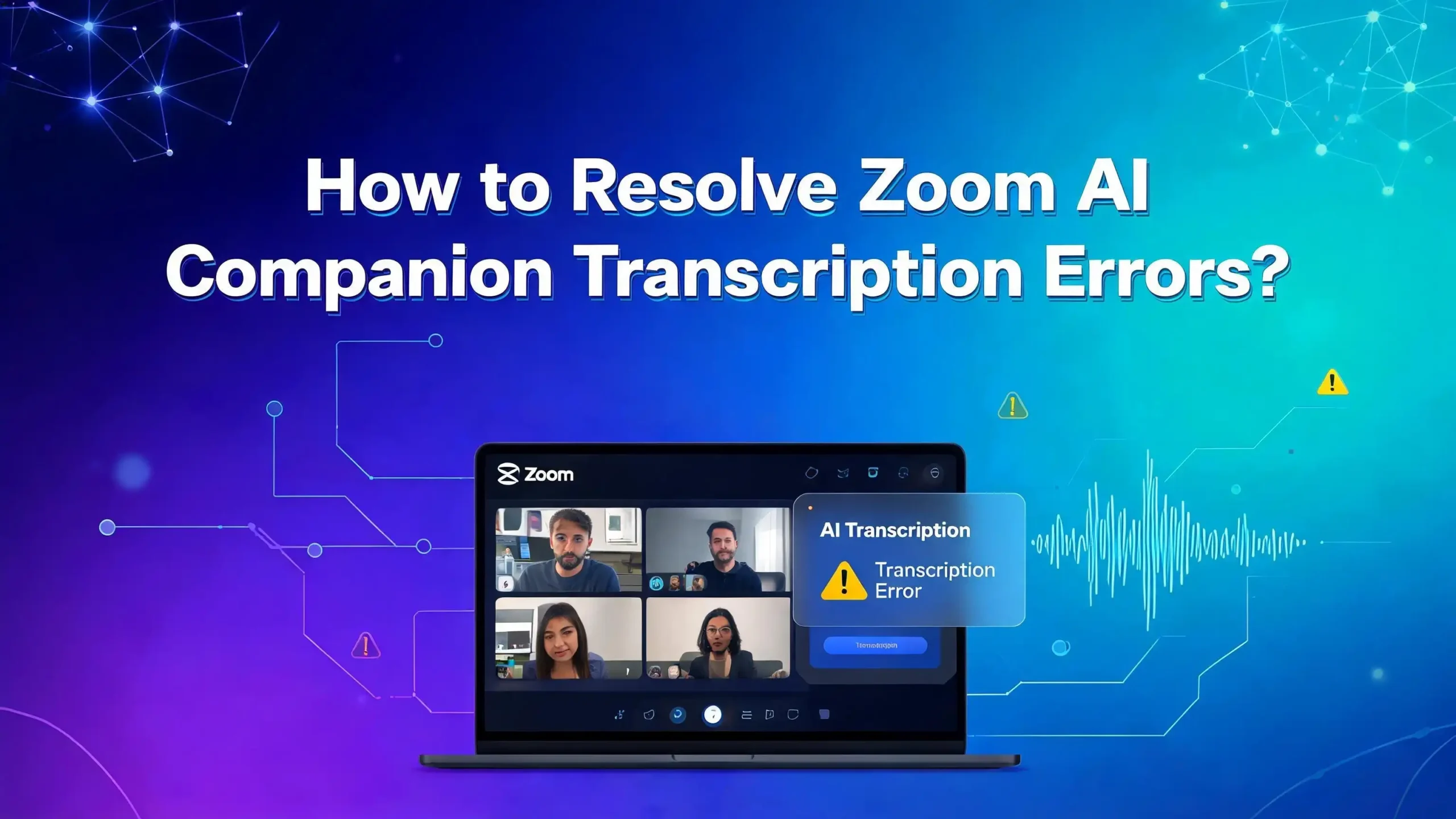
Have you ever ended a Zoom meeting, checked your AI Companion transcript, and found a mess of wrong words, missing sentences, or complete gibberish? You are not alone.
Thousands of Zoom users face Zoom AI Companion transcription errors every day, and it is frustrating, especially when those transcripts matter for work decisions, client records, or team follow-ups.
The good news is that most transcription errors are fixable. This guide walks you through every common cause and gives you clear, tested solutions to get your transcripts accurate again.
Keep reading because by the end, you will know exactly what to do.
Key Takeaways
- Zoom AI Companion requires a paid Zoom Workplace account. Free (Basic) users cannot access transcription features. If your transcription is not working at all, check your plan first before anything else.
- Audio quality is the number one cause of transcription errors. Poor microphones, background noise, and echo directly cause wrong words and missing text in your transcripts. Fixing your audio setup often solves 80% of transcription problems instantly.
- Admin settings must be correctly enabled for transcription to work. If your account admin has not turned on AI Companion features at the account level, individual users cannot access them no matter what they try.
- Language settings matter more than most users realize. If Zoom is set to the wrong spoken language, your transcript will be filled with errors. Setting the correct caption language is a fast and effective fix.
- Custom dictionaries inside AI Studio help Zoom recognize specialized terms. Technical jargon, brand names, and industry terms often get misspelled. Adding them to a custom dictionary significantly boosts accuracy.
- Updating the Zoom client and checking your internet connection are simple fixes that are often overlooked. Many transcription failures happen because users are on outdated versions or unstable networks that interrupt the AI processing pipeline.
Why Zoom AI Companion Transcription Errors Happen?
Before jumping to fixes, it helps to understand why transcription errors occur. Zoom AI Companion uses machine learning to convert spoken words into text in real time. This process depends on many factors working together at once.
The AI needs clear audio, a stable internet connection, proper account settings, and the correct language configuration to produce accurate transcripts. When any one of these factors breaks down, errors appear. Some errors are minor, like a misheard word here or there. Others are major, like an entire meeting transcript that never generates.
Zoom has confirmed that AI Companion processes audio in near real time and uploads chunks of speech to its AI engine continuously throughout a meeting. This means any interruption, whether it is network lag, microphone dropout, or an account permission conflict, can corrupt the transcript at that point. Understanding this process helps you pinpoint exactly which layer of the system is failing.
Common error types include: wrong words being substituted for spoken words, speaker names being misidentified, the transcript stopping mid-meeting, summaries not generating despite a transcript existing, and the AI Companion showing as available but producing no output. Each of these has a specific cause and a specific fix, which the sections below address one by one.
Check Your Zoom Plan and Account Eligibility First
This is the most overlooked step, but it is the most important one. Zoom AI Companion transcription features are only available to paid Zoom Workplace users. If you are on a Basic free account, even if you are part of a paid organization’s account, you will not have access to AI Companion unless you hold a paid license.
Here is how to check your eligibility quickly. Log in to your Zoom account at zoom.us. Click your profile picture in the top right corner. Select “My Profile.” Look at the section that shows your account type and plan. If it says “Basic,” you do not have access to AI Companion transcription. You need to upgrade to a paid plan or ask your account admin to assign you a paid license.
It is also worth noting that AI Companion may not be available in certain regions. Zoom has confirmed that some regional and industry-specific accounts do not have access to these features due to local regulations. If you are in one of those regions, you may need to contact Zoom support directly to confirm availability for your account. Do not spend hours troubleshooting settings if eligibility is the root issue. Resolve this first and everything else becomes far simpler.
Enable AI Companion Transcription in Admin Settings
Even if your account plan is eligible, transcription may not work if your admin has not turned on the feature. Zoom requires account-level settings to be enabled before individual users can use AI Companion. This is a very common reason why transcription appears broken.
Here is the step-by-step process for account admins. First, log in to the Zoom web portal at zoom.us with admin credentials. Click “Account Management” in the left navigation menu, then click “Account Settings.” At the top of the Settings page, click the “AI Companion” tab. Look for the “Meeting Summary with AI Companion” toggle and make sure it is turned on. Also look for “Automated meeting summaries” and “Continuous meeting transcript” toggles and enable them.
For individual users who are not admins, you can check your personal settings by going to zoom.us, clicking “Settings” in the left menu, and then clicking the “AI Companion” tab. If you see “Locked by Admin” next to any setting, you need to contact your Zoom administrator to unlock those features. The admin may have turned them off for the whole organization without realizing it blocks individual users too.
After enabling these settings, restart the Zoom desktop client for the changes to take effect. Then start a test meeting and check whether transcription begins working correctly.
Update Your Zoom Client to the Latest Version
Running an outdated version of Zoom is one of the most common and easiest to fix causes of AI Companion transcription errors. Zoom regularly releases updates that fix bugs in the AI Companion engine, improve transcription accuracy, and patch connectivity issues between the client and the AI processing servers.
AI Companion features require Zoom client version 5.16.0 or higher as a minimum. If you are running anything older than that, transcription may fail entirely or produce heavily degraded output. Here is how to update your Zoom client on a desktop computer.
Open the Zoom desktop app. Click your profile picture in the top right corner. Select “Check for Updates” from the dropdown menu. If an update is available, Zoom will show you the version number and a button to download and install it. Click that button and wait for the installation to complete. Restart Zoom after the update finishes.
On a mobile device, go to the App Store (iOS) or Google Play Store (Android). Search for Zoom and click “Update” if a newer version is available. Mobile transcription features also depend on the app version, so keep mobile updated as well. After updating, rejoin or start a new test meeting and verify that AI Companion is generating the transcript correctly.
Fix Audio Quality to Reduce Transcription Errors
Audio quality is directly tied to transcription accuracy. This is the most impactful fix for wrong words and garbled text in your transcript. Zoom’s AI engine can only transcribe what it hears clearly. If the audio reaching the AI is muffled, noisy, or choppy, the output will reflect that chaos.
Here is what to do. Start with your microphone. Use a dedicated headset microphone rather than your laptop’s built-in mic. Built-in laptop microphones pick up keyboard noise, fan noise, and echo from the room, all of which confuse the AI. Position your microphone close to your mouth, ideally no more than 6 to 10 inches away.
Next, eliminate background noise. Close windows in noisy environments. Turn off fans, TVs, or other audio sources in the room. If you work in a shared office, use a noise-canceling headset. Inside Zoom’s settings, you can also enable noise suppression. Open Zoom settings, click “Audio,” scroll down to “Suppress background noise,” and set it to “Medium” or “High.” Be careful not to set it to “Auto” if you are experiencing issues, as Auto mode sometimes over-suppresses the audio and makes voices sound unnatural to the AI.
Also check your microphone input level. In Zoom Audio settings, click “Test Mic” and speak at your normal meeting volume. The input level bar should move consistently into the green or yellow zone. If it barely moves or clips into the red, adjust the input gain using the slider provided. Consistent, clean audio input is the single best gift you can give the AI Companion transcription engine.
Set the Correct Language for Transcription
Zoom AI Companion transcription works best when the spoken language matches the language configured in Zoom’s caption and transcription settings. If Zoom is trying to transcribe English speech using a Spanish language model, the result will be full of errors. This is a surprisingly common setup mistake.
Here is how to correct the language setting. During a meeting, click “Captions” at the bottom toolbar. Select “Show Subtitle” or “View Full Transcript.” Look for a language option inside the caption settings. Choose the language that matches what will be spoken in the meeting. For multilingual meetings, select the primary language spoken by the majority of participants.
At the account level, admins can also set a default caption language. Go to Account Settings in the Zoom web portal. Under AI Companion settings, look for “Spoken Language for Captions” or “Transcription Language” settings. Set this to match your team’s primary language.
For meetings in languages other than English, also make sure cloud recording transcription language is set correctly. Go to zoom.us, click “Recordings,” select a past recording, and verify the transcript language. If it was processed in the wrong language, you may need to delete the transcript and regenerate it with the correct language selected. Zoom allows regenerating transcripts from cloud recordings in the recording settings panel.
Check and Improve Your Internet Connection
Zoom AI Companion transcription runs on a cloud-based AI engine. This means a weak or unstable internet connection will directly cause transcript gaps, missing sentences, and incomplete summaries. The AI processes audio chunks as they are uploaded from your device. If the upload stream is interrupted, those chunks get lost and the transcript has holes.
Here is how to diagnose and fix this. First, run a speed test at fast.com or speedtest.net. For Zoom AI Companion to work reliably, you generally need at least 3 to 5 Mbps upload speed. If your upload speed is below that, your connection is likely causing transcript drops.
Switch from Wi-Fi to a wired Ethernet connection if possible. Wired connections are significantly more stable for live AI processing tasks. If you must use Wi-Fi, sit closer to your router and reduce the number of devices on the same network during the meeting.
If you are on a corporate network, check with your IT department to confirm that Zoom’s AI Companion traffic is not being blocked by a firewall or a content filtering system. Some corporate networks block Zoom’s AI data endpoints, which prevents transcription from working even when all other Zoom features work fine. Ask IT to whitelist zoom.us and related Zoom cloud services to ensure AI Companion data flows through without interruption.
Add a Custom Dictionary for Technical and Specialized Terms
One of the most common complaints about Zoom AI Companion transcription is that it gets industry-specific terms, product names, and company names wrong. The AI uses a general language model that may not recognize your organization’s unique vocabulary. This is why “Kubernetes” becomes “cooper netties” or a product name gets completely mangled.
Zoom has built a solution for this inside AI Studio. Account admins can create custom dictionaries that teach the AI your specific terminology. Here is how to use it.
Log in to zoom.us as an account admin. Look for “AI Studio” in the left navigation menu or under Account Management. Inside AI Studio, find the “Custom Dictionary” section. Click “Add Words” or “Create Dictionary.” Enter the specialized terms, proper nouns, brand names, product names, and abbreviations your team uses regularly. Save the dictionary and assign it to your account or specific groups.
Once the custom dictionary is active, Zoom’s AI will use those entries as reference points during transcription. This significantly reduces the frequency of specialized term errors. Keep the dictionary updated as your organization’s vocabulary evolves. Add new product launches, team member names, and industry jargon regularly. This is an ongoing process, not a one-time setup.
Resolve the “Insufficient Transcript” Error for Meeting Summaries
Many users encounter a specific error message that reads something like: “Meeting Summary was not generated due to insufficient transcript.” This happens when the AI Companion did not capture enough spoken content to generate a meaningful summary. This error has several causes and solutions.
First, check whether AI Companion was actually activated during the meeting. The host must click the AI Companion button in the meeting toolbar and actively start the summary or transcript feature. If the host forgot to start it, or if it was turned off before sufficient content was captured, the transcript will be too short to summarize.
Second, ensure the meeting had enough substantive spoken content. Very short meetings of under two to three minutes may not generate enough transcript data for the AI to work with. The AI needs a reasonable amount of spoken content to produce a useful summary.
Third, check whether participants were speaking while muted. This is a common issue. If attendees were on mute but their lips were moving, Zoom’s AI was receiving silence rather than speech. Remind all participants to unmute before speaking.
Fourth, check whether the meeting was held in a group format with at least two participants speaking. AI Companion performs better in multi-participant meetings where conversation flows naturally. Solo recordings or presentations with minimal dialogue sometimes trigger the insufficient transcript error.
Fix AI Companion Not Activating During Meetings
Sometimes AI Companion simply does not start during a meeting, even when all settings appear correct. This means no transcript is generated at all. This is different from transcription errors since there is no output rather than incorrect output.
Here is the troubleshooting process. First, confirm you are the meeting host. AI Companion transcription features can only be started by the host or a co-host. If you are a participant in someone else’s meeting, you cannot start AI Companion unless the host enables it.
Second, check whether your admin has restricted AI Companion to host-only activation. Some organizations configure AI Companion to require the host to manually start it for every meeting. Look for the AI Companion icon at the bottom of the Zoom meeting toolbar. Click it and select “Start meeting summary” or “Start transcript.” If the option is grayed out or missing, return to the web portal and verify that all AI Companion toggles are enabled in your user settings.
Third, try signing out of Zoom and signing back in. Account permission changes made in the web portal sometimes do not sync to the desktop client until a fresh login. Sign out completely, sign back in, and then start a new meeting to test AI Companion activation.
Fourth, reinstall the Zoom client if the issue persists after all other steps. A corrupted Zoom installation can cause AI Companion features to malfunction silently without giving any error message.
Use Smart Recording Settings for Better Transcript Output
Zoom’s Smart Recording feature works alongside AI Companion to improve how cloud recordings are transcribed and organized. If you are experiencing poor transcript quality in recorded meetings specifically, Smart Recording settings may be the solution.
Here is how to set up Smart Recording correctly. Go to zoom.us and log in. Click “Settings” in the left navigation menu. Click the “AI Companion” tab. Scroll down to the “Recording” section and look for “Smart Recording with AI Companion.”
Enable this toggle. You will see sub-options including “Create audio transcript,” “Summarize meeting,” and “Smart chapters.” Enable all three for the best output.
When Smart Recording is active, Zoom automatically transcribes the cloud recording after the meeting ends. This transcript is stored separately from the in-meeting live transcript. If your live transcript had errors, the Smart Recording transcript may be cleaner because it processes the full recording audio after the meeting, giving the AI more context.
Note that Smart Recording requires cloud recording to be enabled and active during the meeting. You cannot use Smart Recording with local recordings only. Make sure “Record to the cloud” is selected when you start recording the meeting. After the meeting, the processed transcript will appear in your cloud recording library within a few minutes to a couple of hours depending on meeting length.
Manually Review and Edit Transcripts After the Meeting
Even with perfect settings, AI transcription will occasionally make mistakes. The practical solution is to build a habit of reviewing and correcting transcripts after every important meeting. Zoom allows users to edit transcripts directly in the web portal.
Here is how to access and edit your transcript. Go to zoom.us and click “Recordings” in the left menu. Find the relevant recording. Click on it to open the recording detail page. Look for the “Audio Transcript” or “Transcript” tab on the recording page. Zoom displays the transcript text with timestamps and speaker labels.
To edit a line, click on the text you want to change. A text field will appear allowing you to type corrections. Fix wrong words, add missing punctuation, correct speaker labels, and adjust any garbled phrases. Click “Save” after making edits to preserve your corrections. These edits are saved permanently and will be reflected in any downloads or shares of that transcript.
For AI-generated meeting summaries, you can also edit the summary text. Click “Edit” next to the summary section and type your corrections. Keeping summaries accurate is especially important when they are shared with team members or clients who were not in the meeting.
Configure Speaker Attribution to Fix Wrong Speaker Labels
One specific type of transcription error that frustrates users is wrong speaker attribution. The transcript assigns spoken lines to the wrong person, making it confusing to follow who said what. This happens because Zoom’s AI identifies speakers based on audio profiles, and similar voices or overlapping speech can confuse the system.
Here is how to improve speaker attribution. First, make sure every participant is logged in to their Zoom account during the meeting. When participants join as guests or without logging in, Zoom cannot identify them by name and defaults to generic labels like “Speaker 1” or uses the wrong name.
Second, encourage all participants to use dedicated microphones rather than shared room audio. When two people speak through the same room microphone, the AI cannot distinguish between their voices.
Third, avoid crosstalk and interruptions during the meeting as much as possible. When two voices overlap in the audio, the AI must guess who is speaking and it often guesses wrong. Use structured turn-taking, especially in large meetings, to give the AI clean audio segments to attribute.
After the meeting, you can manually correct speaker labels in the transcript editor on the Zoom web portal. Click on any incorrect speaker label and replace it with the correct participant name. If you notice a pattern where one specific person’s voice is always misattributed, this may be a voice profile issue that improves over time as the AI encounters more samples of that voice.
Clear Cache and Reinstall Zoom for Persistent Errors
If you have tried all the settings-based fixes and transcription errors continue, the problem may be in the Zoom application itself. Corrupted cache data or a faulty installation can cause AI Companion features to behave erratically. Clearing the cache and reinstalling is a clean slate approach that resolves many persistent issues.
To clear the Zoom cache on Windows, close Zoom completely. Press Windows key + R to open the Run dialog. Type %appdata%\Zoom and press Enter. Delete the “data” folder inside the Zoom folder. Restart Zoom and test AI Companion again.
On a Mac, open Finder. Press Command + Shift + G and type ~/Library/Application Support/zoom.us. Delete the “data” folder. Restart Zoom. Clearing this cache forces Zoom to rebuild its local data from scratch, which often resolves feature malfunctions.
If clearing the cache does not help, uninstall Zoom completely. On Windows, go to Control Panel, then Programs and Features, select Zoom, and click Uninstall. On Mac, drag Zoom from Applications to the Trash. Then download the latest version of Zoom from zoom.us and install it fresh. Sign in and configure your AI Companion settings again from the beginning. This clean reinstall resolves the majority of persistent, unexplained AI Companion transcription failures.
Contact Zoom Support for Account-Level Transcription Issues
When all troubleshooting steps fail to resolve the transcription errors, it is time to contact Zoom’s support team directly. Some transcription problems are caused by backend account configurations, regional restrictions, or server-side bugs that individual users cannot fix themselves.
Here is how to get effective help from Zoom support. Go to support.zoom.com. Click “Contact Support” or “Submit a Request.” Choose the category “AI Companion” or “Transcription.” Provide as much detail as possible in your ticket.
Include your Zoom version number, your operating system, the date and time of the meeting where errors occurred, the type of error you experienced, and any error messages you received.
Attach a screenshot of your AI Companion settings page and a sample of the incorrect transcript so the support team can see exactly what you are dealing with. The more information you provide, the faster they can diagnose the issue.
If you are on a Business or Enterprise plan, you also have access to priority support options including live chat and phone support. Use these channels for urgent transcription issues, especially if the errors are affecting business-critical records like client meetings, legal consultations, or compliance documentation.
FAQs
Why is my Zoom AI Companion not generating a transcript at all?
The most common reasons are that AI Companion was not activated during the meeting, the account does not have a paid plan, or the admin has not enabled AI Companion features in the account settings. Check all three of these in order. Log in to zoom.us, go to Account Settings, click the AI Companion tab, and confirm all transcription toggles are switched on. Also verify that the meeting host manually clicked “Start” on AI Companion during the meeting.
Why does Zoom AI Companion transcribe wrong words?
Wrong words in the transcript are almost always caused by poor audio quality or the AI not recognizing specialized terminology. Start by improving your microphone setup and reducing background noise. Then add industry-specific terms to a custom dictionary in AI Studio so the AI can recognize your organization’s vocabulary. Also confirm the transcription language is set to match the spoken language of the meeting.
Can I edit a Zoom AI Companion transcript after the meeting?
Yes, you can edit transcripts directly in the Zoom web portal. Go to zoom.us, click “Recordings,” open the relevant recording, and click the “Audio Transcript” tab. Click on any line of text to edit it. Save your changes after correcting errors. This editing function is available to the meeting host and to users with admin access to the recording.
Does Zoom AI Companion work for free accounts?
No. Zoom AI Companion transcription features are not available to Basic free account users. You need a paid Zoom Workplace plan to access AI Companion. Even if you are part of a paid organization, you personally need a paid license assigned to your account. Contact your Zoom administrator to check your license type or upgrade your plan at zoom.us.
Why are speaker labels wrong in my Zoom transcript?
Wrong speaker labels happen when participants join without logging in to their Zoom accounts, when voices are similar, or when multiple people speak through the same microphone. To fix this, ensure all participants log in to Zoom during meetings. After the meeting, you can manually correct speaker labels in the transcript editor on the Zoom web portal. Encouraging clear, non-overlapping speech during the meeting also helps the AI attribute speakers correctly.
How do I fix the “Meeting Summary was not generated due to insufficient transcript” error?
This error appears when the AI did not capture enough spoken content during the meeting. Make sure AI Companion was started at the beginning of the meeting, not near the end. Ensure participants were not muted while trying to speak. The meeting should also have substantive conversation, as very short or silent meetings do not generate enough data for the AI to summarize. Restart AI Companion at the beginning of your next meeting and monitor whether it begins capturing the transcript immediately.
Why does Zoom transcription work in one meeting but not another?
This is usually caused by inconsistent AI Companion activation, different hosts with different permission settings, or varying audio quality between meetings. Check whether the host of the working meeting had AI Companion enabled and whether the host of the failing meeting did not. Also compare the audio setups and internet connections used in each meeting. Consistency in setup and host permissions is the key to consistent transcription results.

Hi, I’m Yuri — I’m a tech enthusiast who loves breaking down complex gadgets, software, and tools into simple, honest reviews and guides. My goal? To help you spend less time researching and more time enjoying the right tech.