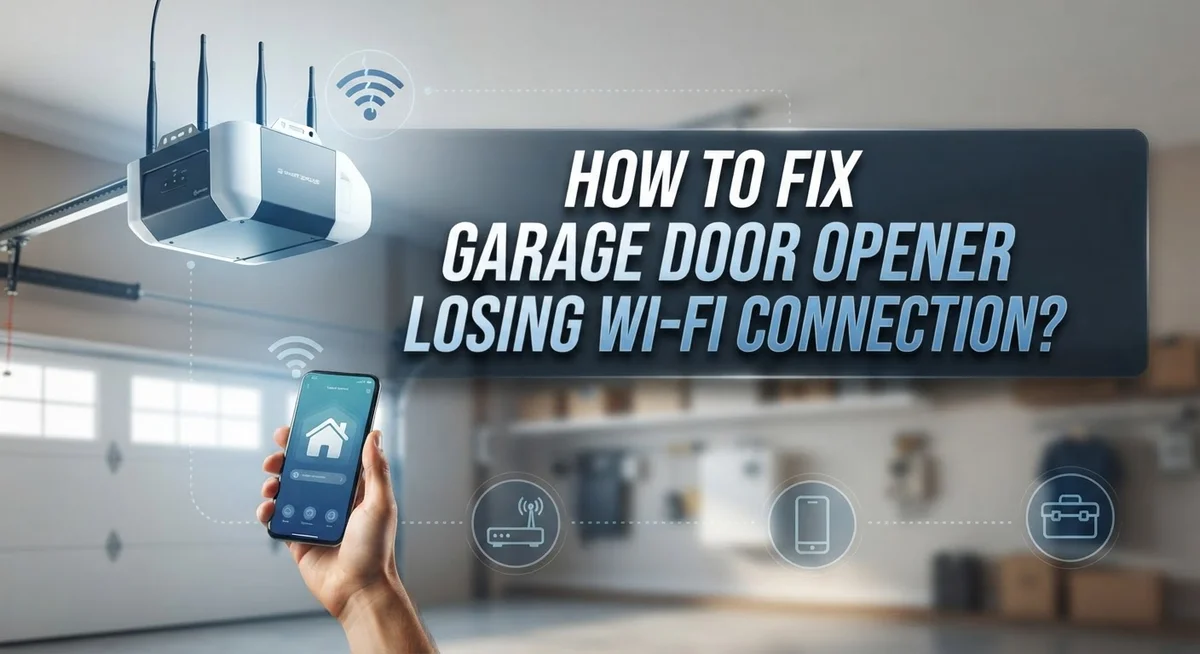
How To Fix Garage Door Opener Losing Wi-Fi Connection?
Your garage door opener keeps dropping its Wi-Fi connection, and it’s frustrating. You open the app, and nothing responds. The connection is gone again.
This is a very common problem, and the good news is that most causes are simple to fix. You do not need to call a technician right away.
Wi-Fi dropouts usually happen for a few key reasons. Your router might be too far from the garage. The opener might be trying to connect to the wrong Wi-Fi band. A power outage may have knocked the connection loose without you realizing it.
This guide walks you through every major cause and fix for a garage door opener that keeps losing its Wi-Fi connection.
Each fix is explained in plain, simple steps so you can get your opener back online fast and keep it connected for the long term.
In a Nutshell
- Your garage door opener needs a 2.4 GHz Wi-Fi connection. The 5 GHz band is a very common cause of repeated dropouts, so always check your router settings first.
- Distance matters a lot. If your router is far from the garage, the signal weakens and the connection drops. Moving your router closer or adding a Wi-Fi extender solves this.
- Power outages break the connection. After any power loss, your opener usually needs a Learn button reset and a fresh reconnection through the app.
- Interference from lights and electronics can disrupt the signal. Check what devices are near your opener and router.
- Restarting your router fixes many temporary connection issues quickly.
- A simple reset of the opener involves pressing and holding the Learn button for about 6 seconds until the LED turns off, then reconnecting through the app.
Why Your Garage Door Opener Keeps Losing Wi-Fi
Your garage door opener loses Wi-Fi for several clear reasons. Understanding these causes helps you fix the problem faster.
Signal strength is the most common culprit. Your router sends out a wireless signal that weakens with distance. If your garage is far from the router, the signal becomes too weak to maintain a stable connection. Walls, metal, and concrete also block the signal and reduce its reach.
Router band settings cause many dropouts. Your opener only works on the 2.4 GHz frequency band. If your router broadcasts only the 5 GHz band, your opener cannot connect at all. Some routers split their signal between both bands, and your device might accidentally connect to the wrong one.
Interference disrupts your connection. LED lights, microwave ovens, and cordless phones operate on similar frequencies. These devices create “noise” that interferes with your Wi-Fi signal and causes unexpected disconnections.
Power outages trigger disconnection. When electricity cuts out, your opener loses power and forgets its Wi-Fi settings. It will not automatically reconnect when power returns. You must reset it manually and reconnect through your app.
Router issues create temporary problems. Your router sometimes develops glitches that drop all connected devices. A simple restart clears these temporary problems and restores stable connections.
Distance combined with weak signals makes things worse. The farther your garage sits from the router, the more vulnerable the connection becomes to interference and signal loss.
These factors rarely work alone. Usually, a combination of weak signal, distance, and interference causes your opener to keep disconnecting. The good news is that each problem has a straightforward solution.
Why Garage Door Openers Require a 2.4 GHz Wi-Fi Band
Your garage door opener communicates through Wi-Fi on a specific frequency band. Understanding this requirement helps you fix connection problems faster.
Most garage door openers use only the 2.4 GHz Wi-Fi band. This frequency travels farther and passes through walls better than the 5 GHz band. Your opener’s internal chip was designed to work on this slower, more reliable frequency.
The 5 GHz band offers faster speeds but has a shorter range. It also struggles to penetrate walls and metal structures common in garages. Many routers broadcast both bands at the same time, which confuses your opener. When your router sends out both frequencies together, your opener may try to connect to 5 GHz by mistake and fail.
Your router settings directly control which bands your opener can see. Some routers combine both bands under one network name. This setup works for phones and laptops but causes problems for smart garage door openers. Your opener cannot automatically switch between bands like modern devices do.
Checking your router settings is simple. Look for options labeled “band selection” or “Wi-Fi mode.” You need to verify that the 2.4 GHz band is active and broadcasting. Some routers let you create a separate network name just for the 2.4 GHz band.
This separation prevents connection conflicts. When your opener searches for Wi-Fi, it only finds the frequency it understands. Your phones and computers can still use the 5 GHz band for faster speeds.
Distance also matters more on the 2.4 GHz band. The signal weakens as it travels through walls, insulation, and metal frames. Keeping your router reasonably close to your garage prevents signal loss that leads to disconnections.
How to Check Your Wi-Fi Signal Strength in the Garage
Checking your Wi-Fi signal strength in the garage is the first step to fixing connection problems. You need to know if your signal is strong enough for your opener to stay connected.
Use your smartphone to measure signal strength. Open your phone’s Wi-Fi settings and look at the network name your garage door opener uses. Most phones show signal bars or a percentage next to the network name. More bars mean stronger signal. Fewer bars mean weaker signal.
Walk around your garage with your phone. Check the signal strength in different spots, especially near where your opener is mounted. Signal strength drops as you move away from your router. Notice if the bars decrease in certain areas. This tells you where the weak zones are.
Download a free Wi-Fi analyzer app if your phone has one available. These apps show you the exact signal strength in decibels, which is more accurate than just counting bars. They also reveal interference from other networks nearby.
Test your signal at the opener’s actual location. Stand right where the opener sits and check the strength there. This is the most important spot because your opener needs to receive the signal from that exact position.
Compare your findings to your router’s distance. If you see weak bars and your router is far away, distance is your problem. If bars are strong but your opener still disconnects, interference or band settings might be the issue instead.
Write down what you find. This information helps you decide whether you need to move your router, add a Wi-Fi extender, or adjust your router settings.
How to Reset Your Garage Door Opener Using the Learn Button
The Learn button on your garage door opener acts like a reset switch. This button helps your opener forget old Wi-Fi settings and start fresh.
Here’s how to locate the Learn button. Most openers have this button on the back or side of the motor unit. The button is usually small and colored red, yellow, or green. Check your opener’s manual if you can’t find it immediately.
Now press and hold the Learn button for about 6 seconds. You’ll see the LED light on your opener turn off when the reset is complete. This means your opener has cleared all previous Wi-Fi connections from its memory.
After the reset, your opener will not connect to Wi-Fi automatically. You need to reconnect it through your mobile app. Open your app and select the option to add a new device or garage door opener.
The app will guide you through the reconnection process. Follow each step carefully. Your phone will search for your opener’s Wi-Fi signal. Select your home Wi-Fi network when prompted.
Enter your Wi-Fi password exactly as it appears. Double check that you’re using the 2.4 GHz band, not the 5 GHz band. Some routers split these into separate networks with different names.
Wait for the connection to complete. This usually takes 30 to 60 seconds. Your app will confirm when your opener successfully reconnects to Wi-Fi.
If the connection fails, repeat the Learn button reset and try again. Sometimes a second attempt works better than the first. Make sure your router is powered on and broadcasting Wi-Fi during this entire process.
How to Improve Wi-Fi Coverage in Your Garage
Your garage location affects Wi-Fi strength significantly. Distance between your router and opener matters most. Every wall, metal object, and electrical device weakens the signal. You need to understand your current coverage before making changes.
Start by checking where your router sits right now. Is it in a front room far from your garage? Moving it closer to the garage wall helps immediately. Even a few feet of repositioning can boost signal bars on your phone.
If moving the router isn’t possible, a Wi-Fi extender or mesh node solves the problem. These devices pick up your router’s signal and broadcast it stronger into dead zones. Place the extender halfway between your router and garage for best results. Your opener will connect to the extended network just like the main one.
Metal garage doors block signals effectively. Consider the opener’s exact position on your door. Sometimes moving the extender or router to a higher location helps signals travel over metal obstacles.
Interference from other electronics matters too. Microwaves, cordless phones, and LED lighting systems all use the 2.4 GHz band. Keep your router away from these devices when possible. Rearranging your garage layout occasionally reduces interference problems.
Test your improvement with your smartphone first. Walk to where the opener sits and check signal strength bars. You want at least three bars for reliable connection. If bars are still weak, you need additional coverage solutions.
Weak signals cause repeated disconnections. Strong coverage prevents most connection issues from happening. Improving your Wi-Fi reach in the garage solves problems before they start. This simple step fixes many opener connection problems without needing resets or app troubleshooting.
How to Reconnect Your Garage Door Opener After a Power Outage
After a power outage, your garage door opener loses its Wi-Fi settings. The device needs a fresh start to reconnect properly. This process is straightforward and takes just a few minutes.
First, locate the Learn button on your opener. This button sits on the motor unit itself, usually near the antenna wire. Press and hold it for approximately 6 seconds until the LED light turns off completely. This action resets the opener’s memory and clears old connection data.
Once you complete the reset, the opener will not automatically reconnect to Wi-Fi. You must use your mobile app to establish the connection again. Open the app and select the option to add or reconnect a device.
The app will prompt you to enter your Wi-Fi network name and password. Type your password exactly as it appears, including capital letters and special characters. Any small mistake will cause the connection to fail.
After entering your credentials, wait for the connection process to finish. This typically takes 30 to 60 seconds. Your app will show a confirmation message when the reconnection succeeds.
If the connection fails on your first attempt, don’t worry. Simply press the Learn button again for 6 seconds and retry the app connection. Most reconnection issues resolve on the second try.
Power outages sometimes reveal underlying signal problems. If your opener keeps disconnecting after reconnecting, weak Wi-Fi coverage may be the real issue. Test your signal strength at the opener’s location using your smartphone. This helps you determine whether you need additional coverage solutions before attempting another reconnection.
Common Mistakes That Cause Repeated Wi-Fi Disconnections
Many people make simple mistakes that cause their garage door opener to lose Wi-Fi connection repeatedly. Understanding these errors helps you fix the problem faster.
The most common mistake is using the wrong Wi-Fi band. Your garage door opener only works with the 2.4 GHz band. If your router broadcasts both 2.4 GHz and 5 GHz, the opener may accidentally connect to 5 GHz and fail. Check your router settings to confirm the 2.4 GHz band is active and available.
Another frequent error involves ignoring signal strength issues. People assume their Wi-Fi reaches everywhere in their home. This assumption fails in garages. Metal doors, concrete walls, and distance from your router all block signals. Weak signals cause disconnections even when the opener connects initially.
Overlooking interference sources creates problems too. Microwaves, cordless phones, baby monitors, and certain lighting systems operate on the same frequency as your Wi-Fi. These devices create noise that disrupts your connection. Moving your router away from these electronics often solves repeated disconnection issues.
Many users forget to reset their opener after power outages. When electricity returns, the opener loses its connection settings but doesn’t automatically reconnect. Skipping the Learn button reset means your opener won’t know how to find your network again.
People also fail to test their signal strength before assuming the problem is complex. Using your smartphone to check Wi-Fi signal bars in your garage reveals if coverage is genuinely weak. This simple test prevents unnecessary troubleshooting.
Finally, some users don’t wait long enough during reconnection. The app needs time to communicate with your opener and establish the connection. Interrupting this process causes failures that feel like equipment problems.
How to Reduce Wireless Interference Near Your Garage
Wireless interference happens when other devices send signals on the same frequency as your garage door opener. Your opener uses the 2.4 GHz band, which is crowded with many household devices. This interference causes your connection to drop or become unstable.
Common sources of interference include microwave ovens, cordless phones, baby monitors, and wireless speakers. These devices all operate on 2.4 GHz and can disrupt your opener’s signal. Even LED lighting systems and smart home devices contribute to the problem.
To reduce interference, first identify what devices are near your garage. Move cordless phones and baby monitors away from your garage area if possible. This simple step often improves connection stability significantly.
Check your router settings to ensure it’s broadcasting on the 2.4 GHz band. Some routers allow you to disable 5 GHz or adjust channel settings. Switching to a less crowded channel can help your opener maintain a stronger connection.
Keep your opener away from metal objects and electronics. Metal shelving, tools, and storage units block Wi-Fi signals. Place your router in an open area with clear line of sight to your garage.
If interference persists, consider using a Wi-Fi extender or mesh node in your garage. These devices create a cleaner signal path away from household interference sources. Position the extender between your main router and the garage door opener.
Test your signal strength using your smartphone in the garage. Walk around to find the strongest signal area. Place your opener’s antenna in that location for best results.
Reducing interference takes time but solves most connection problems. Start by moving problematic devices, then adjust your router settings. Your garage door opener should maintain a stable connection once interference decreases.
Final Thoughts
Fixing a garage door opener that keeps losing its Wi-Fi connection is simpler than most people expect. The key is working through the problem step by step.
Start by confirming your router broadcasts on the 2.4 GHz band. Most garage door openers cannot connect to a 5 GHz network. This single check solves the problem for many homeowners.
Signal strength matters more than people realize. If your garage sits far from your router, the connection will drop often. Moving your router closer or adding a Wi-Fi extender in your garage creates a more stable link.
After any power outage, always reset your opener using the Learn button. Hold it for about six seconds until the LED turns off. Then reconnect through your app from scratch.
Interference from other electronics can quietly disrupt your connection. Microwaves, cordless phones, and baby monitors all compete on the same frequency. Reducing these sources near your garage helps keep your signal clean.
Patience during reconnection is important. If the first attempt fails, try again without rushing. Enter your Wi-Fi password carefully, since one wrong character will cause the process to fail.
If problems continue, test your connection using a mobile hotspot. This tells you quickly whether the issue is your router or the opener itself. It narrows down the cause without guesswork.
Most Wi-Fi disconnection issues come down to three things: wrong frequency band, weak signal, or interference. Address all three, and your opener will stay connected reliably.
Consistent maintenance and occasional signal checks go a long way. A stable garage door opener connection gives you peace of mind every single day.
Frequently Asked Questions
Why does my garage door opener disconnect after a power outage?
Power outages reset your opener’s memory. When power returns, the opener loses its Wi-Fi pairing information. You must press the Learn button for about 6 seconds until the LED turns off. This resets the opener completely. After the reset, open your app and reconnect it to your Wi-Fi network. The connection should restore immediately.
Can I use the 5 GHz band instead of 2.4 GHz?
No. Garage door openers only work on the 2.4 GHz band. The 5 GHz band is faster but has shorter range and won’t connect to your opener. Check your router settings and make sure the 2.4 GHz band is active. If your router broadcasts both bands, your opener will only see the 2.4 GHz option.
How far can my router be from the garage?
Most openers work well within 50 to 100 feet of your router. Distance weakens your signal significantly. If your garage is far away, the connection drops frequently. Move your router closer to the garage if possible. You can also install a Wi-Fi extender or mesh node in your garage to boost the signal. Test the connection strength using your mobile phone first.
What should I do if my opener keeps dropping connection?
Start by restarting your router completely. Wait 30 seconds before turning it back on. Check for interference from microwaves, cordless phones, or baby monitors near your garage. Verify your 2.4 GHz band is enabled. If dropouts continue, move your router closer or add a Wi-Fi extender. Sometimes a factory reset of the opener helps too.

Hi, I’m Yuri — I’m a tech enthusiast who loves breaking down complex gadgets, software, and tools into simple, honest reviews and guides. My goal? To help you spend less time researching and more time enjoying the right tech.