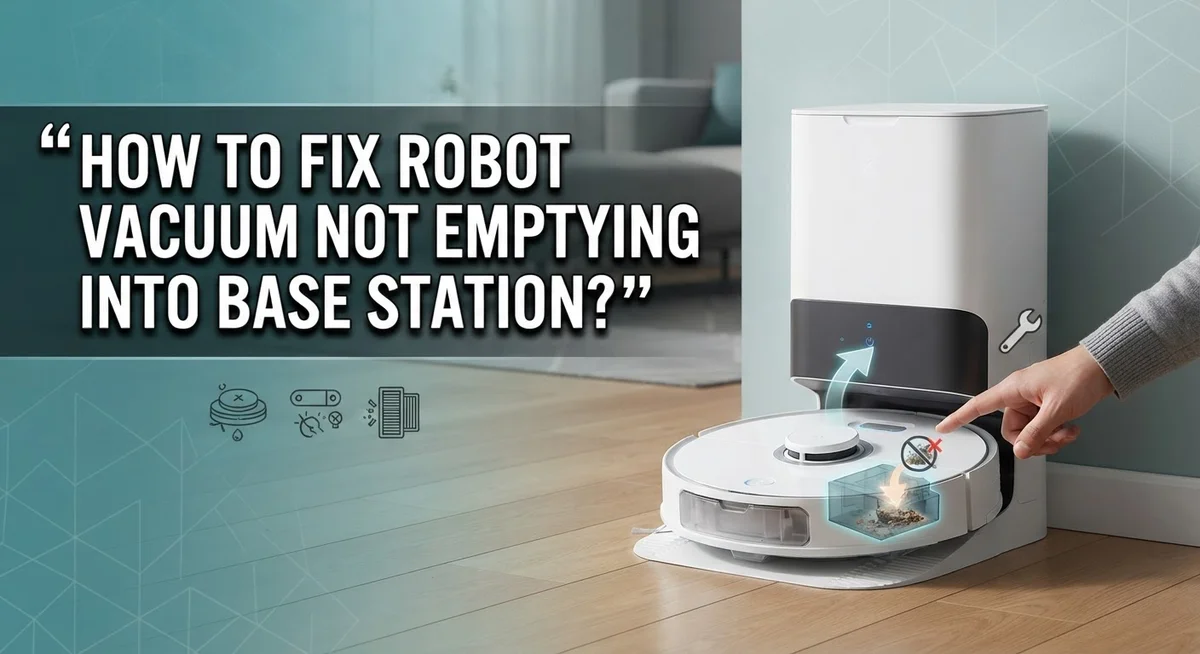
How To Fix Robot Vacuum Not Emptying Into Base Station?
Your robot vacuum just finished cleaning, but instead of emptying itself into the base station, it just sits there doing nothing. Frustrating, right?
This is a surprisingly common problem. Many users with popular models like Shark, Eufy, Roborock, and Ecovacs have run into this exact issue.
The good news? Most causes are simple to fix at home. You don’t need special tools or technical skills.
In this guide, we’ll walk you through every major reason why your robot vacuum won’t empty into its base station. We’ll also cover clear, step-by-step fixes for each one.
In a Nutshell
- A jammed dustbin release mechanism is one of the most common reasons your robot vacuum won’t empty into the base station. Check it first.
- Dirty battery contacts or clogged wheels can stop the vacuum from docking properly, which prevents the emptying process from starting.
- Docking station placement matters a lot. The dock should sit flat against a wall with at least 1.5 meters of open space on both sides.
- Low battery is often overlooked. If the vacuum doesn’t have enough charge, it may not complete the self-emptying cycle at all.
- A simple power cycle can fix many issues. Unplug the dock for 30 seconds, then restart both the vacuum and the base station.
- If the device is stuck in dust collection mode, a factory reset may be needed. This clears software glitches that block the emptying function.
Why Your Robot Vacuum Fails to Empty Into the Base Station
Your robot vacuum fails to empty into the base station for several specific reasons. Understanding these causes helps you fix the problem faster.
The dustbin release mechanism gets jammed most often. Debris, pet hair, or dust buildup prevents the dustbin from detaching properly. When the vacuum docks, it cannot release the full dustbin into the collection bag below. The mechanism simply refuses to open.
Dirty battery contacts stop proper docking. The vacuum’s charging contacts need clean metal surfaces to connect with the dock. Dust and debris coat these contacts over time. Without good contact, the vacuum cannot communicate with the base station. The emptying cycle never starts.
Clogged wheels prevent accurate docking. Wheels wrapped in hair or tangled fibers cause alignment problems. Your vacuum may dock slightly off center. This misalignment means the dustbin cannot align with the base station’s suction port.
Poor dock placement disrupts the process. The base station needs a flat wall and clear space on both sides. Obstacles nearby confuse the vacuum’s sensors. It may dock but fail to trigger the emptying sequence.
Low battery stops the self emptying cycle. Your vacuum needs sufficient charge to power the emptying process. A weak battery means the motor inside the base station cannot activate. The dust stays trapped in the dustbin.
The device gets stuck in dust collection mode. Sometimes the vacuum’s software glitches. It enters a mode where it simply won’t communicate with the dock properly. This requires a factory reset to fix.
Each issue has a straightforward solution. Start by inspecting the dustbin release and cleaning the contacts first.
How the Auto-Empty Base Station Works
An auto empty base station works by using suction power to pull dust and debris from your robot vacuum’s dustbin into a larger collection bag inside the dock itself. When your vacuum returns to the base station after cleaning, it docks into a specific position that aligns the dustbin opening with the dock’s suction inlet.
Once docked correctly, the base station activates its motor. This motor creates powerful suction that draws all the collected dirt, dust, and pet hair out of the vacuum’s dustbin. The debris travels through a tube or channel and gets deposited into a sealed bag or container within the dock. This process typically takes just a few minutes to complete.
The base station has sensors that detect when your vacuum is properly positioned. These sensors trigger the emptying cycle automatically. Your vacuum’s dustbin needs to align perfectly with the dock’s opening for suction to work effectively. Even slight misalignment prevents the emptying process from starting.
Battery contacts play a critical role in this system. When your vacuum docks, metal contacts on both devices touch to transfer power and data. The dock uses this connection to communicate with the vacuum and confirm proper positioning before activating suction.
Most base stations also have a filter that prevents dust from escaping back into your home. This filter needs regular cleaning to maintain suction power. Without proper airflow, the dock cannot pull debris effectively from the vacuum’s bin.
The entire system relies on three key elements working together: correct docking alignment, clean battery contacts for communication, and adequate suction power from the dock’s motor.
How to Inspect and Fix the Dustbin Release Mechanism
The dustbin release mechanism is the part that opens your vacuum’s dust container so the base station can suction out the debris. When this mechanism jams or gets blocked, your vacuum cannot empty properly.
Start by removing your robot vacuum from the dock. Look at the dustbin carefully. You’ll see a small lever, latch, or button that holds the container in place. Check if any dust, hair, or debris is stuck around this mechanism. Even small particles can prevent the release from working smoothly.
Use a soft brush or dry cloth to gently clean around the release mechanism. Be careful not to force anything. If you see stubborn buildup, a slightly damp cloth works well. Let any moisture dry completely before reattaching the dustbin.
Next, manually test the release mechanism. Press or slide the latch several times to ensure it moves freely. It should feel smooth without any grinding sounds or resistance. If it feels stuck, apply a tiny amount of silicone based lubricant to the moving parts. Wipe away any excess.
Check the dustbin itself for cracks or damage. A damaged container might not seal properly, which prevents the base station from creating enough suction to pull debris out. The dustbin also has a seal or gasket that must fit snugly into the vacuum’s body.
Reattach the dustbin firmly until you hear a click. The connection must be secure for the base station to work correctly. Test the emptying cycle again by placing your vacuum on the dock and initiating the self empty function through your app or control panel.
If the mechanism still doesn’t work after cleaning and testing, the internal components may need replacement.
How to Clean Battery Contacts, Wheels, and Docking Sensors
Your robot vacuum’s battery contacts and wheels directly affect docking accuracy. When these parts get dirty, the base station cannot communicate with your vacuum properly. Cleaning them takes just a few minutes and often solves emptying problems.
Start with the battery contacts. Remove your vacuum from the dock and flip it over. Look for metal contact points on the bottom of your vacuum. These contacts should shine like clean metal. Wipe them gently with a dry cloth or soft brush. Remove any dust, hair, or debris buildup. Do the same for the charging contacts on your base station. Use a slightly damp cloth if contacts look particularly grimy, then dry them completely. Wet contacts can cause connection issues.
Next, inspect the wheels. Your vacuum’s wheels pick up hair and fibers during cleaning. Check the front wheel and side brush for tangled debris. Use your fingers or a small brush to remove wrapped hair. Spin each wheel by hand to ensure they move freely. Stuck wheels throw off your vacuum’s alignment when docking, preventing it from entering the base station correctly.
Clean the docking sensors too. Most vacuums have sensors on the bottom that detect the base station. Wipe these sensor areas with a soft, dry cloth. Blocked sensors prevent your vacuum from recognizing the dock.
After cleaning, place your vacuum on the dock and listen for a beep or light indicator. This confirms proper connection. If your vacuum still won’t empty, the contacts are likely clean enough and another issue may be preventing the process. Move to the next troubleshooting step.
How to Correctly Position and Set Up Your Docking Station
Your docking station placement makes a huge difference in whether your robot vacuum empties successfully. The location you choose affects how well your vacuum aligns with the base station and whether the emptying cycle can complete.
Start by finding the right wall. Position your docking station against a flat, solid wall with no obstacles. Avoid corners or areas with furniture nearby. The wall should be straight and sturdy so your vacuum can approach at the correct angle every time.
Clear the surrounding space. Your vacuum needs room to dock smoothly. Leave at least 1.5 meters (about 5 feet) of open space on both sides of the base station. This clearance prevents your vacuum from hitting obstacles while it’s trying to align with the dock. Remove any rugs, cords, or small furniture from this area.
Keep the floor level. Your docking station should sit on a flat, even surface. Uneven floors make it harder for your vacuum to dock properly. If your floor has slight bumps or slopes, the vacuum might not align correctly with the emptying mechanism.
Avoid high traffic areas. Place your base station somewhere your family won’t bump into it or move it accidentally. Movement can disrupt the docking process and cause alignment issues.
Ensure good power access. Position the station near an outlet so the cable doesn’t stretch across walkways. A stable power connection keeps the base station functioning at full strength.
Once your docking station sits in the right location with proper clearance, your vacuum will dock more reliably and empty successfully.
How to Power Cycle and Factory Reset Your Robot Vacuum
A power cycle clears temporary glitches that stop your vacuum from emptying. This simple step fixes many docking problems without losing your settings.
Start with the docking station. Unplug the power cable from the wall outlet. Wait for 30 seconds. This pause lets the device fully discharge and reset its memory. Plug the station back in and wait for lights to turn on.
Next, power cycle your robot vacuum. Press the power button to turn it off completely. Remove the vacuum from the dock if it’s still sitting there. Wait another 30 seconds. Press the power button again to restart the device.
Place your vacuum back on the dock. Listen for beeping sounds or watch for LED lights that show the connection is working. The vacuum should attempt to empty within a few minutes.
A factory reset becomes necessary when your vacuum stays stuck in dust collection mode. This erases all settings and returns the device to its original state. Check your vacuum’s manual for the exact reset button location and hold duration, as different models vary.
Important note: A factory reset removes your saved maps and cleaning schedules. Use this option only after power cycling fails.
After resetting, your vacuum needs to redock and relearn the base station. This process typically takes one full cycle. Don’t interrupt the vacuum during this time.
If your vacuum still won’t empty after both steps, the problem likely involves hardware damage. Battery contacts may need professional cleaning, or internal components could require replacement. Contact customer support with details about what you’ve already tried.
Common Mistakes That Prevent Proper Auto-Emptying
Many robot vacuum owners make simple mistakes that stop the auto emptying feature from working. Understanding these errors helps you fix the problem faster.
Placing your dock in the wrong location is the most common mistake. Your vacuum needs clear space to approach the station from multiple angles. If you position the dock in a corner or against furniture, your robot cannot align properly. The sensors won’t detect the base station correctly. Move your dock to an open area with at least 1.5 meters of space on both sides.
Ignoring dirty contacts and wheels prevents successful docking. Dust and debris build up on the battery contacts and wheel areas during normal cleaning. This buildup blocks the electrical connection between your vacuum and the base station. Your vacuum physically cannot transfer power or trigger the emptying cycle. Clean these areas weekly with a dry cloth.
Skipping the power cycle step wastes time when troubleshooting. Many users assume their vacuum is broken when it simply needs a restart. Temporary software glitches stop the auto empty function. Unplug your dock for 30 seconds, then restart both units. This simple action fixes most emptying issues.
Overlooking low battery problems leaves your base station unable to function. The docking station needs sufficient power to create suction and pull debris from your vacuum’s bin. If your outlet is faulty or your charger is damaged, the station cannot operate. Test your outlet with another device and inspect the power cable for damage.
Leaving your vacuum in dust collection mode requires a factory reset. Some units get stuck after interrupted cleaning cycles. This mode prevents auto emptying until you reset the device completely. Check your app or manual for reset instructions specific to your model.
Model-Specific Fixes for Shark, Eufy, Roborock, and More
Different robot vacuum models have specific issues that prevent emptying into their base stations. Understanding your device’s particular problem helps you fix it faster.
Shark models like the 1P3251UKT often experience dustbin release mechanism jams. The plastic clip holding the dustbin can crack or wear out over time. Check if the release button moves freely. If it feels stuck, gently wiggle it side to side. Remove any debris blocking the mechanism. Shark vacuums also need clean wheel sensors for proper docking alignment.
Eufy L60 units frequently have battery contact issues. Dust accumulates on the charging pins, preventing the vacuum from recognizing the dock. Wipe both the vacuum’s battery contacts and the dock’s metal pins with a dry cloth. Pay special attention to corners where dust hides. This simple step solves most Eufy emptying problems.
Roborock vacuums sometimes get stuck in dust collection mode after software updates. Your vacuum recognizes the dock but won’t trigger the emptying cycle. A factory reset fixes this issue. Hold the power button for 10 seconds until you hear two beeps.
Proscenic M7 Pro models need proper wheel cleaning. Debris wrapped around the wheels prevents smooth docking. Use scissors to cut away tangled hair and dust. Clean wheels allow your vacuum to align perfectly with the dock.
Ecovacs devices often have low battery problems. If your vacuum’s battery drops below 20 percent, the base station won’t activate its suction motor. Charge your vacuum fully before troubleshooting further.
Check your specific model’s manual for exact reset procedures. Each brand uses slightly different button combinations. Your model number appears on the bottom of your vacuum. Write it down before starting any repairs. This prevents confusion if you need support later.
Final Thoughts
Fixing a robot vacuum that won’t empty into its base station is usually straightforward once you know what to check.
Most problems come down to a few key areas. These include dirty contacts, blocked wheels, a misplaced dock, low battery, or a stuck dust collection mode.
Start with the simplest fixes first. Clean the battery contacts and wheels before anything else. Then check that your dock sits flat against a wall with 1.5 meters of open space on both sides.
If cleaning doesn’t help, try a power cycle. Unplug the dock for 30 seconds and restart your vacuum. This single step solves a surprising number of issues.
When your vacuum stays stuck in dust collection mode, a factory reset is your best option. Just remember that resetting will erase your saved maps and cleaning schedules.
Different brands behave differently. Shark models often deal with dustbin release jams. Eufy units tend to have contact issues. Roborock vacuums sometimes freeze after software updates. Always check your model’s manual for the exact reset steps.
Low battery is an easy problem to overlook. Your base station needs enough power to run the auto-empty cycle. Always keep your vacuum docked and charged when not in use.
Avoid the common mistakes that slow down troubleshooting. Don’t skip the power cycle step. Don’t ignore dirty wheels or contacts. Don’t place your dock in a tight or cluttered corner.
With the right approach, most robot vacuums start emptying properly again within minutes. Work through each step patiently and your vacuum will get back to doing its job without interruption.
Frequently Asked Questions
Why does my robot vacuum stop docking after a few days?
Your vacuum may stop docking due to dirty battery contacts or debris on the wheels. Dust buildup prevents proper electrical connection between the vacuum and base station. Clean the metal contacts on both the vacuum and dock with a dry cloth. Also wipe the wheels and sensors to ensure smooth docking alignment.
Another reason is incorrect dock placement. Your base station needs a flat wall behind it and open space on both sides. Move your dock away from corners or tight spaces if it’s positioned poorly.
Can a low battery prevent the auto empty function?
Yes, absolutely. Your base station requires sufficient power to run the auto empty cycle. If the dock battery is low, it cannot generate enough suction to pull debris from the vacuum’s dustbin.
Check that your dock charger is plugged in properly and the cable shows no damage. Test a different outlet to rule out electrical problems. Allow the base station to charge fully before attempting another empty cycle.
What should I do if my vacuum gets stuck in dust collection mode?
A factory reset is often the solution. Your vacuum may become stuck in this mode after a software update or system error. Locate the reset button on your device, usually found on the bottom or side panel.
Press and hold the reset button for 10 to 15 seconds until lights flash. Your vacuum will restart and relearn the base station connection. Check your specific model’s manual for exact button locations and reset timing.
How do I know if the dustbin release mechanism is jammed?
Listen for clicking sounds when the vacuum attempts to dock. If you hear repeated clicking without the dustbin releasing, the mechanism is likely jammed. Remove the dustbin and inspect the release latch for debris or blockages. Clear any dust or hair wrapped around moving parts.
Gently test the latch by hand to ensure it moves freely. Reattach the dustbin firmly and try docking again.

Hi, I’m Yuri — I’m a tech enthusiast who loves breaking down complex gadgets, software, and tools into simple, honest reviews and guides. My goal? To help you spend less time researching and more time enjoying the right tech.