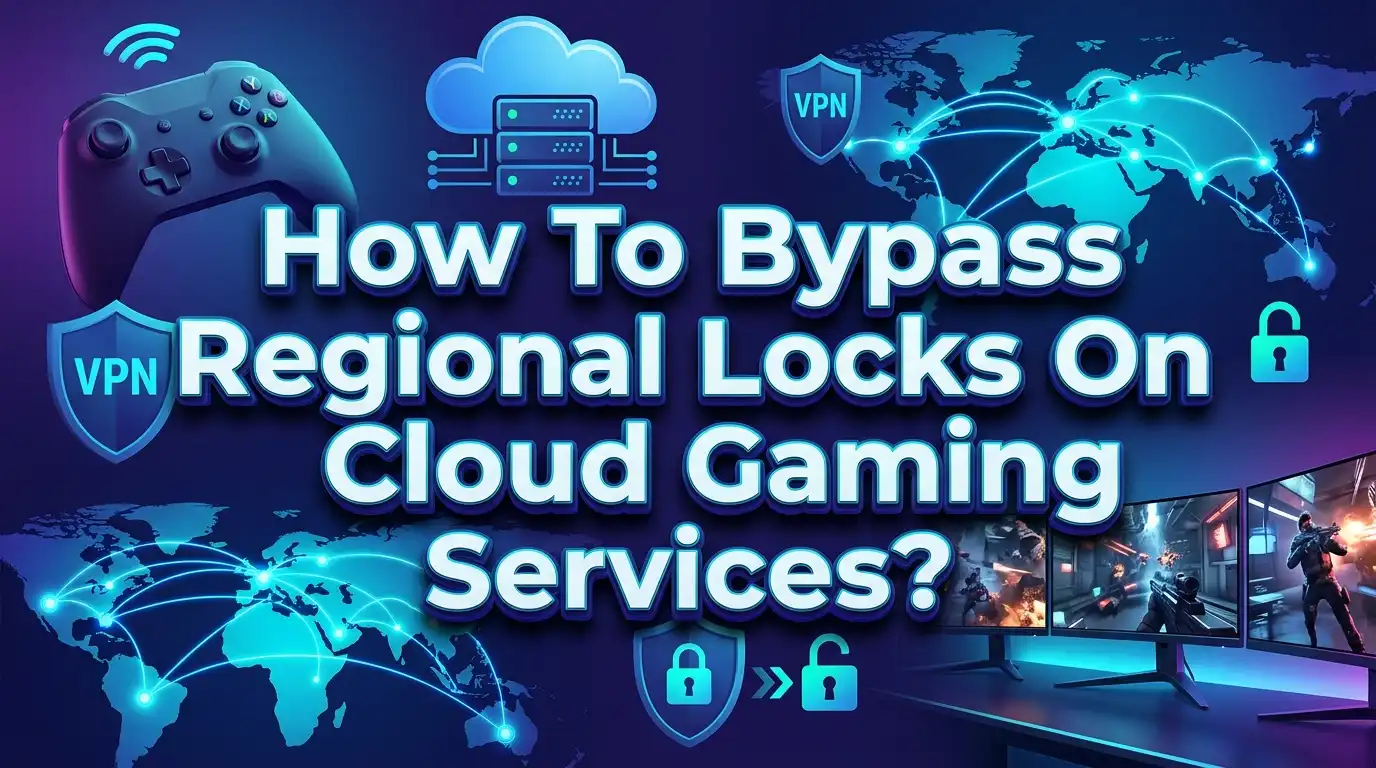
How To Bypass Regional Locks On Cloud Gaming Services?
You sit down, grab your controller, and fire up your favorite cloud gaming app. You are ready to play. Then the message pops up: “Cloud gaming is not available in your region.” It stops you cold. You pay for the subscription. You have fast internet. But the service simply refuses to let you in because of where you live.
You are not alone. Millions of gamers face this exact wall every day. The global cloud gaming market hit $2.28 billion in 2025 and is racing toward $48 billion by 2033.
Xbox Cloud Gaming supports only 29 countries as of late 2025. GeForce NOW covers roughly 80 regions through NVIDIA and its alliance partners.
This post gives you real, working solutions. No fluff. No product pitches. Just step by step methods you can try today. We will cover VPNs, Smart DNS, account region changes, gift card workarounds, and more. You will also learn the risks, the performance trade offs, and how to stay safe while you play.
Key Takeaways
- VPNs are the most reliable method for bypassing regional locks on cloud gaming platforms. Premium VPNs with modern protocols like WireGuard or Lightway add only 2 to 10 ms of extra latency.
- Smart DNS offers lower ping than VPNs and works well on consoles. However, it provides no encryption and does not work on every service.
- The “VPN on, launch, VPN off” trick works on many platforms. You use the VPN to pass the initial region check, then turn it off to play with your normal connection speed.
- Using a VPN or Smart DNS may violate Terms of Service. Accounts can face warnings, temporary suspensions, or permanent bans. Always understand the risk before you proceed.
- Mixing payment methods and region settings can trigger fraud alerts. Keep your payment card, account region, and IP location aligned. Using regional gift cards is a safer payment workaround.
- Free VPNs are not worth the risk. They throttle speeds, sell your data, and rarely work for cloud gaming. Use premium services with a money back guarantee instead.
Why Do Cloud Gaming Services Have Regional Locks?
Cloud gaming services do not block you because they dislike your country. They block you because of three simple reasons: licensing, infrastructure, and local laws.
Licensing agreements are the biggest factor. Game publishers sign deals that control exactly where their titles can be streamed. A game available on GeForce NOW in the United States may have no streaming rights in South America or Africa. The cloud platform must enforce these boundaries or face legal trouble.
Server infrastructure creates another barrier. Cloud gaming needs data centers close to players. If you are more than a few hundred miles from a server, latency climbs and gameplay suffers. Platforms like Xbox Cloud Gaming and Amazon Luna only build server farms where demand and network quality justify the cost. If your region lacks nearby servers, the service stays unavailable.
Local laws and content regulations add a third layer. Some governments ban certain games or restrict streaming services entirely. Cloud platforms comply with these rules to avoid fines or being shut down in that country.
The result is a patchwork of availability. A gamer in Germany enjoys smooth access to three different cloud services. A gamer in Türkiye, Nigeria, or the Philippines gets blocked even with a paid subscription. This is the problem we solve in this guide.
Check If Your Region Is Actually Supported
Before you try any bypass method, confirm that your country is truly unsupported. Sometimes the problem is a simple account mismatch, not a regional block.
Visit the official supported regions page for your service. For Xbox Cloud Gaming, check the Xbox regions list on the Microsoft website. For GeForce NOW, NVIDIA publishes a full location selector. For Amazon Luna, the eligible countries are listed in their help section. For PlayStation Plus cloud streaming, Sony lists 30 supported countries mainly in North America, Europe, and Japan.
Also check your account settings. On Xbox, go to your Microsoft account profile and verify the country matches your actual location. On PlayStation, create a new user profile tied to a supported region if needed. Sometimes changing your device region in Windows, Android, or iOS settings fixes app store access issues.
If your country is truly not on the list, move to the solutions below.
Method 1: Use a VPN to Change Your Virtual Location
A Virtual Private Network (VPN) is the most common and effective tool for bypassing regional locks. It routes your internet traffic through a server in a supported country. The cloud gaming platform sees that server’s IP address and grants you access.
How to Set Up a VPN for Cloud Gaming
First, choose a premium VPN service with gaming optimized servers. Avoid free VPNs. They cap bandwidth, slow your connection, and often sell your browsing data.
Second, install the VPN app on your device. This is easiest on Windows, Mac, Android, and iOS. If you play on a console, you will need to set up the VPN on your router instead.
Third, connect to a server in a supported country. Choose the server closest to your real location for the lowest ping. For example, if you are in Eastern Europe, connect to Germany rather than the United States.
Fourth, open your cloud gaming app or website. Log in and start a game. The platform should now see you as being in the supported country.
Pros of Using a VPN
A premium VPN unlocks almost every cloud gaming platform. It encrypts your traffic and hides your activity from your ISP. It protects you from DDoS attacks and IP tracking. Modern protocols like WireGuard and Lightway keep added latency as low as 1 to 5 milliseconds. Split tunneling lets you route only gaming traffic through the VPN while other apps use your normal connection.
Cons of Using a VPN
VPNs always add some latency. The further the VPN server is from both you and the game server, the higher the ping. Free or cheap VPNs can add 50 to 150 ms, making action games unplayable. Some platforms actively detect and block known VPN IP addresses. Using a VPN to bypass regional locks may violate Terms of Service, risking account warnings or suspensions.
Method 2: Use Smart DNS for Lower Latency
Smart DNS is a lighter alternative to a VPN. It does not encrypt your traffic or change your IP address. Instead, it intercepts only the specific data requests that reveal your location. The cloud gaming platform sees a supported region while the rest of your connection runs at full speed.
How to Set Up Smart DNS
First, sign up with a Smart DNS provider. Many premium VPN services include Smart DNS as part of their subscription.
Second, go to your device’s network settings. Find the DNS configuration section. Replace the default DNS addresses with the ones your Smart DNS provider gives you.
Third, restart your device to apply the changes. Some providers also require you to register your IP address on their website so they know to reroute your traffic.
Fourth, open your cloud gaming app and start playing. The service should now allow access.
Smart DNS works especially well on gaming consoles. The Xbox and PlayStation do not support native VPN apps. But you can change their DNS settings in under two minutes. This makes Smart DNS the easiest console solution.
Pros of Using Smart DNS
Smart DNS adds almost zero latency. Your gaming ping stays exactly the same as without any tool. It is easy to set up on consoles, smart TVs, and streaming devices. It does not slow down other devices on your network. The setup takes just a few minutes and requires no software installation.
Cons of Using Smart DNS
Smart DNS provides no encryption. Your ISP can still see everything you do. It does not hide your real IP address from websites or apps. Some cloud gaming platforms block known Smart DNS services. The method is less consistent than a VPN and may stop working after platform updates. You also need a static or semi static IP address, which some ISPs do not provide.
Method 3: Change Your Account Region Settings
This method works when your account region does not match your physical location. It is the most legitimate fix and carries zero risk if you have actually moved to a new country.
For Xbox and Microsoft Accounts
Sign in to your Microsoft account at account.microsoft.com. Go to “Your Info” and select “Edit profile info.” Change your country to a supported region. On your Xbox console, go to Settings, then System, then Language and Location, and select the same supported country. Restart your console.
Important warnings: Money in your Microsoft account does not transfer between regions. Spend any balance before you switch. You may need a payment method from the new country. Microsoft enforces a three month cooldown between region changes.
For PlayStation and Nintendo Accounts
These platforms do not allow easy region changes. Instead, create a new user profile tied to a supported country. Use a payment method that matches that country. This may require buying regional gift cards or using a local PayPal account.
Pros of Changing Account Region
This method is completely legitimate if you have moved. It adds zero latency. It does not risk your account standing. It fixes the problem at the source rather than masking it.
Cons of Changing Account Region
It only works if you physically reside in a supported country. Faking your location this way violates Terms of Service. You may lose access to previously purchased games, DLC, or subscriptions. Payment methods must match the new region, which can be hard to arrange.
Method 4: Use Gift Cards and Regional Payment Workarounds
Sometimes the region lock is not about playing. It is about paying. Your credit card comes from an unsupported country, so the platform refuses your subscription payment.
The fix is simple. Buy legitimate gift cards or redeemable subscription codes for a supported region. For Xbox Game Pass Ultimate, buy a digital code from a retailer in the United States, United Kingdom, or another supported country. Redeem the code while connected to a VPN server in that same country. Your subscription activates and cloud gaming becomes available.
For PlayStation Plus Premium, create an account tied to a supported region. Buy a PSN gift card for that region from a reputable online seller. Redeem the code on your PlayStation or via the website. Subscribe to the Premium tier and cloud streaming unlocks.
Warning: Buy codes only from trusted sources. Many resellers sell stolen or fraudulent codes. If the code was purchased with a stolen credit card, your account could face a permanent ban. Stick to major retailers or official platform stores.
Pros of Using Gift Cards
This method only affects payment, not gameplay. It adds zero latency. It is hard for platforms to detect or punish when done with legitimate codes. It works on all platforms: Xbox, PlayStation, Nintendo, and even GeForce NOW.
Cons of Using Gift Cards
You may pay more due to currency conversion and regional pricing differences. Redeeming codes often requires a VPN during the redemption step. Subscription renewal becomes tricky since your payment method is not local. If you buy a bad code from a shady seller, you lose your money and risk your account.
Method 5: Use Browser Extensions and User Scripts
Some clever developers have created browser based tools that bypass region checks on cloud gaming websites. The most notable example is the Xbox Cloud Gaming Region Unlocker, a userscript available on Greasy Fork.
These tools work by modifying how the website reads your location data. They intercept the region check request and return a supported region instead. You play through your normal browser without needing a VPN for the gameplay session.
To use such a tool, install a user script manager extension like Tampermonkey or Violentmonkey on your browser. Then install the region unlocker script. Visit the Xbox Cloud Gaming website and log in. The script handles the region bypass automatically.
Some users also combine this with the Better xCloud extension, which adds quality of life features to Xbox Cloud Gaming. Together, these tools can improve both access and gameplay experience.
Pros of Browser Extensions
These tools add no latency at all. They work only in the browser and do not affect other apps. They are free and open source. Setup takes just a few minutes.
Cons of Browser Extensions
They only work for browser based cloud gaming, not native apps. Platform updates can break the scripts at any time. They still technically violate Terms of Service and carry some account risk. You must trust that the script developer is not doing anything malicious with your data.
Method 6: Set Up a VPN on Your Router for Console Cloud Gaming
Playing cloud games on an Xbox or PlayStation console presents a unique challenge. Neither console supports native VPN apps. You have two options: Smart DNS (covered earlier) or router level VPN.
Setting up a VPN on your router sends all connected devices through the VPN tunnel. Your console automatically gets the VPN’s IP address without any configuration on the console itself.
Step by Step Router VPN Setup
First, check if your router supports VPN configuration. Many modern routers from ASUS, Netgear, and TP Link have built in VPN client features. If yours does not, you may need to install custom firmware like DD WRT or buy a pre configured VPN router.
Second, log in to your router’s admin panel. This is usually done by typing 192.168.0.1 or 192.168.1.1 into your browser.
Third, navigate to the VPN section. Upload the configuration files provided by your VPN service. Select a server in a supported cloud gaming country.
Fourth, connect the VPN and test. Your console should now appear to be in the chosen country. Launch your cloud gaming app and verify it works.
Important: Running a VPN on your router slows down every device in your home. Use a router that supports split tunneling or policy based routing. This lets you send only the console’s traffic through the VPN while other devices use the normal connection.
Pros of Router VPN
It works seamlessly with any console or smart TV. No configuration is needed on individual devices. All cloud gaming apps on the console gain access. It is a set and forget solution once properly configured.
Cons of Router VPN
Setup is more technical than other methods. Not all routers support VPN clients. VPN encryption taxes the router’s CPU, which can reduce overall internet speed. All devices share the VPN connection, which may slow down streaming or browsing for other family members.
Method 7: Try a Gaming Optimized Proxy or Cloudflare WARP
Some gamers report success with lightweight proxy tools instead of full VPNs. Cloudflare WARP is a free tool that routes your traffic through Cloudflare’s global network. It is not designed as a region spoofing tool. But in some cases, it assigns you an IP address that cloud gaming platforms accept.
Cloudflare WARP uses the WireGuard protocol and adds very little latency. It is free with no data caps. Download the WARP app on Windows, Mac, Android, or iOS. Enable it and check your new IP address using a site like whatismyip.com. If the IP shows a supported country, try launching your cloud gaming service.
Some paid services offer residential or ISP proxies. These use real IP addresses from internet service providers, making them harder for platforms to detect and block. However, they are expensive and require technical knowledge to set up.
Pros of Proxy Solutions
Cloudflare WARP is free and fast. It adds minimal latency. It protects your privacy better than no tool at all. Residential proxies are very hard for platforms to detect and block.
Cons of Proxy Solutions
Cloudflare WARP rarely helps with region locks since it often assigns an IP in your actual country. Residential proxies cost much more than VPN subscriptions. Setup is complex and not beginner friendly. Proxies typically lack the encryption and privacy features of a good VPN.
Understanding Latency and Performance When Bypassing Region Locks
Latency is the biggest enemy of cloud gaming. Every button press must travel from your controller to the cloud server and back before you see the result on screen. This round trip time is measured in milliseconds (ms).
Ideal latency for cloud gaming is under 30 ms. Acceptable latency falls between 30 and 60 ms. You can feel the delay above 60 ms, and competitive shooters become frustrating. Anything above 100 ms makes most action games unplayable.
When you add a VPN, you add another stop on the journey. Your data goes from your device to the VPN server, then to the cloud gaming server, and back along the same path. The extra distance increases ping.
A premium VPN with a nearby server typically adds 2 to 10 ms. A crowded or distant VPN server can add 50 to 150 ms. Smart DNS adds virtually zero extra latency since it only reroutes tiny location check packets, not the game stream itself.
Always test your latency before and after enabling any bypass tool. Use a speed test site to measure ping to a server near your cloud gaming data center. Try different VPN servers and pick the one with the lowest consistent ping. Wired Ethernet connections are always better than Wi-Fi for cloud gaming stability.
The VPN On, Launch, VPN Off Trick Explained
This is the single most popular workaround in the cloud gaming community. It works because most platforms only check your location at two moments: when you log in and when you launch a game. Once the game stream starts, the platform rarely rechecks your region.
Here is the exact step by step:
- Connect your VPN to a supported country.
- Open your cloud gaming app or website.
- Sign in to your account.
- Select a game and click Play.
- Wait for the game to fully load and the stream to begin.
- Disconnect the VPN.
- Play with your normal, low latency connection.
This method works reliably on Xbox Cloud Gaming via browser and on GeForce NOW for many users. However, some platforms have started implementing mid session region checks. If your game suddenly stops or shows a region error, the platform may have detected the switch.
Pros of This Trick
You get the best of both worlds. The VPN bypasses the region check, but you play without any VPN latency penalty. Your ping is exactly what your raw internet connection provides. The trick is free if you already have a VPN subscription.
Cons of This Trick
It does not work on all platforms. Some services check your IP repeatedly during the session. The disconnect and reconnect process can cause brief stream interruptions. If the platform detects the IP change, your session may end abruptly. Repeated use could flag your account.
Risks and Legal Considerations: What Could Go Wrong
Bypassing regional locks is not illegal in most countries. But it almost always violates the platform’s Terms of Service. Here is what that means in practice.
Account warnings and suspensions are the most common consequences. Microsoft has suspended Xbox accounts for 15 days for using cloud gaming from unsupported regions. The automated system flags accounts where the IP location and account region do not match. Reddit users have reported losing access to their entire game library during these suspensions.
Payment method complications can lock you out of purchases. If you buy a game in Türkiye using local pricing but play it on cloud gaming through a German IP address, the system may flag you for regional marketplace exploitation. This happened to a Reddit user who was suspended for buying a mispriced game and streaming it via cloud gaming.
Permanent account bans are rare but possible. Platforms reserve the right to terminate accounts that repeatedly violate terms. You could lose all your purchased games, subscriptions, and progress.
Local VPN laws add another layer. Some countries including China, Russia, Iran, and others restrict or ban VPN use. Using a VPN in these countries may carry legal penalties beyond just losing your gaming account.
Stay safer by following these rules: Use the VPN only for the initial region check. Do not buy games from one region and play them through another region’s IP. Avoid rapidly switching between different regional servers. Use reputable no logs VPN providers that do not track your activity.
Free VPNs vs Premium VPNs for Cloud Gaming
Let us be direct. Free VPNs do not work for cloud gaming. Here is why.
Free VPNs impose strict data caps, often 500 MB to 2 GB per month. Cloud gaming consumes 4 to 10 GB per hour. You would burn through a monthly free VPN allowance in under 10 minutes of gameplay.
Free VPNs have overcrowded servers. When hundreds of free users share one server, speeds drop to a crawl. Latency spikes make games a slideshow. Many free VPNs also inject ads into your browsing or sell your data to advertising networks.
Free VPNs lack modern gaming protocols. They use outdated, slow encryption that adds significant lag. They rarely support split tunneling, router installation, or Smart DNS features.
The one partial exception is Proton VPN’s free tier, which offers unlimited data. But it limits you to servers in just a few countries, often with high ping. Queue times during peak hours can stretch to minutes. It is not recommended for serious cloud gaming.
Best practice: Use a premium VPN with a 30 day money back guarantee. Test it thoroughly during that window. If it does not improve your cloud gaming access, cancel for a full refund. This gives you risk free testing with full performance.
Which Cloud Gaming Services Are Easier to Bypass?
Not all cloud gaming platforms treat regional locks the same way. Some are stricter than others.
GeForce NOW is relatively VPN friendly. Users in unsupported countries regularly access the service through VPNs. NVIDIA’s alliance partners like ABYA in South America and StarHub in Southeast Asia have also expanded access. The free tier makes it easy to test without financial commitment.
Xbox Cloud Gaming has become stricter in 2025. Microsoft recently cracked down on VPN usage for game code redemption. Accounts using cloud gaming from unsupported regions face increasing risk of suspension. Still, the “VPN on, VPN off” trick works for many. Stick to Game Pass catalog games rather than “stream your own game” titles to reduce risk.
Amazon Luna is the most restrictive. It requires your Amazon Prime account to be from a supported country. Amazon’s fraud detection systems are aggressive. Using a VPN with Luna often triggers verification requests that lock your account.
PlayStation Plus cloud streaming falls in the middle. You need a PSN account from a supported country and a Premium subscription. Playing once connected is generally stable. Sony has not shown aggressive enforcement against VPN users so far.
Optimizing Your Connection for Cloud Gaming Through a VPN
Once you have a working bypass, squeeze every bit of performance out of your connection.
Choose the closest VPN server to both you and the cloud gaming data center. If you are in Eastern Europe and want to access GeForce NOW EU servers, connect to a VPN server in Frankfurt or Amsterdam, not New York.
Use a wired Ethernet connection. Wi-Fi adds jitter and packet loss that compound with VPN overhead. A stable wired connection gives you the best chance of smooth gameplay.
Enable split tunneling in your VPN app. Route only the cloud gaming traffic through the VPN. Keep Discord, voice chat, and web browsing on your direct connection. This reduces the load on the VPN tunnel.
Select the right VPN protocol. WireGuard, NordLynx, and Lightway are designed for speed and low latency. Avoid OpenVPN TCP for gaming. Use OpenVPN UDP only as a fallback.
Close background apps. Cloud gaming is sensitive to any network activity. Pause downloads, close streaming services, and stop cloud backups while you play.
Adjust in game settings. Lower the streaming resolution if your connection struggles. Playing at 720p with stable 60 fps feels better than 1080p with stutters and frame drops.
When Nothing Works: Exploring Local Cloud Gaming Alternatives
If every bypass method fails or the latency is unbearable, do not give up on cloud gaming entirely. Many regions have local alternatives that work natively without any tricks.
In the Middle East, Ooredoo’s Go Play Market offers cloud gaming powered by Blacknut in Qatar, Kuwait, and Oman. The library has over 500 games with local servers for low ping.
In Southeast Asia, StarHub operates GeForce NOW alliance servers in Singapore with coverage reaching Indonesia, Thailand, Vietnam, and the Philippines. Taiwan Mobile runs GeForce NOW in Taiwan and Hong Kong.
In South America, ABYA provides GeForce NOW access in Argentina, Brazil, Chile, Paraguay, and Uruguay. Digevo covers Chile, Colombia, and Peru.
In Turkey, GAME+ runs GeForce NOW servers with local pricing and low latency. In South Africa, rain operates GeForce NOW infrastructure.
These alliance partner services often have different game libraries and pricing than the main NVIDIA service. But they run on the same technology with servers close to you, solving the latency problem entirely.
Check with your local telecom providers. Many are launching white label cloud gaming services. You might already have access through your phone or internet plan without knowing it.
Frequently Asked Questions
Can a VPN really unlock region locked cloud gaming?
Yes. A VPN routes your internet connection through a server in a supported country. The cloud gaming platform sees that server’s location and grants access. Premium VPNs with nearby servers add only 2 to 10 ms of extra ping. The “turn VPN on, launch the game, turn VPN off” trick works on many platforms by bypassing only the initial region check.
Is it legal to bypass cloud gaming regional locks?
In most countries, using a VPN or Smart DNS is legal. However, it almost always violates the cloud gaming platform’s Terms of Service. This can result in account warnings, temporary suspensions, or permanent bans. Some countries restrict VPN use entirely. Always check your local laws and understand the risks before proceeding.
Which method has the lowest impact on gaming ping?
Smart DNS has the lowest impact, adding close to zero extra latency. It only reroutes the tiny location check data, not the game stream itself. Browser extensions and user scripts also add no latency. The “VPN on, VPN off” trick lets you play with no VPN overhead after the initial region check passes.
Will I get banned for using a VPN with Xbox Cloud Gaming?
Suspensions have happened. In 2025, Microsoft began stricter enforcement against VPN usage for cloud gaming and game code redemption. A Reddit user reported a 15 day suspension for using Xbox Cloud Gaming from an unsupported region. The risk is lower if you stick to Game Pass catalog games and avoid purchasing games with mismatched regional pricing.
What internet speed do I need for cloud gaming through a VPN?
Cloud gaming needs at least 15 Mbps download speed for 1080p streaming. 4K requires 40 to 50 Mbps. A VPN reduces your effective speed due to encryption overhead and routing distance. Aim for a base connection of at least 50 Mbps so the VPN slowdown does not drop you below the minimum. Wired Ethernet is strongly recommended over Wi-Fi.
Can I set up a VPN on my Xbox or PlayStation for cloud gaming?
Consoles do not support native VPN apps. You have two options: configure a Smart DNS directly in the console’s network settings, or install the VPN on your home router so all connected devices including the console use the VPN tunnel. Smart DNS is the easier method and adds no latency.
Are there any free tools that actually work for bypassing cloud gaming region locks?
Free VPNs do not work well for cloud gaming due to data caps, slow servers, and high latency. The Xbox Cloud Gaming Region Unlocker browser script is free and works for browser based play. Cloudflare WARP is free and sometimes helps, but it rarely assigns an IP in a supported country by design. Proton VPN’s free tier offers unlimited data but limited server locations and higher ping.

Hi, I’m Yuri — I’m a tech enthusiast who loves breaking down complex gadgets, software, and tools into simple, honest reviews and guides. My goal? To help you spend less time researching and more time enjoying the right tech.