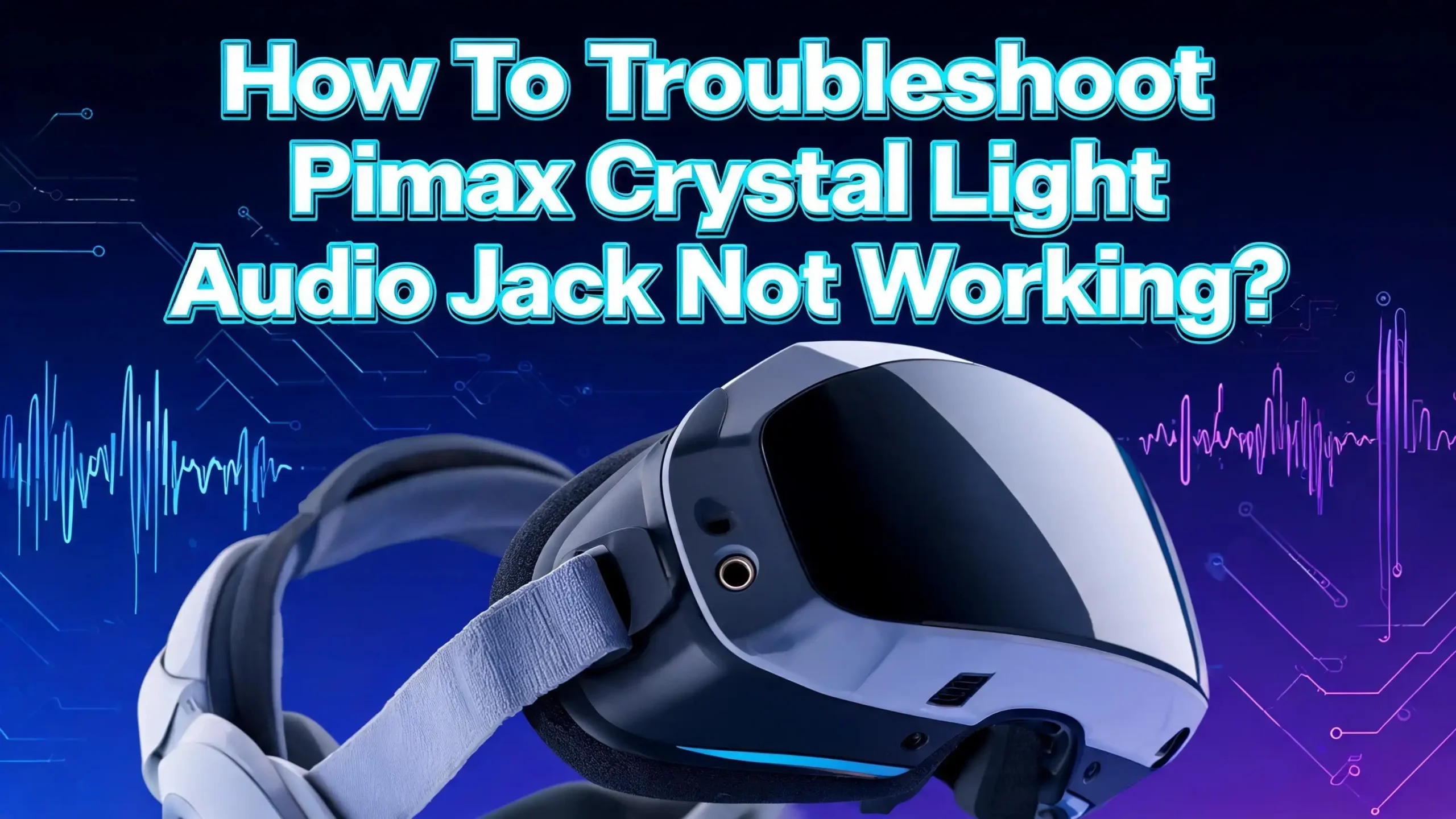
How To Troubleshoot Pimax Crystal Light Audio Jack Not Working?
You just put on your Pimax Crystal Light, launched your favorite VR game, and something feels wrong. There is no sound. Or maybe the sound crackles, cuts out, or only plays through one ear.
The 3.5mm audio jack on the headset seems dead, and your headphones are picking up nothing. This problem is frustrating because the Pimax Crystal Light is a premium VR headset, and you expect every feature to work right out of the box.
The good news is that you are not alone. Many Crystal Light owners have reported audio jack issues on forums, Reddit, and Pimax support channels. The causes range from simple software misconfiguration to firmware bugs and even hardware faults.
This guide will walk you through every practical fix, from basic checks to advanced troubleshooting steps. By the end of this post, you will know exactly what to do to get your audio working again.
Key Takeaways
- The Pimax Crystal Light routes audio through the DisplayPort cable, not the USB connection. This means problems with your DisplayPort connection can directly affect sound output, including the 3.5mm jack.
- Outdated Pimax Play software and headset firmware are the most common causes of audio failure. Pimax released specific patches (v1.34 and later) that resolved widespread sound issues reported by Crystal Light users. Always check for updates first.
- Windows audio device settings often default to the wrong output. If your PC does not recognize the Pimax audio device or selects your desktop speakers instead, no sound will reach the headset’s 3.5mm jack.
- The 3.5mm jack on the Crystal Light may apply an EQ profile designed for the built in speakers. Some users report boosted bass and distorted sound through wired headphones because the headset uses a shared audio controller for both the internal speakers and the jack.
- USB power management settings in Windows can cut off audio mid session. Disabling the “allow the computer to turn off this device to save power” option in Device Manager has helped many users fix intermittent audio dropouts.
- A clean GPU driver installation with DDU often resolves persistent audio problems because NVIDIA audio drivers handle the sound signal sent through DisplayPort.
Understanding How Audio Works on the Pimax Crystal Light
The Pimax Crystal Light delivers audio in a unique way compared to many VR headsets. The headset includes integrated stereo speakers, a 3.5mm headphone jack, dual microphones, and optional DMAS speaker compatibility. This gives users several ways to hear sound during VR sessions.
Audio on the Crystal Light travels primarily through the DisplayPort cable, not the USB cable. The USB connection handles tracking data, microphone input, and power delivery. The actual sound signal passes through the DP link from your GPU to the headset.
This is an important detail because it means audio problems can stem from your GPU, your DisplayPort cable, or your NVIDIA/AMD audio drivers.
The 3.5mm audio jack on the headset acts as a secondary output. It takes the audio signal that arrives via DisplayPort and routes it to your wired headphones or earbuds. If the primary audio path is broken, the 3.5mm jack will also produce no sound. Understanding this signal path is the first step to identifying the root cause of your problem.
Check if the Pimax Audio Device Is Set as Default in Windows
One of the simplest and most common fixes involves checking your Windows sound settings. Many users skip this step and dive into more complicated troubleshooting, but the problem is often right here.
Open the Windows Sound Settings by right clicking the speaker icon in your taskbar and selecting “Sound settings.” Scroll down to the output section and check which device is currently selected. Your Pimax Crystal Light audio device should appear as “NVIDIA High Definition Audio” or a similar label when the headset is powered on and connected.
If your desktop speakers or another device is selected instead, Windows will send all audio there. Click the dropdown menu and select the Pimax audio output. You should also click on “More sound settings” to open the classic Sound control panel. Find the Pimax audio device, right click it, and select “Set as Default Device.” Also make sure it is not disabled or listed under the “Disabled” tab.
Some VR games and applications have their own audio output settings. Check inside the game’s audio options to confirm it is sending sound to the correct device. If the game is set to use your monitor speakers, you will hear nothing in the headset even though Windows is configured correctly.
Update Pimax Play Software to the Latest Version
Outdated software is one of the biggest reasons the Crystal Light audio fails. Pimax has released several updates that specifically address audio bugs. The v1.34 update was a turning point for many users who experienced sound that would not work until after multiple headset restarts.
Open Pimax Play on your PC. Go to the settings or device section and look for a software update option. You can also visit the official Pimax downloads page to grab the latest installer manually. Download and install the newest version of Pimax Play, then restart your computer before testing the audio again.
Multiple users on Reddit confirmed that updating to v1.34.01 and later versions completely resolved their audio problems. Before this update, some owners had to restart their headset five or more times before sound would kick in. The update fixed the underlying driver initialization issue that caused this behavior.
Always keep Pimax Play updated. Pimax regularly patches bugs, improves compatibility, and refines audio handling. An outdated client is the most preventable cause of audio jack failure on the Crystal Light.
Update Your Headset Firmware
Software updates alone may not be enough. The Crystal Light headset itself runs internal firmware that controls hardware functions, including audio output and the 3.5mm jack. Firmware updates are delivered through Pimax Play.
Connect your headset and open Pimax Play. Navigate to Device Settings and select “Check for Updates.” If a firmware update is available, follow the on screen prompts carefully. Do not unplug or power off the headset during the update process, as this can corrupt the firmware and create bigger problems.
Pimax has released multiple firmware versions for the Crystal Light. Each version addresses specific hardware issues. Audio initialization failures, speaker EQ bugs, and jack detection problems have all been targets of firmware patches. After the update completes, restart both the headset and your PC.
If the firmware update fails or gets stuck, try using a different USB port or a different USB cable. Some users found that firmware updates would not install properly through underpowered USB ports. Use a USB 3.0 port connected directly to your motherboard for the best results.
Reinstall or Update Your GPU Audio Drivers
Because the Pimax Crystal Light sends audio through the DisplayPort cable, your GPU’s audio driver plays a critical role. NVIDIA and AMD GPUs both include audio components that handle sound over DisplayPort and HDMI connections.
Open Device Manager in Windows. Expand the “Sound, video and game controllers” section. You should see an entry for NVIDIA High Definition Audio or AMD High Definition Audio. Right click it and select “Update driver.” Choose “Search automatically for drivers” to let Windows find the latest version.
For a more thorough fix, perform a clean GPU driver installation using DDU (Display Driver Uninstaller). Download DDU from its official website. Boot your PC into Safe Mode, run DDU, and select “Clean and restart.” After your PC restarts, install the latest GPU drivers from NVIDIA or AMD’s official website. This process removes all leftover driver files that may conflict with audio output.
One user on Reddit reported that simply reinstalling the same NVIDIA audio driver fixed the issue on their Crystal Light. The files were not corrupted or outdated; the reinstallation just re initialized everything correctly. This small step can save you hours of additional troubleshooting.
Disable USB Power Management in Windows
Windows has a built in power saving feature that can shut off USB devices to save energy. This feature often causes intermittent audio dropouts on VR headsets, including the Pimax Crystal Light. The sound may work fine for 30 minutes and then cut out completely.
Open Device Manager and expand the “Universal Serial Bus controllers” section. Right click each USB Root Hub and USB Host Controller entry and select “Properties.” Click the “Power Management” tab and uncheck “Allow the computer to turn off this device to save power.” Repeat this for every USB entry in the list.
You should also check your Windows power plan. Go to Control Panel, then Power Options, and select “High Performance.” Click “Change plan settings” and then “Change advanced power settings.” Find the USB settings section and set USB selective suspend to “Disabled.”
These changes ensure that Windows never interrupts the USB connection to your Crystal Light headset. Even though audio travels via DisplayPort, the USB connection handles device initialization and driver communication. Losing the USB link even briefly can cause the audio device to disappear from Windows entirely.
Try Different USB and DisplayPort Connections
A faulty cable or port can silently break your audio. The Crystal Light depends on both a stable USB 3.0 connection and a solid DisplayPort connection to function properly. If either link is degraded, audio is often the first thing to fail.
Try plugging the USB cable into a different USB 3.0 port on your motherboard. Avoid using USB hubs, as several Crystal Light users discovered that audio problems disappeared when they bypassed the included Pimax USB hub and connected directly to the motherboard. One user on Reddit tested with and without the hub and confirmed that removing the hub eliminated audio dropouts during two hour sessions.
Also try a different DisplayPort output on your GPU if you have multiple ports available. Some GPU DisplayPort outputs share bandwidth with HDMI ports, and this can cause issues under heavy load. Use the DisplayPort closest to the GPU bracket if possible, as this is typically the primary output.
Inspect your cables for physical damage. Bent pins, frayed wires, or loose connections can all cause intermittent audio failure. Pimax support has identified faulty cables as the root cause in several cases and offered replacement cables to affected users.
Uninstall and Reinstall the Pimax Audio Driver
Sometimes the audio driver installed by Pimax Play becomes corrupted or conflicts with other audio drivers on your system. Removing and reinstalling this driver can reset the audio pipeline and fix detection issues with the 3.5mm jack.
Open Device Manager and look under “Sound, video and game controllers” for any Pimax audio entries. Right click the Pimax audio device and select “Uninstall device.” Check the box to delete the driver software if prompted. Do the same for any Pimax microphone drivers listed there.
After uninstalling, disconnect the Crystal Light’s USB cable from your PC. Wait about 10 seconds, then reconnect it. Windows should automatically detect the headset and reinstall the necessary drivers. Open Pimax Play to confirm the headset is recognized and that the audio device reappears in your sound settings.
The official Pimax support page recommends this exact process for microphone issues, and it works equally well for audio output problems. If other audio drivers from devices like SteelSeries headsets or Corsair sound cards are installed, they may conflict with the Pimax driver. Consider temporarily disabling or uninstalling third party audio drivers to test if they are causing the problem.
Address the 3.5mm Jack EQ and Sound Quality Issue
A specific and well documented issue affects the 3.5mm headphone jack’s sound quality on the Crystal Light. Users report that audio through the jack sounds distorted, with excessively boosted bass and an unnatural EQ profile applied. This happens because the headset uses a single audio controller chip for both the built in speakers and the 3.5mm output.
The built in speakers have a specific EQ profile applied to compensate for their small size and limited bass response. Unfortunately, this same EQ profile also gets applied to the 3.5mm jack output. The result is headphones that sound boomy, muddy, or distorted compared to plugging the same headphones directly into your PC.
To work around this, you can use third party EQ software like FxSound or Equalizer APO to counteract the unwanted bass boost. Install the software, select the Pimax audio output device, and reduce the low frequencies until the sound matches your preference. Some users on Reddit confirmed that this approach made the 3.5mm output usable.
One user also reported that the EQ issue resolved itself after a headset restart, suggesting the problem may be a software glitch rather than a permanent hardware limitation. If you notice the EQ problem appearing and disappearing, a simple restart of the headset may fix it temporarily.
Check the Headphone Plug Compatibility
Not all 3.5mm plugs work the same way with the Crystal Light’s audio jack. Users have reported that certain plug types fail to produce any sound at all when inserted into the headset.
The standard 3.5mm headphone plug comes in two common types. A TRS plug (three contact rings) is used for standard stereo headphones. A TRRS plug (four contact rings) is used for headphones with an inline microphone, common with mobile phone earbuds. The Crystal Light jack may respond differently to these two plug types.
Try using headphones with a standard three contact TRS plug first. If you only have TRRS headphones, try a TRRS to TRS adapter. Some users tested multiple headphone types and found that the jack worked with certain plugs but not others. Also make sure the plug is inserted fully into the jack. A partially inserted plug can cause one or both audio channels to cut out.
If no plug type works, the jack itself may have a hardware defect. Inspect the jack opening with a flashlight to check for debris, lint, or damage. A small piece of lint can prevent the plug from making proper contact. Use a thin, dry tool like a wooden toothpick to gently remove any debris.
Verify the Proximity Sensor Is Activated
The Pimax Crystal Light includes a proximity sensor that detects when the headset is on your head. The headset enters a low power or standby mode when it does not detect a user. In this state, audio output may be disabled.
When testing audio on a desk or workbench, cover the proximity sensor with your hand or a piece of cloth. The sensor is located inside the headset near the lens area. Blocking the sensor tells the headset that someone is wearing it, which activates the display and audio systems.
Several users discovered that their “no audio” problem was simply caused by not triggering this sensor. The headset was connected and recognized by Windows, but it remained in standby mode. Audio will only play when the headset believes it is actively being worn.
This is an easy detail to overlook during troubleshooting. If you are testing audio configurations at your desk, always confirm the proximity sensor is covered. You can verify the sensor is working by checking if the headset screens turn on when you block the sensor.
Consider Using an External USB DAC as an Alternative
If the built in 3.5mm jack continues to cause problems despite all troubleshooting, an external USB DAC (Digital to Analog Converter) offers a reliable alternative. A small USB DAC plugs into one of your PC’s USB ports and provides its own 3.5mm headphone output.
This approach bypasses the Crystal Light’s internal audio controller entirely. You connect your headphones to the DAC instead of the headset’s jack. Set the DAC as the default audio device in Windows, and all sound will route through it. Many VR users prefer this setup because USB DACs typically deliver better sound quality than built in headset jacks.
The main trade off is convenience. You will have an extra cable running from your PC to your headphones instead of a single cable from the headset. For seated VR users like sim racers and flight sim players, this is barely noticeable. For room scale VR users who move around, the extra cable can be a minor nuisance.
Some users have also had success with Bluetooth earbuds as an alternative. Bluetooth avoids cables entirely, though it can introduce slight audio latency. For gaming, wired connections through a DAC remain the more reliable choice.
Contact Pimax Support and Request a Replacement Cable
If none of the above fixes work, the problem may be a hardware defect in your headset or its cable. Pimax support has confirmed that faulty cables have caused audio failures on multiple Crystal Light units.
Visit the Pimax support website and submit a ticket describing your audio issue. Include details about what you have already tried, your PC specifications, and your Pimax Play and firmware versions. Pimax support staff may ask you to share log files from Pimax Play for further analysis.
Pimax has sent replacement cables to users whose audio problems were traced to cable defects. In some cases, they have also requested RMA (Return Merchandise Authorization) to inspect or replace the headset itself. The process can take time because Pimax is based in China, but users generally report helpful responses.
The Pimax Reddit community and Discord server are also valuable resources. Official Pimax representatives actively monitor these channels and have helped users resolve audio issues faster than the standard ticket system in some cases. Posting your issue publicly can also help Pimax identify widespread bugs that affect multiple units.
Perform a Full System and Software Reset
As a last resort before contacting support, a complete reset of your VR software environment can eliminate deeply embedded conflicts. This involves removing all Pimax software, cleaning up drivers, and starting fresh.
Uninstall Pimax Play from your PC through the Windows Settings app. Use DDU to perform a clean GPU driver uninstall as described earlier. Then remove any leftover Pimax folders from your Program Files and AppData directories. Restart your PC after completing these steps.
Download the latest version of Pimax Play from the official downloads page. Install it on a clean system. Install the latest GPU drivers. Connect your Crystal Light headset and allow Windows to install the device drivers fresh. Open Pimax Play and update the headset firmware if prompted.
One user on Reddit performed a full Windows OS reset and found that the audio issue persisted, which confirmed it was a software bug fixed in a later Pimax Play update. This shows that resetting your system alone may not help if the root cause is in the Pimax software itself. Always update to the latest version after any reset.
Frequently Asked Questions
Why does my Pimax Crystal Light 3.5mm jack have no sound at all?
The most common causes are incorrect Windows audio device selection, outdated Pimax Play software, or a firmware bug. Start by checking that the Pimax audio device is set as the default output in Windows Sound Settings. Then update Pimax Play and the headset firmware to the latest versions. Many users found that the v1.34 update fixed the no sound issue completely. Also verify the proximity sensor is activated by wearing the headset or covering the sensor during testing.
Does the Crystal Light audio travel through USB or DisplayPort?
Audio on the Crystal Light travels through the DisplayPort cable, not USB. The USB connection handles the microphone, tracking, and power. This means your GPU and its audio drivers are directly responsible for sound output. Problems with your DisplayPort cable, GPU drivers, or DisplayPort port can all cause audio failure on the headset and its 3.5mm jack.
Why does my Crystal Light headphone jack sound distorted with too much bass?
The Crystal Light uses a shared audio controller for both the built in speakers and the 3.5mm jack. The speakers have an EQ profile that boosts bass to compensate for their small size. This same profile gets applied to the headphone jack output, causing distortion with external headphones. You can use EQ software like FxSound or Equalizer APO to adjust the frequency response. Some users report the issue resolves itself after a headset restart.
Can I use Bluetooth headphones with the Pimax Crystal Light instead?
Yes, you can pair Bluetooth headphones with your PC and use them as the audio output device while using the Crystal Light. Set the Bluetooth headphones as the default audio device in Windows. This bypasses the headset’s audio system entirely. Keep in mind that Bluetooth audio may introduce a small amount of latency, which can be noticeable in fast paced games. Wired alternatives through a USB DAC offer lower latency.
How do I submit a support ticket to Pimax for audio issues?
Visit the official Pimax support website and create a new ticket. Describe your audio problem in detail, include your Pimax Play version, firmware version, GPU model, and motherboard model. Pimax support may ask you to upload log files from Pimax Play for diagnosis. You can also reach Pimax representatives on the official Pimax Reddit community and Discord server for faster responses. Keep your ticket number handy for follow up communication.
Should I use the Pimax USB hub or connect directly to the motherboard?
Multiple users have found that connecting the USB cable directly to the motherboard improves audio reliability. The Pimax USB hub adds a layer between the headset and your PC that can introduce power or bandwidth limitations. If you experience intermittent audio dropouts, try bypassing the hub first. Use a USB 3.0 port on your motherboard for the best results. If your motherboard USB ports are limited, a dedicated PCIe USB 3.0 expansion card is a solid alternative.

Hi, I’m Yuri — I’m a tech enthusiast who loves breaking down complex gadgets, software, and tools into simple, honest reviews and guides. My goal? To help you spend less time researching and more time enjoying the right tech.