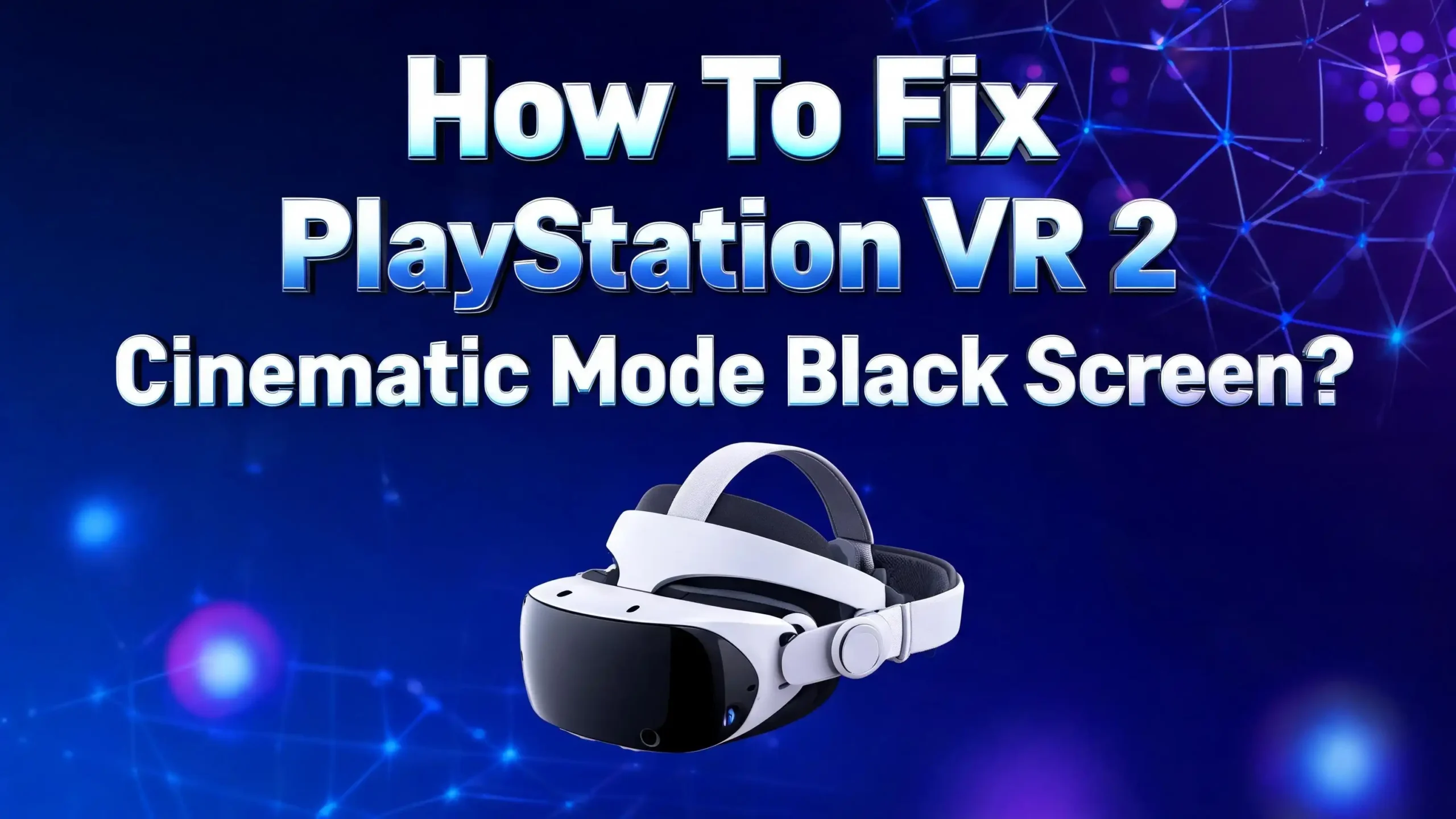
How To Fix PlayStation VR 2 Cinematic Mode Black Screen?
You just put on your PlayStation VR 2 headset, ready to enjoy a movie or play a flat game on that beautiful virtual OLED screen. But instead of an immersive cinematic experience, you stare into total darkness. The dreaded black screen in cinematic mode has struck again.
This problem is more common than you might think. Thousands of PS VR2 owners have reported the same frustrating issue across forums, Reddit threads, and PlayStation support pages. The cinematic mode black screen can appear during initial setup, after a firmware update, or even randomly after weeks of perfect use.
The good news? Most of these black screen issues do not require a hardware replacement. In the majority of cases, the fix involves a combination of cable management, display settings, power cycling, and software updates.
This guide covers every known solution, from the simplest quick fixes to more advanced troubleshooting steps. By the end, you will have a clear path to get your PS VR2 cinematic mode working again.
Key Takeaways
- The USB C cable connection is the most frequent cause of PS VR2 cinematic mode black screen issues. A loose or improperly seated cable at the headset end or the PS5 front port can prevent the display from activating. Always check both ends of the cable before trying other fixes.
- A full power cycle of your PS5 solves the problem for many users. This means fully shutting down the console, unplugging the power cable, waiting 30 seconds, and restarting. A simple restart or rest mode wake up is often not enough.
- HDR and video output settings can trigger the black screen in cinematic mode. Incorrect resolution settings or HDCP conflicts can block the video signal from reaching the headset display.
- Firmware updates for both the PS5 and the PS VR2 headset have fixed black screen bugs for many users. Always keep your system software and headset firmware current before attempting other troubleshooting steps.
- Rebuilding the PS5 database through Safe Mode can resolve corrupted data that causes display problems with the VR headset. This process does not delete your games or save data.
- If software fixes fail, the front USB C port on your PS5 may be the issue. Several users confirmed their headset worked perfectly on a different PS5 console, pointing to a hardware level port problem.
What Is PS VR2 Cinematic Mode and Why Does It Go Black
PlayStation VR 2 cinematic mode lets you play non VR games, watch streaming apps, and browse the PS5 menu through the headset. It projects the PS5 screen onto a large virtual display inside the headset. Think of it as a personal IMAX theater strapped to your face.
The cinematic mode supports 1920×1080 resolution with HDR and can run at up to 120Hz when properly configured. This mode activates automatically when you launch any content that is not a dedicated VR title. The PS5 renders the game or app normally and sends the image to the headset’s OLED panels.
The black screen problem occurs when this video signal fails to reach the headset display. The headset may still power on. The red and white indicator lights may toggle correctly. Your PS5 may even detect the headset in the settings menu. But the OLED panels inside the headset show nothing.
Several factors can cause this breakdown. The signal path from the PS5 GPU to the headset runs through the USB C cable, the front USB C port, and multiple layers of software handshaking. A failure at any point in this chain results in a black screen. Understanding this signal path helps you troubleshoot more effectively because you can isolate each potential failure point one at a time.
Check the USB C Cable Connection on Both Ends
The USB C cable is the single most common culprit behind the PS VR2 cinematic mode black screen. This is not a standard USB C cable. It carries video, power, and data signals simultaneously through a specialized active connection.
Start by unplugging the cable from the front USB C port on your PS5. Inspect the connector for dust, debris, or visible damage. Blow into the port gently or use compressed air to clear any particles. Now plug the cable back in firmly. You should feel a slight click or resistance when it seats properly.
Next, check the headset end of the cable. The cable connects to the PS VR2 near the left lens, under a small cover marked with PlayStation symbols. This connection point can become loose over time, especially if you store the headset in a bag or move it frequently. Press the connector firmly into place.
Here is a critical tip from the community: try flipping the USB C connector at the PS5 end. While USB C is technically reversible, several users reported that their headset only works with the connector inserted one specific way. One Reddit user found that plugging the cable in one orientation produced a black screen, while flipping it to the other orientation produced a white loading bar or a working display. If your headset partially works in one orientation but not the other, this points to a marginal connection issue at the port level.
Perform a Full Power Cycle on Your PS5
A simple restart is not the same as a full power cycle. Many users try pressing the power button and restarting, only to find the black screen persists. A proper power cycle clears residual electrical charge and resets the hardware handshake between your PS5 and the headset.
Follow these exact steps. First, hold the power button on the PS5 for several seconds until the console initiates a full shutdown. Do not put it into rest mode. Wait for the white pulsing light to stop completely. This confirms the system is fully off.
Second, unplug the PS VR2 cable from the front USB C port. Third, unplug the PS5 power cable from the back of the console. Fourth, hold the power button on the unplugged PS5 for about five seconds. This drains any remaining power from the capacitors inside the system.
Wait at least 30 seconds. Then plug the power cable back in. Plug the PS VR2 cable back into the front port. Press the power button to start the PS5. As soon as the headset’s indicator light turns red, put the headset on and press the headset power button.
This method has the highest success rate among community reported fixes. One user on the PlayStation subreddit described it as working on the first or second attempt nearly every time. The key is performing every step in order and not skipping the power drain step. Residual charge in the system can keep the faulty connection state alive even after a normal shutdown.
Adjust Video Output and HDR Settings
Incorrect video output settings on your PS5 can prevent the cinematic mode from displaying properly. The PS VR2 headset has specific requirements for resolution and refresh rate that must match what the console outputs.
Go to Settings, then Screen and Video, then Video Output on your PS5. Set the resolution to Automatic or 1080p. If you have it set to 2160p (4K), the handshake between the console and the headset may fail during cinematic mode. Some users found that setting the resolution to 2160p YUV420 specifically resolved their black screen issue.
Next, check the HDR settings. Go to Settings, then Screen and Video, then Video Output, and find the HDR option. Try setting it to Off temporarily. Some TV and headset combinations create conflicts when HDR is enabled. If disabling HDR fixes the black screen, you can re enable it later after confirming everything else works.
Also, check the 120Hz output setting. Go to Settings, then Accessories, then PlayStation VR2, then Cinematic Mode. Select Video Output and make sure the 120Hz option is set to Automatic. A mismatch between the console’s refresh rate output and what the headset expects can cause the display to fail silently, showing only a black screen with no error message.
Disable HDCP to Resolve Signal Conflicts
HDCP (High bandwidth Digital Content Protection) is a copy protection protocol that can interfere with the video signal between your PS5 and the VR headset. This is an often overlooked setting that has resolved the black screen for several PS VR2 owners.
Go to Settings, then System, then HDMI on your PS5. Find the Enable HDCP toggle and turn it off. Restart your console and test cinematic mode again. HDCP creates an additional handshake layer in the video signal chain. When this handshake fails or times out, the display may go black even though the rest of the system functions normally.
Keep in mind that disabling HDCP will prevent you from watching certain streaming apps like Netflix and Disney Plus through the headset. These services require HDCP to be active. However, this test helps you identify whether HDCP is the root cause. If cinematic mode works with HDCP off, you know the problem lies in the content protection handshake.
You can try re enabling HDCP after the initial successful test. In some cases, the act of toggling it off and back on resets the handshake and resolves the issue permanently. If the black screen returns when you turn HDCP back on, you may need to choose between HDCP protected streaming content and stable cinematic mode until a firmware update addresses the conflict.
Update PS5 System Software and PS VR2 Firmware
Running outdated software is a surprisingly common cause of the cinematic mode black screen. Sony has released multiple firmware updates since the PS VR2 launch that specifically address display and connection issues.
To update your PS5, go to Settings, then System, then System Software, then System Software Update and Settings. Select Update System Software and let the console download and install any available updates. Make sure your console is connected to the internet via Wi Fi or Ethernet.
For the PS VR2 headset firmware, connect the headset to your PS5 via the USB C cable. If a firmware update is available, the console will prompt you to install it. You can also check manually by going to Settings, then Accessories, then PlayStation VR2. Look for any update notifications.
One Reddit user reported that a firmware update completely resolved their intermittent black screen and white loading bar issue. Before the update, they experienced the problem every time the console went into standby during a VR session. After the update, the problem disappeared entirely. However, not all users had the same experience. Some found the firmware update did not fix their issue, which typically indicates a hardware level problem with the cable or port.
Rebuild the PS5 Database in Safe Mode
Rebuilding the database is a powerful troubleshooting step that scans your PS5’s internal storage and reorganizes the data. Corrupted system files or fragmented data can interfere with how the console communicates with the PS VR2 headset.
To access Safe Mode, fully shut down your PS5 first. Do not use rest mode. Once the console is completely off, press and hold the power button. You will hear one beep immediately and a second beep about seven seconds later. Release the button after the second beep. The console will boot into Safe Mode.
Connect a DualSense controller via USB cable and press the PS button. From the Safe Mode menu, select Clear System Software Cache first. This removes temporary files that may be causing conflicts. Restart and test the headset.
If the black screen persists, return to Safe Mode and select Rebuild Database. This process can take anywhere from a few minutes to several hours depending on how much data is on your drive. It does not delete your games, save files, or screenshots. It simply reorganizes how the system accesses stored data. After the rebuild completes, the console will restart. Connect your PS VR2 and test cinematic mode again. Many display related issues resolve after a database rebuild because the system recreates clean file indexes.
Reset PS VR2 Settings to Default
Sometimes the issue lies in corrupted or misconfigured VR settings rather than a system wide problem. Resetting your PS VR2 settings to their default values can clear out any problematic configurations.
Go to Settings, then Accessories, then PlayStation VR2 on your PS5. Look for options to reset the headset settings. You will need to redo your eye tracking calibration, IPD (interpupillary distance) adjustment, and play area setup after the reset.
While you are in this menu, try running the tracking camera calibration again. Go to Settings, then Accessories, then PlayStation VR2, and select Tracking Camera Calibration. This process requires you to follow on screen instructions and shake the headset. A misaligned tracking system can occasionally cause display issues that appear as a black screen.
Also, reposition the cinematic mode screen by pressing and holding the Options button on your PS VR2 Sense controller. In rare cases, the virtual screen drifts so far out of your field of view that it appears as if the display is black. The screen reset snaps it back to center directly in front of you. This simple step has caught more than a few users off guard because the actual problem was not a black screen at all but rather a displaced virtual screen.
Disable Rest Mode and Use Full Shutdown
Rest mode is a frequent trigger for the PS VR2 black screen in cinematic mode. Many users report that their headset works perfectly on a fresh boot but fails after the console wakes from rest mode.
The problem occurs because rest mode does not fully reset the USB C connection between the console and the headset. When the PS5 enters rest mode, it reduces power to the USB C port. When it wakes up, the handshake between the console and the headset may not reinitialize correctly.
To test this, go to Settings, then System, then Power Saving, then Set Time Until PS5 Enters Rest Mode. Set both options (During Media Playback and During Gaming) to Don’t Put in Rest Mode. Use full shutdown instead when you finish a session.
If you prefer using rest mode for its convenience, try unplugging the PS VR2 cable before putting the console into rest mode. When you are ready to play again, wake the console first, wait for the home screen to load on your TV, then plug in the headset. This sequence gives the system a clean connection opportunity without the complications of a rest mode wake up. Many users found this workaround more practical than disabling rest mode entirely.
Try a Different Power On Sequence
The order in which you power on your PS5 and PS VR2 headset can determine whether cinematic mode works or shows a black screen. Different users have found success with different sequences.
Method one: Turn on the PS5 first. Wait for the home screen to appear on your TV. Then connect the PS VR2 cable and press the headset power button. This gives the console time to fully initialize before it attempts to communicate with the headset.
Method two: Connect the PS VR2 cable first. Turn on the PS5 and immediately put the headset on. Press the headset power button as soon as the indicator light turns red. This method works because it catches the initial boot handshake at the right moment.
Method three: Launch a VR game from the TV screen before putting on the headset. Several users discovered that the headset activates properly when a VR game forces the display on. Once the VR game loads, you can exit back to the home screen, and cinematic mode often works correctly from that point forward.
Try each method at least twice before moving on. The inconsistency in which method works suggests that timing plays a role in the USB C handshake process. Finding the sequence that works for your specific hardware combination can save you from more drastic troubleshooting steps.
Clean the USB C Port on Your PS5
Over time, the front USB C port on your PS5 accumulates dust, lint, and microscopic debris. This buildup can prevent the PS VR2 cable from making a solid electrical connection. Even a thin layer of dust can cause intermittent signal drops that result in a black screen.
Turn off your PS5 and unplug it from power before cleaning. Use a can of compressed air to blow short bursts into the USB C port. Hold the can upright to prevent liquid propellant from entering the port. Follow up with a dry, soft bristled brush like a clean toothbrush to gently dislodge any stubborn particles.
Do not use metal objects, wet cloths, or liquid cleaners inside the port. These can damage the delicate contact pins. A plastic toothpick can help remove visible lint if compressed air alone does not clear it.
After cleaning, inspect the port visually using a flashlight. Look for bent pins, discoloration, or obvious damage. If the pins appear bent or the port looks physically damaged, you may need professional repair or a Sony service request. Some users traced their persistent black screen issue to a slightly bent contact pin inside the USB C port that prevented a full connection.
Test Your PS VR2 on a Different PS5 Console
This step helps you identify whether the problem is your headset or your PS5. Multiple community reports confirm that testing on a second console is the most reliable way to isolate the issue.
If you have access to a friend’s or family member’s PS5, bring your PS VR2 headset and cable along. Connect it to their console and test cinematic mode. If the headset works perfectly on a different PS5, the problem lies with your console’s USB C port or system software. If the headset still shows a black screen on a different PS5, the headset itself or the cable is likely defective.
Several users on the PlayStation subreddit confirmed this exact diagnosis. One user tried their PS VR2 on a friend’s console and it worked flawlessly. They then replaced their PS VR2 with a new unit, and the new unit exhibited the same black screen on their original PS5. This confirmed a port level hardware issue on the PS5 itself.
If you determine the PS5 port is the problem, your options include contacting Sony PlayStation Support for a repair or warranty claim. Out of warranty PS5 console repairs from Sony typically cost around $229. Local repair shops may offer lower rates for USB C port replacement. Make sure to describe the issue clearly and mention that the headset works on another console, as this information speeds up the support process.
Contact PlayStation Support for Warranty Service
If none of the above solutions fix your PS VR2 cinematic mode black screen, it is time to contact Sony directly. The headset may have a hardware defect that no amount of software troubleshooting can resolve.
Visit the PlayStation Support website and look for the hardware repair or replacement options. You can also call the PlayStation support phone line for your region. Have your PS VR2 serial number, PS5 model number, and a clear description of the issue ready before you call.
Mention the specific troubleshooting steps you have already completed. This prevents the support agent from walking you through basic steps you have already tried. Describe the exact symptoms clearly. For example: “The headset powers on, the indicator light turns white, but the OLED displays remain black in cinematic mode. I see a brief PS logo, then nothing.”
Sony may offer to send you a return shipping box for the headset. Repair turnaround times vary, but users have reported waiting 15 to 40 days for a replacement or repaired unit. If your headset is within the warranty period, the repair or replacement is free. Check your purchase date and warranty terms before calling, as this information helps expedite the process. Keep all receipts and order confirmations accessible in case Sony requires proof of purchase.
Frequently Asked Questions
Why does my PS VR2 show a black screen only in cinematic mode but work fine in VR games?
Cinematic mode and VR mode use different display pipelines. VR games send rendered frames directly to the headset through the VR runtime. Cinematic mode requires the PS5 to convert its standard video output into a format the headset can display on a virtual screen. A failure in this conversion process, often caused by incorrect video output settings, HDCP conflicts, or HDR handshake issues, can produce a black screen in cinematic mode while VR mode continues to function normally.
Can a faulty USB C cable cause the PS VR2 cinematic mode black screen?
Yes. The PS VR2 cable is an active cable with embedded chips that manage the data and video signals. Physical damage to the cable, a loose connection at either end, or a manufacturing defect can all cause the black screen. Unfortunately, the PS VR2 cable is not a standard replaceable USB C cable. If the cable is damaged, you will likely need to contact Sony for a repair or replacement under warranty.
Will factory resetting my PS5 fix the PS VR2 black screen?
A factory reset can fix the issue if the root cause is corrupted system software or misconfigured settings. However, a factory reset erases all your data, games, and settings. Try less destructive options first, such as rebuilding the database in Safe Mode, clearing the system cache, and resetting VR specific settings. Only use a factory reset as a last resort before contacting Sony support.
Does the PS5 model affect PS VR2 cinematic mode black screen issues?
Some community reports suggest that earlier PS5 models (particularly launch units from 2020) may experience USB C port issues more frequently. However, the black screen problem is not limited to any single PS5 model. Users with both the original PS5 and the PS5 Slim have reported the issue. The front USB C port quality and firmware version appear to be more relevant factors than the console model itself.
How do I know if my PS VR2 needs a firmware update?
Connect the PS VR2 headset to your PS5 via the USB C cable. Go to Settings, then Accessories, then PlayStation VR2. If a firmware update is available, the system will display a notification. You can also check the PlayStation support website for the latest PS VR2 firmware version and compare it with the version displayed in your headset settings. Keeping the firmware current is one of the easiest ways to prevent and fix display issues in cinematic mode.
Can I use an adapter or extension cable with the PS VR2 to fix connection issues?
The PS VR2 requires a direct connection to the front USB C port on the PS5. USB C adapters, hubs, or extension cables are not supported and will likely produce an error message asking you to connect the headset directly. If you suspect the front USB C port is faulty, your best option is to test the headset on another PS5 console and then contact Sony for a port repair if needed.

Hi, I’m Yuri — I’m a tech enthusiast who loves breaking down complex gadgets, software, and tools into simple, honest reviews and guides. My goal? To help you spend less time researching and more time enjoying the right tech.