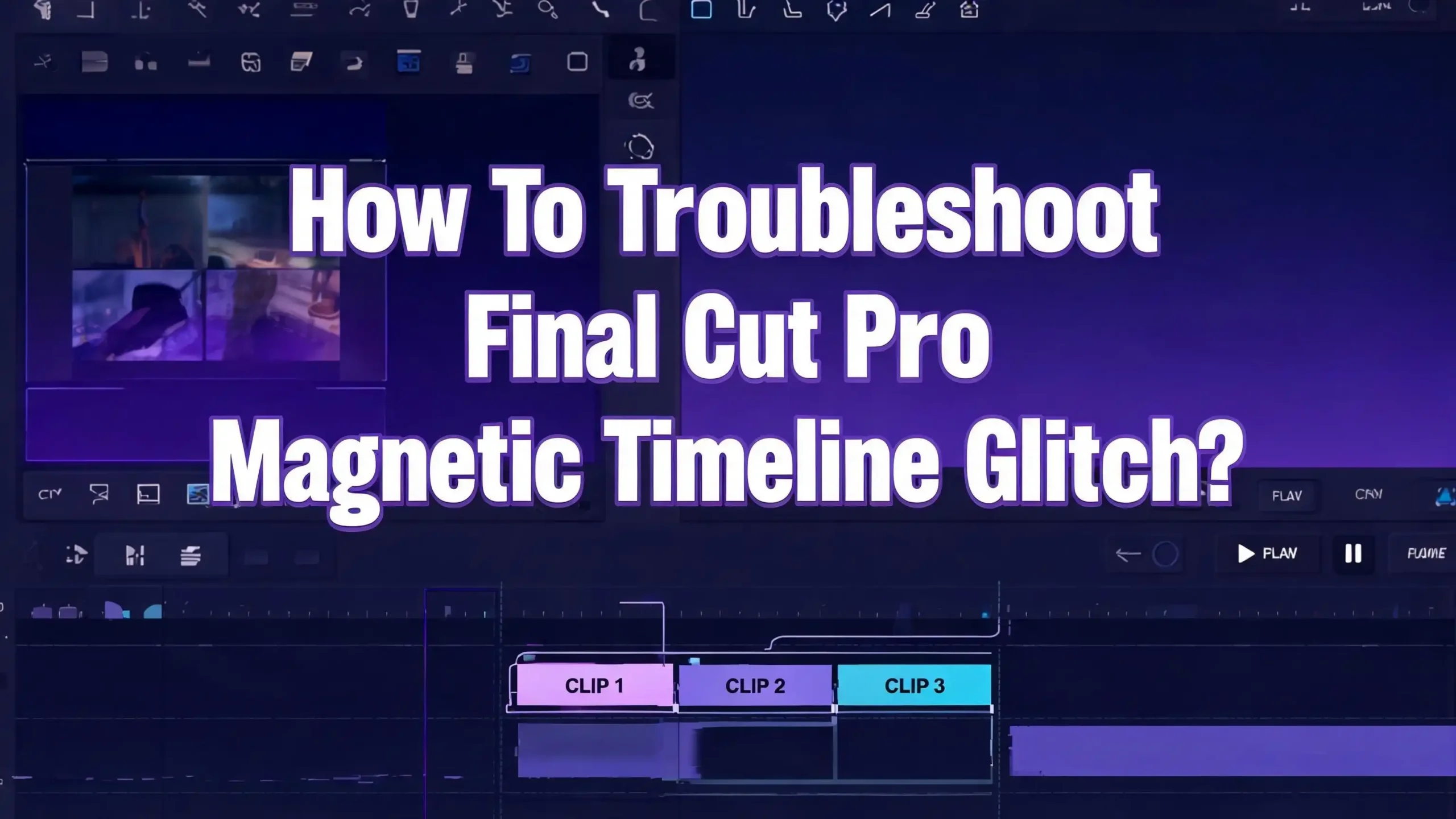
How To Troubleshoot Final Cut Pro Magnetic Timeline Glitch?
You are editing your video in Final Cut Pro. Everything seems fine. Then suddenly, your clips refuse to snap together. Gaps appear out of nowhere. Clips jump to unexpected positions. The magnetic timeline, which should keep everything smooth and organized, starts acting unpredictable.
If this sounds familiar, you are not alone. The magnetic timeline glitch is one of the most reported issues among Final Cut Pro editors. It can happen after a software update, during a long editing session, or seemingly at random. The frustration is real because this feature sits at the core of how Final Cut Pro works. Without a functioning magnetic timeline, your editing workflow grinds to a halt.
The good news is that most magnetic timeline glitches have clear causes and proven fixes. This guide will walk you through every solution, from quick keyboard corrections to deep system repairs.
Key Takeaways
- The Position tool (P key) is the most common cause of the magnetic timeline appearing broken. Pressing the A key switches you back to the Select tool and restores magnetic behavior instantly.
- Using the wrong delete key on a full size keyboard can create gaps instead of closing them. The Backspace key performs a ripple delete, while the Forward Delete key leaves gaps behind.
- Corrupted preferences frequently cause strange timeline behavior. You can reset them by holding Command + Option while launching Final Cut Pro and selecting “Delete Preferences” from the dialog box.
- Deleting generated render files often resolves glitches related to timeline playback, stuttering, and visual errors. Go to File and choose Delete Generated Project Files to clear them safely.
- Moving your project to a fresh Event or Library can fix deep corruption issues that other methods cannot resolve, and exporting then reimporting FCPXML serves as a last resort repair.
- Keeping Final Cut Pro and macOS updated prevents many magnetic timeline bugs, as Apple regularly releases patches that address known timeline issues.
What Is the Magnetic Timeline and Why Does It Glitch
The magnetic timeline is the foundation of Final Cut Pro’s editing system. Unlike traditional track based editors, it uses a trackless design where clips automatically snap together. When you add, remove, or move a clip, the surrounding clips adjust their positions to prevent gaps and collisions.
The primary storyline runs along the center of the timeline. This is where your main video and audio clips live. Connected clips sit above or below the primary storyline for elements like titles, B roll, music, and sound effects. When you move a clip in the primary storyline, all connected clips follow along to stay in sync.
Glitches happen for several reasons. A wrong tool selection can override the magnetic behavior. Software bugs introduced after updates sometimes break expected functions. Corrupted preference files tell Final Cut Pro to behave in ways it should not. Large or complex projects can strain the timeline engine, causing clips to stutter, jump, or fail to snap together properly. Understanding what the magnetic timeline does helps you identify where the problem starts.
Check If You Accidentally Activated the Position Tool
This is the single most common reason editors think the magnetic timeline is broken. Final Cut Pro has two main editing tools. The Select tool (A key) enables magnetic behavior. The Position tool (P key) disables it.
When the Position tool is active, clips behave like they do in a traditional track based editor. Deleting a clip leaves a gap. Moving a clip overwrites whatever is at the new location. The timeline stops closing gaps automatically. Many editors accidentally press the P key without realizing it and then wonder why the magnetic timeline stopped working.
The fix takes one second. Press the A key on your keyboard. This switches you back to the Select tool, and the magnetic timeline behavior returns immediately. You can verify which tool is active by looking at the toolbar above the timeline. The arrow icon represents the Select tool, and the crosshair icon represents the Position tool.
If you find yourself hitting the P key by accident often, consider remapping your keyboard shortcuts. Go to Final Cut Pro, then Commands, and then Customize. You can move the Position tool shortcut to a less accessible key to prevent accidental activation.
Use the Correct Delete Key to Avoid Gaps
Another frequent source of confusion involves the delete key. If you use a full size keyboard with a number pad, you have two delete keys. Each one does something different in Final Cut Pro, and using the wrong one creates what looks like a magnetic timeline glitch.
The Backspace key (the standard delete key above the Return key) performs a ripple delete. It removes the selected clip and pulls all following clips forward to close the gap. This is the magnetic behavior most editors expect.
The Forward Delete key (located near the number pad on extended keyboards) removes the clip but leaves an empty gap in its place. This gap clip holds the position and prevents other clips from snapping together. If you see unexplained gaps after deleting clips, you are likely pressing the wrong delete key.
On a MacBook or compact keyboard without a Forward Delete key, you can press Fn + Delete to perform a forward delete. Be aware of this shortcut so you do not trigger it accidentally. If gaps already exist in your timeline, select the gap clip and press the Backspace key to remove it and let the surrounding clips snap together.
Reset Final Cut Pro Preferences to Fix Strange Behavior
Corrupted preferences are one of the most common causes of unexpected behavior in Final Cut Pro. A crash, a forced quit, or even a routine software update can corrupt your preference file. When this happens, the timeline may act strangely, tools may stop responding correctly, and the magnetic behavior may seem inconsistent.
Resetting preferences is safe and effective. First, quit Final Cut Pro completely. Then hold down the Command + Option keys together while clicking the Final Cut Pro icon in your Dock or Applications folder. A dialog box will appear with the option to “Delete Preferences.” Click that button and Final Cut Pro will launch with fresh default settings.
You will lose a few customizations after this reset. Your general, editing, and importing preferences will return to defaults. Custom naming presets will also reset. However, your Share Destinations, effect presets, and audio effect presets remain intact. Your media, projects, and libraries are completely unaffected.
If the magnetic timeline glitch disappears after resetting preferences, you know the preference file was the problem. Make a mental note to reset preferences again if you experience a crash, because crashes often corrupt this file. Third party tools like Digital Rebellion Preference Manager can help you save and restore known good preference states.
Delete Generated Render Files
Render file corruption is another frequent culprit behind timeline glitches. Final Cut Pro creates render files in the background to improve playback performance. When these files become corrupted, they can cause visual artifacts, playback stuttering, and timeline behavior that seems broken.
To delete render files, select your project in the Browser panel. Go to File in the menu bar and select Delete Generated Project Files. You will see options to delete render files. Start by choosing to delete only unused render files. If the problem persists, repeat the process and delete all render files.
You can also delete render files at the Event level or the Library level. Select the Event or Library, then use the same File menu option. Deleting at the Library level provides the most thorough cleanup but will require more time to re render.
Here is an important tip from experienced editors. Most of the time, you do not need to render in Final Cut Pro at all. The software’s playback engine handles most formats and effects in real time. Sharing (exporting) an unrendered timeline is often faster than rendering first and then sharing. Consider turning off background rendering in Preferences to prevent render file corruption from happening in the first place.
Fix Snapping Issues That Affect Timeline Behavior
Snapping and magnetic behavior are related but separate features. If snapping is turned off, clips will not lock to other clip edges, markers, or the playhead. This can make the timeline feel broken even though the magnetic function is still working.
To check snapping, look at the bottom right corner of the timeline for the Snapping button. It looks like a small magnet icon. You can also press the N key to toggle snapping on and off. Make sure it is turned on if you want clips to align precisely with each other.
Sometimes snapping behaves inconsistently with certain zoom levels. If clips are not snapping properly, try zooming in closer on the timeline using Command + Plus. At higher zoom levels, snapping becomes more precise and responsive. Zooming out too far can make snapping less reliable because the snap points are too close together visually.
Also confirm that your clips are in the primary storyline. Connected clips above or below the primary storyline do not exhibit magnetic behavior on their own. If you want connected clips to act magnetically with each other, select them and press Command + G to create a secondary storyline. Inside that storyline, clips will snap and close gaps just like in the primary storyline.
Move Your Project to a Fresh Event or Library
Sometimes the glitch runs deeper than preferences or render files. Timeline corruption, while rare, can cause persistent problems that do not respond to simpler fixes. Moving your project to a clean environment often resolves these issues.
Start by creating a new Event inside your existing Library. Drag your project timeline from the old Event into the new one. Open the project and check if the magnetic timeline works correctly. If the glitch is gone, the original Event may have contained corrupted database files.
If moving to a new Event does not help, create an entirely new Library. Go to File, then New, then Library. Move your Events and projects into this fresh Library. This approach rebuilds the Library database from scratch, which eliminates most forms of data corruption.
As a final option, try copying and pasting the contents of your timeline into a brand new project within the fresh Library. Select all clips in your current timeline with Command + A, copy them, create a new project, and paste. This method strips out any hidden corruption embedded in the project file itself. It requires more effort but can rescue a timeline that nothing else can fix.
Export and Reimport FCPXML as a Last Resort
When all other methods fail, the FCPXML export and reimport technique serves as the ultimate repair tool. FCPXML is an XML based format that stores your entire project structure including clip references, effects, transitions, and timing information.
To use this method, select your corrupted project in the Browser. Go to File, then Export XML. Save the FCPXML file to a convenient location. Now create a new Library or Event. Go to File, then Import, then XML. Select the file you just exported and import it into the fresh environment.
This process rebuilds the project from its structural data, leaving behind any corruption that existed in the original project file. You may lose some minor elements, particularly certain third party effects or transitions that do not translate perfectly through XML. However, the core structure of your edit, including all cut points, timing, and standard effects, will survive intact.
This technique has saved projects that editors thought were completely lost. Apple regularly updates the FCPXML format (the current version is 1.14 as of Final Cut Pro 12.0), which means it accurately represents modern timeline features. Keep this method in your troubleshooting toolkit for the worst case scenarios.
Update Final Cut Pro and macOS
Running outdated software is a common source of bugs and glitches. Apple frequently releases updates that fix known timeline issues, and staying current prevents many problems before they start.
Check for Final Cut Pro updates by opening the App Store on your Mac and clicking the Updates tab. Recent versions have included important fixes. For example, version 11.1 addressed Magnetic Mask bugs and performance issues. Version 12.0 fixed problems with adjustment clips disappearing and role colors changing during library upgrades. Version 12.2 specifically included an improved tutorial for the magnetic timeline along with stability fixes.
Before updating, always back up your current version of the Final Cut Pro application and your libraries. You can do this by duplicating the app file from the Applications folder and copying your Library files to an external drive. This gives you a rollback option if the new version introduces unexpected issues.
Also update macOS itself. Some magnetic timeline bugs are tied to operating system level issues, especially after major macOS releases. Run Software Update from System Settings to make sure you have the latest patches. If you recently upgraded macOS and the glitch appeared immediately after, check Apple’s release notes to see if the issue has been acknowledged.
Handle Connected Clips and Storyline Sync Problems
Connected clips follow specific rules that differ from clips in the primary storyline. Misunderstanding these rules often creates the illusion of a magnetic timeline glitch. Knowing how connected clips work helps you avoid confusion.
When you move or delete a clip in the primary storyline, all clips connected to it move or get removed as well. This is by design. Connected clips are anchored to a specific point on a primary storyline clip. If you rearrange the primary storyline, the connected clips shift to maintain their anchor point.
Problems arise when connected clips appear to jump to wrong positions. This usually happens because the anchor point was set incorrectly, or because a ripple edit shifted the primary clip that the connected clip was attached to. To check the anchor point, click on a connected clip and look for the small line connecting it to the primary storyline.
To create magnetic behavior among connected clips themselves, group them into a secondary storyline with Command + G. Inside a secondary storyline, clips snap together and close gaps just like primary storyline clips. This is especially useful for B roll sequences or layered audio tracks where you want smooth, gap free editing above or below the main story.
Troubleshoot Performance Related Timeline Glitches
Sometimes the magnetic timeline does not glitch in function but in performance. Clips stutter, the playhead jumps, and edits do not register smoothly. These symptoms point to performance problems rather than tool or preference issues.
Large projects with heavy effects are the usual cause. If your timeline contains many color corrections, Magnetic Mask effects, or third party plugins, the system may struggle to process everything in real time. Try creating proxy media for your footage by selecting clips in the Browser, right clicking, and choosing Transcode Media. Check the Proxy option to create lightweight versions.
Switch to proxy playback by clicking the View menu in the Viewer and selecting Proxy under Media. This reduces the processing load and often eliminates stuttering and jumping. Your final export will still use the original high quality media.
Check your available storage space as well. Final Cut Pro needs free disk space for cache files, render files, and temporary data. If your startup drive is nearly full, timeline performance degrades significantly. Move libraries to an external SSD or clear unnecessary files to free up space. Running Disk Utility’s First Aid on your drives can also fix catalog errors that slow down file access.
Repair Corrupted Plugins That Affect the Timeline
Third party plugins add powerful features to Final Cut Pro, but they can also introduce timeline problems. A corrupted or incompatible plugin may cause crashes, freezes, or glitches that appear to originate from the magnetic timeline itself.
To test whether a plugin is causing the problem, try isolating the clip where the issue occurs. If the glitch only happens on clips with a specific effect or transition, that plugin is likely the culprit. Remove the effect from the clip and check if the timeline behavior returns to normal.
For a more thorough test, temporarily move your FxPlug plugins to another location. Find them at /Library/Plug-Ins/FxPlug on your Mac. Move the contents of this folder to a temporary folder on your Desktop. Restart Final Cut Pro and check if the glitch disappears. If it does, add plugins back one at a time to identify the problematic one.
Motion templates can also cause issues. Rename your Motion Templates folder in your home directory’s Movies folder to disable all custom templates. If this resolves the problem, you can narrow it down further by renaming individual template folders. Contact the plugin developer for an updated version, as most developers actively fix compatibility issues when reported.
Check for Font Corruption Issues
This is an overlooked cause of timeline glitches, especially when titles are involved. Corrupted fonts can cause Final Cut Pro to freeze, crash, or behave erratically during playback and editing. If your magnetic timeline glitch occurs near title clips, font corruption may be the problem.
Free fonts downloaded from the internet are common offenders. Many are improperly formed or contain errors that conflict with Final Cut Pro’s text rendering engine. Open Font Book (found in your Applications folder) and look for any fonts marked with a yellow warning triangle.
To troubleshoot, disable all non system fonts using Font Book. Select your downloaded fonts, right click, and choose Disable. Restart Final Cut Pro and check the timeline. If the problem disappears, re enable fonts in small batches to find the corrupted one.
Some font managers automatically activate fonts when Final Cut Pro requests them. Disable auto activation in your font manager during troubleshooting to prevent corrupted fonts from loading back in. Once you identify the bad font, delete it and find a properly formed replacement. Paid fonts from reputable foundries rarely have corruption issues and are worth the investment if you use text heavily in your projects.
Create Regular Backups to Protect Your Work
Prevention matters as much as troubleshooting. Final Cut Pro automatically creates Library backups, but understanding how this system works gives you better protection against timeline corruption.
By default, backups are saved to the “Final Cut Backups” folder in your user’s Movies directory. These backups are organized by Library name with timestamps. If your timeline becomes irreparably corrupted, you can double click a backup Library file and Final Cut Pro will walk you through the restoration process.
Create manual backups before major editing sessions or software updates. Simply duplicate your Library file in the Finder by right clicking and selecting Duplicate. Store copies on an external drive for extra safety. If you work on large or critical projects, consider using Time Machine or another backup solution that creates incremental snapshots throughout the day.
Get in the habit of saving versions of your project at key milestones. Duplicate your project within Final Cut Pro by right clicking it in the Browser and selecting Duplicate Project. Name each version clearly with a date or description so you can return to a known good state if something goes wrong. This simple practice has saved countless editors from losing hours of work to unexpected glitches.
Frequently Asked Questions
Why does Final Cut Pro leave gaps when I delete clips?
You are likely using the Forward Delete key or have the Position tool (P key) active. Press the A key to return to the Select tool and use the Backspace key to perform a ripple delete. The ripple delete removes the clip and closes the gap automatically by pulling all following clips forward.
Can I turn off the magnetic timeline in Final Cut Pro?
Final Cut Pro does not have a toggle to disable the magnetic timeline entirely. However, you can use the Position tool (P key) to override magnetic behavior temporarily. The Position tool lets you place clips freely without affecting surrounding clips. You can also hold the tilde (~) key while dragging to override connections.
How do I reset Final Cut Pro preferences?
Quit Final Cut Pro completely. Hold Command + Option while clicking the Final Cut Pro icon to relaunch. A dialog box appears with the option to “Delete Preferences.” Click it to reset all preferences to factory defaults. Your media, projects, and libraries remain safe.
Why do my connected clips jump to wrong positions?
Connected clips are anchored to specific points on primary storyline clips. When you rearrange or ripple edit primary clips, connected clips shift to maintain their anchor positions. Check the anchor connection line between the connected clip and the primary storyline. You can reposition the anchor by dragging the connected clip along the primary storyline.
Does deleting render files affect my project quality?
No. Deleting render files does not affect your original media or project structure. Final Cut Pro will simply regenerate render files as needed during playback or export. Your final export quality remains identical whether you render beforehand or let Final Cut Pro process everything during the share operation.
How often should I update Final Cut Pro?
Check for updates at least once a month. Apple releases updates regularly that fix known bugs, including timeline issues. Always back up your Library files and the application itself before installing an update. Read the release notes to understand what each update addresses so you can decide whether to install immediately or wait.

Hi, I’m Yuri — I’m a tech enthusiast who loves breaking down complex gadgets, software, and tools into simple, honest reviews and guides. My goal? To help you spend less time researching and more time enjoying the right tech.